Cellular Setup
To use a cellular network for Internet connectivity you
musthave:
n An account with an approved GSM 3G/ 4G LTE cellular
serviceprovider (CDMA not supported).
n A SIM card to access the provider’sservice.
n Authorization on the Mako CMS to useit.
9.1 SIM card insertion
The Mako 6500-M has been intentionally designed to
make SIM card removal dicult. This helps prevent it from
accidentally popping out, or unauthorized removal.
To insert a SIM card, push the card into the SIM card slot in
the orientation shown on the back of the Mako. It should
be going in at,horizontally.
Use a blunt tool to push the SIM card in another 3-4mm:
this could be something like your thumbnail, or pen-tip.
Avoid sharp, metallic tools, such as screwdrivers or
knives as a slip could damage the SIM card, the Mako’s
electronics, oryourself.
The SIM card will compress a spring when inserted and
click intoplace.
9.2 Configuring your cellular connection
In most cases, your cellular network settings will have
been precongured by your Mako service provider.
But if you’ve decided to add cellular connectivity after
installation, insert your SIM card, login to the CMS, and
congure your cellularconnection using the details
provided by your service provider.
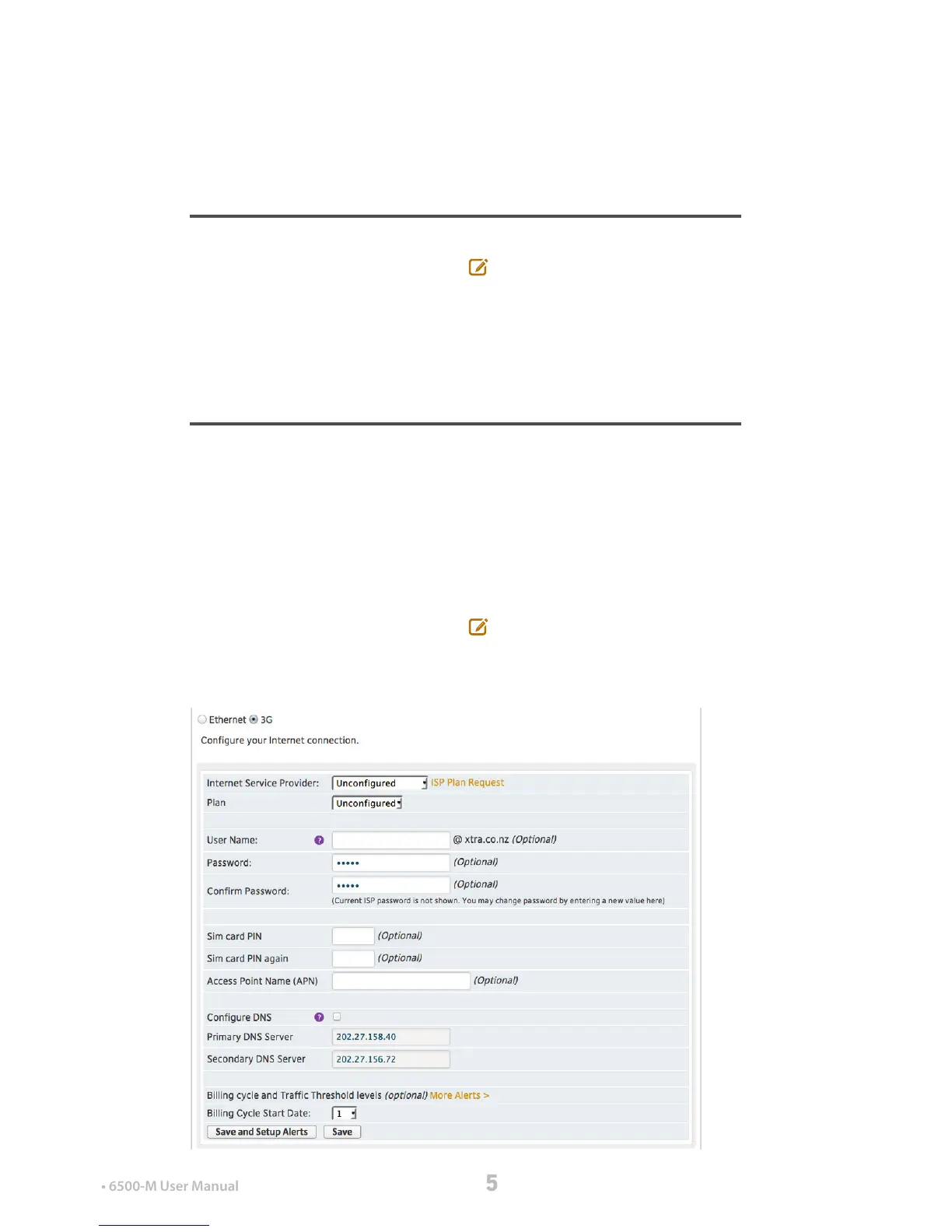
1) Once you’ve selected your Mako to congure, the
appropriate settings are foundunder:
Configure > Internet >Secondary ISP Setup
2) Select the ‘3G/Cellular’ radio button.
3) The page will refresh.
4) Select your Internet Service Provider for your cellular
connection.
5) Once selected, the page will reect the options that
provider oers with that account. Depending on your
account, you may or may not need to completely ll in
this page - if in doubt, check with your Cellular ISP.
6) Click Save, or Save and Setup Alerts.
In most areas cellular data is more expensive than
broadband data. This is why we recommend setting a
cellular connection as a secondary connection, ready for
Cellular Failover, and why setting up alerts for this
service is important.


 To Next Page
 Loading...