Connecting to a network using an iOS device
0
This unit supports Apple’s “WAC (Wireless Accessory Configuration)” setup mode. WAC setup mode allows you to connect this unit to your network
without requiring you to type in the network name and password.
1. The CONNECT LED on the rear of this unit will slowly blink amber to indicate that WAC setup mode is active. If the rear LED is not blinking amber,
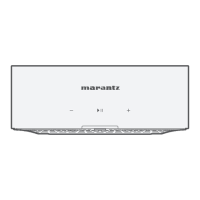
press and hold volume down (-) and 13 buttons on this unit for 3 seconds until you see the LED blinking amber.
2. Go to the Wi-Fi menu under Settings on your iOS device.
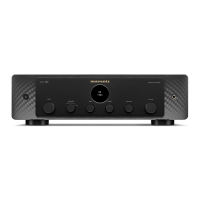
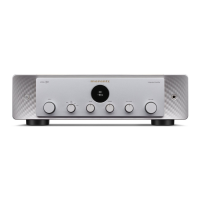
3. Select “Marantz MODEL M1” under “SET UP NEW AIRPLAY SPEAKER...” at the bottom of the list.
4. Select the network you want this unit to connect to and select “Next”.
5. Follow the instructions on the screen to complete setup.
6. When the connection is complete, the status LED on the front of this unit will turn solid white.
This unit will stay in WAC setup mode for 15 minutes. If this unit is not setup within 15 minutes, it will revert back to its previous network connection.
Press the 13 button on this unit if you want to cancel WAC setup mode.
I hear a delay when using the external input with my TV
0
If you are connecting the External input with your cable or satellite box for enjoying TV audio through multiple HEOS built-in devices, you may hear a
delay between when you see someone speak and when you hear the audio. This is because the HEOS system must buffer the audio before it sends it
out to the HEOS built-in devices so that it arrives at all devices at the same time.
0
You can avoid this delay by listening only to the device which is directly connected to the set top box.
Contents
Setup Playback Troubleshooting Status LED Appendix
33


 To Next Page