EasyManua.ls Logo

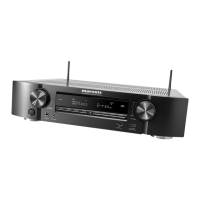
Marantz NR1402 - User Manual

Marantz NR1402
99 pages
Print Icon
To Next Page IconTo Next Page
Loading...
Owner’s Manual
AV Surround Receiver
NR1402
Basic version
Advanced version
Information

Table of Contents

Other manuals for Marantz NR1402

Questions and Answers

  • K
    Kayla McmillanSep 6, 2025
    How do I disable HDMI control on my Marantz NR1402?
    • M
      Monique Jones MDSep 6, 2025
      If operations on HDMI-connected devices are mirrored on your Marantz Receiver, set “HDMI Control” in the menu to “OFF”. If you wish to prevent power off operations from linking with HDMI control-compatible devices, set “P.Off Control” in the menu to “OFF”.
  • C
    Christina ConnerAug 22, 2025
    What to do if audio is not outputting from Marantz NR1402?
    • J
      Jorge HawkinsAug 22, 2025
      If audio is not output from your Marantz Receiver, check the connections for all devices and the speaker connections and configurations. Ensure the audio device is powered on and adjust the master volume. Cancel mute mode and select a suitable input source and mode. Disconnect headphones, as no sound is output from the speakers when headphones are connected.
  • W
    William MooreSep 4, 2025
    How can I improve radio reception on my Marantz Receiver?
    • J
      Jason CooperSep 4, 2025
      If you're experiencing poor reception, noise, or distortion with your Marantz Receiver, try these steps: * Change the antenna orientation or position. * Separate the AM loop antenna from the unit. * Use an FM outdoor antenna. * Separate the antenna from other connection cables.
  • S
    Summer CarterSep 2, 2025
    How to troubleshoot a Marantz NR1402 Receiver that does not turn on?
    • H
      Hayley JohnsonSep 2, 2025
      If your Marantz Receiver isn't powering on, first check if the power plug is correctly inserted into the power outlet. If it is, the protection circuit might be active. Disconnect the power plug from the outlet, wait 5 to 10 seconds, and then re-insert it.
  • M
    Matthew MaySep 1, 2025
    Why is there no video output with HDMI connection on my Marantz Receiver?
    • J
      Jamie JacksonSep 1, 2025
      If you're not getting any video output via HDMI on your Marantz Receiver, check the HDMI connector connections. Make sure the input source matches the connected HDMI connector. Also, verify that your TV is compatible with copyright protection (HDCP), as video output may be restricted if connected to a non-HDCP compliant device.
  • J
    Jason BennettAug 30, 2025
    How to fix no audio output with HDMI connection on Marantz Receiver?
    • A
      Amber MartinezAug 30, 2025
      If there's no audio output via HDMI on your Marantz Receiver, first, check the HDMI connector connections. If you intend to output HDMI audio from the speakers, ensure that the “HDMI Audio Out” setting in the menu is set to “AMP”. Alternatively, for HDMI audio output from a TV, set the “HDMI Audio Out” to “TV” in the menu.
  • D
    David SullivanAug 29, 2025
    Why is there no sound from the front height speaker on my Marantz NR1402?
    • W
      William MayAug 29, 2025
      If there's no sound coming from the front height speaker connected to your Marantz Receiver, check if “Pre Assign” is set appropriately to output audio from the front height speakers. Also, set “Speaker Config.” – “F.Height” on the menu to something other than “None”.
  • D
    Dawn HancockAug 27, 2025
    Why is there no sound from the surround back speaker on my Marantz Receiver?
    • B
      Brad WellsAug 27, 2025
      If you're not getting sound from the surround back speaker on your Marantz Receiver, check if “Pre Assign” is set appropriately to output audio from the surround back speakers. Also, set “Speaker Config.” – “S.Back” on the menu to something other than “None”. Ensure the surround mode is set to something other than “STEREO” and “VIRTUAL”.
  • K
    Kyle AndersonAug 27, 2025
    Why is there no sound from surround speakers on my Marantz Receiver?
    • R
      Ronnie JohnsonAug 27, 2025
      If there's no sound coming from the surround speakers connected to your Marantz Receiver, verify that the surround speakers are connected to the SURROUND terminals.
  • R
    Rachel AdkinsAug 25, 2025
    Why is there no sound from my Marantz NR1402 Receiver subwoofer?
    • B
      Brendan HamiltonAug 25, 2025
      If there's no sound from the subwoofer connected to your Marantz Receiver, check the subwoofer connections and ensure the subwoofer is powered on. In the receiver's menu, set “Speaker Config.” – “Subwoofer” to “Yes”. Also, if “Front” and “Center” for “Speaker Config.” are set to “Large”, and “Subwoofer Mode” is set to “LFE”, no sound may be output from the subwoofers, depending on the input signal or selected surround mode.

Summary

Safety Precautions

Important Safety Instructions

Key safety guidelines for operation and maintenance.

Compliance and Recycling Information

Legal compliance statement and product disposal guidelines.

Getting Started

Included Accessories

Lists and illustrates the product's included accessories.

Key Features

Highlights key functions and capabilities of the AV receiver.

Handling Cautions

Provides important safety and handling advice for the unit.

Basic Version Operations

Device Connections

Explains how to connect various devices to the unit.

System Settings

Guides users through the unit's configuration settings.

Basic Playback

Details how to operate the unit for basic playback.

Listening Mode Selection

Explains how to choose different sound modes.

Connecting Devices

HDMI Connections

Instructions for connecting devices via HDMI and its functions.

DVI-D and HDMI Settings

Connecting DVI-D devices and HDMI configuration options.

TV and Player Connections

Guides for connecting TVs, disc players, and CD players.

Other Device Connections

Guides for set-top boxes, audio players, and wireless receivers.

Settings and Configuration

Audyssey Auto Setup

Detailed guide for automatic speaker setup.

Basic Playback and Listening Modes

Basic playback operations and sound mode selection.

Audyssey Auto Setup Procedures

Microphone, Subwoofer, and Remote Setup

Steps for microphone, subwoofer, and remote configuration.

Auto Setup Measurement Steps

Details the measurement and calculation phases of auto setup.

Completing Audyssey Auto Setup

Checking, Storing, and Finishing Setup

Reviewing, saving, and finalizing the auto setup process.

Troubleshooting Auto Setup Errors

Explains common error messages and solutions during setup.

Audyssey Auto Setup Checks

Parameter and Result Checks

Reviewing measurement results and equalizer settings.

Basic Playback Operations

Selecting Input Source

How to choose audio/video input.

Volume, Muting, and Device Playback

Controls for volume, muting, and playing devices.

Tuning Radio and Listening Modes

How to select radio stations and sound modes.

Tuning in Radio Stations

Basic Tuning and Presets

Steps for tuning radio stations and saving presets.

Advanced Radio Features

Using RDS, PTY, TP, and RT for radio reception.

Selecting a Listening Mode

Surround Mode Selection

Using buttons to choose sound modes.

Description of Listening Mode Types

Explains various Dolby, DTS, and Marantz sound modes.

Advanced Version Features

Speaker Installation and Connection

Advanced methods for speaker setup and wiring.

Advanced Connections and Playback

Advanced connectivity options and playback functions.

Detailed Settings and System Setup

Guide to detailed system configurations and setup.

Speaker Connection Examples

7.1 ch Speaker Configurations

Example setups for 7.1 channel surround sound.

6.1 ch and 2.1 ch Speaker Configurations

Example setups for 6.1 and 2.1 channel sound.

Manual Speaker Setup

Speaker Assignment and Channel Selection

Configuring speaker connections and active channels.

Advanced Connectivity

Remote Control Connector Linking

Linking marantz components for remote control.

Advanced Playback Operations

HDMI Control Functionality

Linking HDMI devices for integrated control.

Convenient Functions

Sleep Timer and Memory Functions

Setting auto-off timer and managing settings backups.

Panel Lock and Other Functions

Unit lock, and other convenient features.

Detailed Settings

Menu Navigation and Inputting Characters

Overview of menu structure and text entry methods.

Audio Adjustments Menu

Options for fine-tuning audio parameters.

System Setup

Speaker Setup Options

Manual speaker configuration and assignment.

HDMI Setup

Configuring HDMI video and audio output.

Audio Setup

Settings for audio playback preferences.

Option Setup

Accessing various other system settings.

Language Selection

Setting the user interface language.

Speaker Configuration Details

Channel Level and Crossover Frequency

Setting speaker volume levels and bass cut-off frequencies.

HDMI Setup Details

Standby Source and Power Control

Configuring standby source and power-off linking.

Auto Lip Sync and HDMI Control

Features for audio sync and device linking.

Input Setup

Radio Station Presets

Settings for radio station presets (Auto, Skip, Name).

Input Connector Assignments

Assigning HDMI, Digital, Component connectors to sources.

Video and Audio Input Settings

Configuring video sources and audio input/decode modes.

Renaming and Source Level

Customizing input names and adjusting audio levels.

Other Settings

Remote Control Sensor Settings

Disabling/enabling the unit's remote sensor.

Operating Connected Devices

Registering Remote Control Preset Codes

Setting up the remote for other manufacturers' devices.

Device Operation Examples

Using the remote to control connected AV equipment.

Information and Support

Part Names and Functions

Identification of unit components.

Troubleshooting

Solutions for common operational problems.

Specifications

Technical details and measurements of the unit.

Index and Preset Codes

Alphabetical lookup and remote programming codes.

Rear Panel Connections

Connector Identification

Identifies all rear panel input/output connectors.

Remote Control Unit Overview

Remote Control Button Functions

Explains functions of all remote control buttons.

Battery Installation

Guide for battery installation and care.

Surround Sound Modes

Surround Mode and Parameter Tables

Overview of modes, speaker use, and parameter adjustability.

Input Signal Types vs. Surround Modes

Cross-reference of input signals to compatible surround modes.

Explanation of Terms

Audio Technology Definitions

Definitions of audio formats and technologies.

Technical Term Definitions

Definitions of technical terms like HDCP, HDMI, LFE.

Troubleshooting

General and HDMI Troubleshooting

Common issues and solutions for the unit and HDMI.

Video, Audio, and Radio Troubleshooting

Solutions for video, audio, and radio reception problems.

M-XPort, Remote Control, and Resetting

Solutions for M-XPort, remote issues, and microprocessor reset.

Specifications

Audio and Tuner Specifications

Details on amplifier power, audio output, and tuner specs.

Video and General Specifications

Video connector specs and power details.

List of Preset Codes

Remote Control Codes for BD, DVD, SAT, TV

Codes for programming remote controls for various devices.

Remote Control Codes for CD Player

Codes for programming remote controls for CD players.

Dimensions and Weight

Unit Physical Dimensions

Physical measurements and weight of the AV receiver.

Marantz NR1402 Specifications

General IconGeneral
Frequency range8 - 100000 Hz
Audio output channels5.1 channels
Signal-to-Noise Ratio (SNR)100 dB
Power output per channel (20-20KHz@8 Ohm)50 W
HDMI in4
AC (power) inYes
Composite video in3
Digital audio optical in1
Multichannel audio input typeTerminals
Component video (YPbPr/YCbCr) in2
Headphone connectivity3.5 mm
Connectivity technologyWired
Speakers connectivity typeClamp terminals
Ethernet LANNo
AM band range530 - 1710 kHz
FM band range87.5 - 108 MHz
Supported radio bandsAM, FM
DisplayLCD
HDMI version1.4
Product colorBlack
Audio decodersDolby TrueHD, DTS-HD
Volume controlRotary
Apple docking compatibilityNot supported
Power consumption (standby)0.2 W
Power consumption (typical)180 W
Weight and Dimensions IconWeight and Dimensions
Depth367 mm
Width440 mm
Height105 mm
Weight8200 g

Related product manuals