84
ENGLISH DEUTSCH FRANÇAIS ITALIANO ESPAÑOL NEDERLANDS SVENSKA
Manual Setup
Remote control operation
buttons
Move the cursor
(Up/Down/Left/Right)
Confirm the setting Return to previous menu
Setting items Setting details
Network Connecting
(Continued)
r Use
i to select “Exit” and press ENTER.
Setup is complete.
• When connecting to the network via a Proxy server, select “Proxy” and
press ENTER (vpage84 “Proxy settings”).
• If you are using a broadband router (DHCP function), there is no need
to make the settings at “IP Address” and “Proxy”, since the DHCP
function is set to “ON” in this unit’s default settings.
• If this unit is being used connected to a network without the DHCP
function, the network settings must be made. In this case, some
knowledge of networks is required. For details, consult a network
administrator.
• If you cannot connect to the Internet, recheck the connections and
settings (vpage25).
• If you do not understand about Internet connection, contact your ISP
(Internet Service Provider) or the store from which you purchased your
computer.
• When you want to cancel the setting during IP address input, press
RETURN.
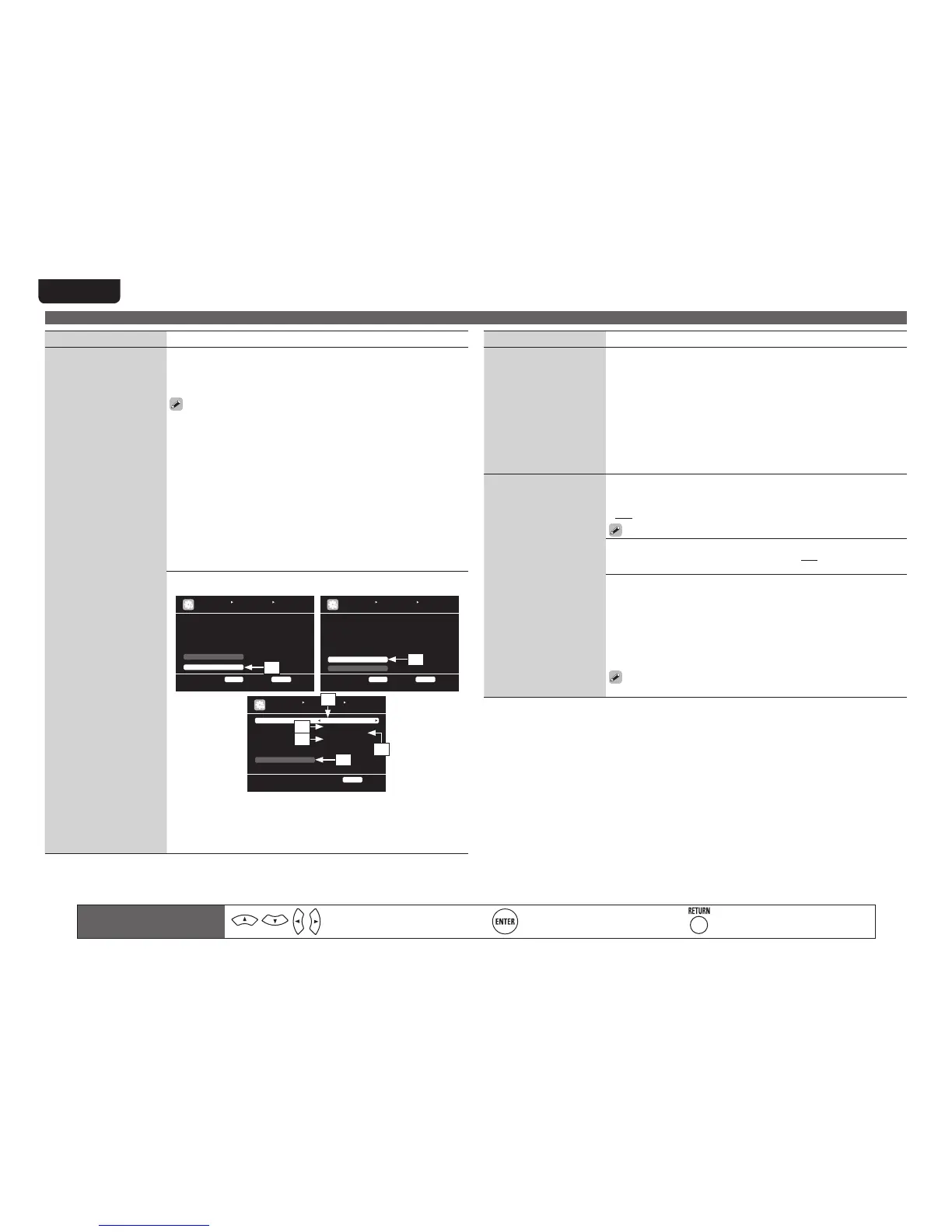
Proxy settings : Make this setting when connecting to the Internet via a
proxy server.
MANUAL SETUP NETWORK SETUP
NETWORK CONNECTING
Set IP address and proxy manually
RETURN Return
DHCP ON
IP Address 1 92 .1 68 .1 00 .1 9
Detail
Exit
ENTER Enter
MANUAL SETUP NETWORK SETUP
NETWORK CONNECTING
Set if using proxy server
RETURN Return
DHCP ON
IP Address [ 19 2. 16 8. 10 0. 01 9]
Subnet Mask [ 25 5. 25 5. 25 5. 00 0]
Default gateway [0 00 .0 00 .0 00 .0 00 ]
Primary DNS [ 00 0. 00 0. 00 0. 00 0]
Secondary DNS [ 00 0. 00 0. 00 0. 00 0]
Exit
Proxy
ENTER Enter
MANUAL SETUP NETWORK SETUP
NETWORK CONNECTING
Proxy server is used
RETURN Return
Proxy ON
Proxy A dd re ss
Address [ 00 0. 00 0. 00 0. 00 0]
Port [0 00 00 ]
Exit
q
w
u
t
r
y
e
q On the menu, select “Network Connecting” – “Detail” and press
ENTER.
w Use ui to set “Proxy” and press ENTER.
e Use o p to set “Proxy” to “ON” and press i.
The proxy server is enabled.
Setting items Setting details
Network Connecting
(Continued)
r Use
o p to select the proxy server input method, and then press i.
Address : Select when inputting by address.
Name : Select when inputting by domain name.
t Use uio p to input the proxy server address or domain name and
press ENTER.
When “Address” is selected in step r : Input the address
When“Name” is selected in step r : Input the domain name
• For character input, see page 67.
y Use uio p to input the proxy server port number and press ENTER.
u Use i to select “Exit” and press ENTER.
Setup is complete.
Other
Network function on/off
setting during standby, and
PC language setting.
Network Standby : Set the network function on/off during standby.
• ON : Network is on during standby. Main unit operable with a network
compatible controller.
• OFF : Suspend network function during standby.
Set to “ON” when using the web control function.
PC Language : Select computer environment language.
• ara / chi (smpl) / chi (trad) / cze / dan / dut / eng / fin / fre / ger / gre /
heb / hun / ita / jpn / kor / nor / pol / por / por(BR) / rus / spa / swe / tur
Friendly Name Edit : The Friendly Name is the name of this unit displayed
on the network. Up to 63 characters can be input. The default Friendly
Name on first use is “marantz:[SR7005]”.
• For character input, see page 67.
Default : Restores Friendly Name, which you had changed, to the default
setting.
• Yes : Reset to the defaults.
• No : Do not reset to the defaults.
When you select “Default” and press ENTER, the “Default Setting?”
prompt is displayed. Select either “Yes” or “No”, and press ENTER.



 To Next Page