61
12. UPDATE FIRMWARE
Software for CPU and DSP can be updated.
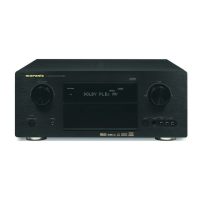
Have *SR7400CDR update disc.
There are two mode of download, regarding to the target of
software as bellow.
Mode 1: Download DSP's software to 4M Flash-ROM.
This mode is to update the software for DSP.
The target devise is 4M Flash-ROM (IC20) on CUP11658
(DSP PCB).
SR7400 need to be set download condition, by three front
keys.
Mode 2: Download CPU's software to internal Flash-ROM.
This mode is to update the software for DSP.
The target devise is internal fl ash ROM of CPU (IC28) on
CUP11658 (DSP PCB).
The unit needs to be set to writing condition, by pushing
internal switch from back-panel.
The following items are required for updating.
RS232C Dsub-9 pin cable (female to female/Straight type)
PC (Windows 98, NT, ME, 2000) with RS-232C port.
Upgrade software to CPU.
Upgrade software to DSP.
Use RS232C Dsub-9 pin cable (female to female/Straight type)
to connect PC and the unit.
COM port on PC needs to be set by dialog box for each
program. COM port can be set from COM1 to COM5.
Download Firmware for DSP (Mode 1)
1. Put the "DSP upgrade" folder into anywhere on your PC's
hard disc.
2. Connect PC and the unit with the RS-232C cable.
3. Turn on the unit.
4. Press ENTER, MUTE and CD buttons simultaneously more
than 5 seconds to turn the unit into Loading Mode.
5. "LOADING MODE" will be shown on FLD.
6. Launch "UpgradeDSP.exe" on PC.
7. Set the Baud Rate to 38400 then click Start
communication button. If the connection is made
successfully, a dialog box saying "Success to connect"
appears and "CONNECTED" is displayed on FLD.
8. Click Send the DSP codes button on the dialog box.
Progress status of downloading will be shown on PC and
LOADING is displayed on FLD.
9. If downloading is completed successfully, "COMPLETED"
is displayed on FLD. And a dialog box saying "Finished the
DSP code transmitting" appears. Click OK and then click
CLOSE to close the application.
10. Turn off the unit.
Download Firmware for CPU (Mode 2)
1. Put the "CPU upgrade" folder into anywhere on your PC's
hard disc.
2. Connect PC and the unit with the RS-232C cable.
Personal notes:



 To Next Page