Deltrax5 software guidelines
1. The file list
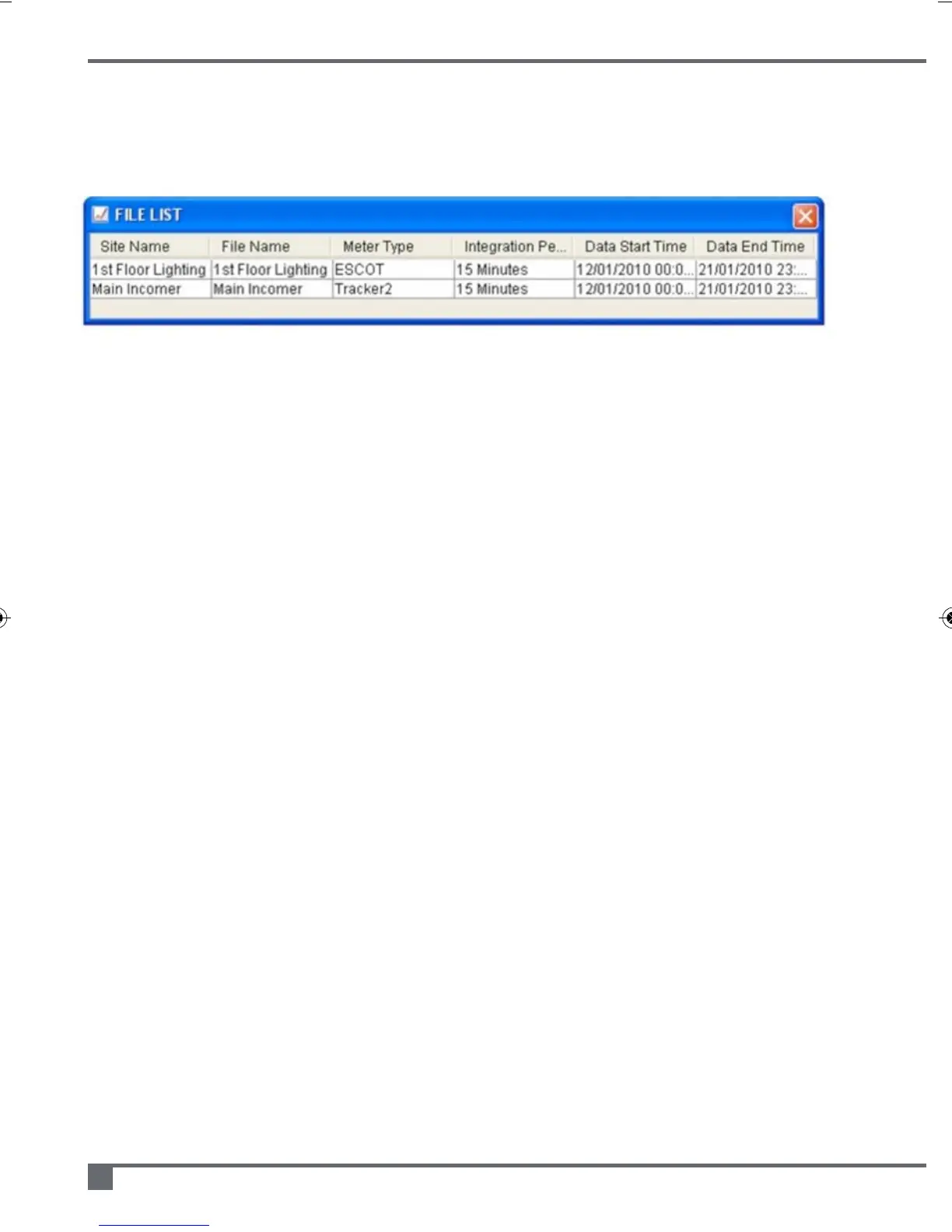
At the bottom of the Deltrax5 screen you will see a table called the ‘File List’. This table
contains all the data that you have downloaded or imported.
If you do not have data on your system then the table will just contain the words ‘No
Data’ in the first row of the table.
To perform any of the key Deltrax5 functions (graph, report, delete) you must have
selected a file in this table first.
Additionally, if you highlight a file and then click the right mouse button, you will get a
pop-up menu that will you permit you to select the graph, report and delete functions for
that data file.
You can remove the File List at any time by clicking on the red cross in the top right hand
corner - to bring it back just select the File - Show Files option from the menu bar.
2. The file menu
2.1 Import from USB memory stick (e-Tracker Mk 2B)
If you use the File-Import-Import from USB option from the menu then you will be able to
import e-Tracker MK 2B data.
Ensure that the USB memory stick with the data on is connected to your computer.
You will be directed to a standard file selection box where you need to locate the data
that is on your USB memory stick.
All e-Tracker MK 2B data is contained in files with a .dat extension.
e-Tracker portable energy monitor operating and maintenance manual
12



 To Next Page