4. The tariff menu
4.1 Create tariff
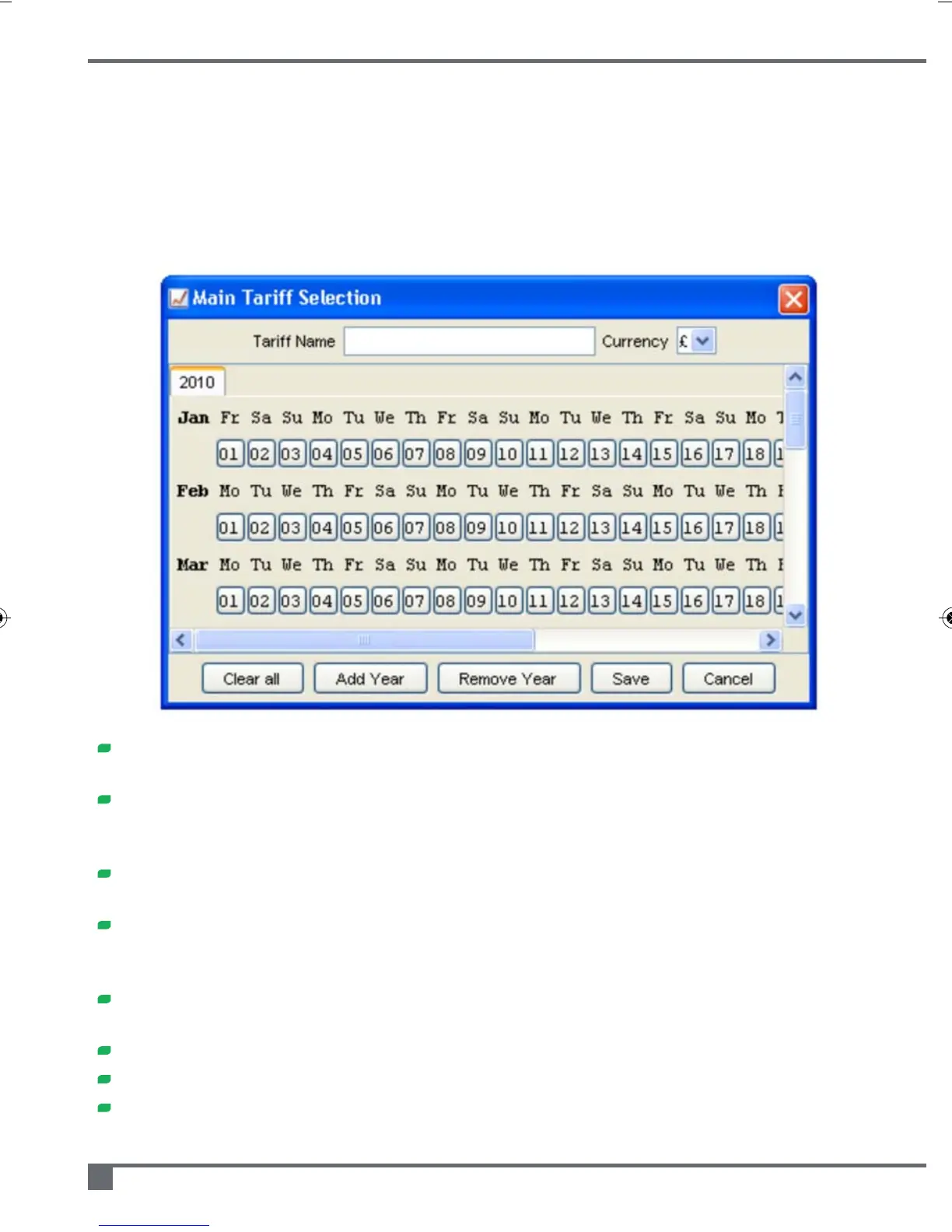
If you use the Tariff – Create Tariff menu option you will be presented with a screen
similar to the one below.
Enter a Tariff Name and the select the Currency that you require from the drop
down selection box
Click on the first of the 'day buttons' (e.g. January 1st). You can then enter the 48
tariff values for that day (i.e. every half hour). There are 'copy forward' and 'clear'
functions to help limit entries.
When you have saved a 'day', you will notice that the 'day button' for that day
becomes bold to indicate that you have completed that day
If you right-click on a 'day button' you will see a number of options appear to
assist you with your input. They range from 'Copy Forward to Next Day' to 'Copy
forward to all days in Year'
Experimenting with the different 'Copy Forward' options means that you can
minimize the amount of keystrokes needed to enter a tariff for the year.
For Tariffs that span more than one year, use the 'Add Year' button
Always Save your Tariffs and the 'Days' within them
Remember – if you have more than one tariff saved, set the one that is used on
Graphs and reports using the Preferences – Graph Preferences menu option
e-Tracker portable energy monitor operating and maintenance manual
16



 To Next Page