EasyManua.ls Logo

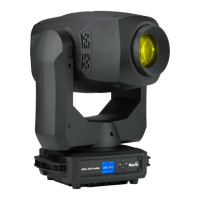
Martin MAC 550 Profile - User Manual

Martin MAC 550 Profile
40 pages
Print Icon
To Next Page IconTo Next Page
Loading...
MAC 550 Profile
user manual

Questions and Answers

  • M
    michaelrodgersAug 17, 2025
    What to do if Martin Lighting Equipment has no light and shows 'LERR'?
    • M
      Michael RaymondAug 17, 2025
      If your Martin Lighting Equipment displays a 'LERR' error message and there's no light, it could be due to a few reasons: the lamp may be blown, the lamp might not be installed, or the lamp access safety switch might be open. To resolve this, first disconnect the fixture and replace the lamp if it's blown. If the lamp is missing, install one. Also, ensure that the lamp access plate is fully seated and locked properly.
  • A
    alex25Aug 19, 2025
    Why does Martin Lighting Equipment show time out error after reset?
    • M
      melanie06Aug 19, 2025
      If your Martin Lighting Equipment shows a time out error after a fixture reset, it may be because the effect requires mechanical adjustment. Disable effects feedback. Contact a Martin technician for service.
  • S
    Sherry GutierrezAug 22, 2025
    How to fix Martin Lighting Equipment that is completely dead?
    • S
      Stephen LawsonAug 22, 2025
      If your Martin Lighting Equipment is completely dead, start by checking that the power is switched on and all cables are properly plugged in. If that doesn't work, the primary fuse (located near the mains inlet) might be blown. Disconnect the fixture and replace the fuse. If it still doesn't work, check the secondary fuses (located on the PCBs in the base) and replace them if necessary, after disconnecting the fixture.
  • S
    Sara MathewsAug 27, 2025
    Why does my Martin Lighting Equipment lamp cut out intermittently?
    • J
      James CookAug 27, 2025
      If the lamp in your Martin Lighting Equipment cuts out intermittently, it could be because the fixture is overheating. Allow the fixture to cool down, clean it, and reduce the ambient temperature around it.
  • S
    Scott CisnerosAug 30, 2025
    What causes mechanical effect to lose position on Martin Lighting Equipment?
    • J
      John WagnerAug 30, 2025
      If a mechanical effect loses position on your Martin Lighting Equipment, it may be because the mechanical train requires cleaning, adjustment, or lubrication. Contact a Martin technician for service.
  • T
    Timothy Snyder MDSep 2, 2025
    What to do if Martin MAC 550 Profile Light Fixture is completely dead?
    • E
      Elijah BrownSep 2, 2025
      If your Martin Light Fixture is completely dead, first ensure that the power is switched on and all cables are properly plugged in. If the issue persists, the primary fuse (located near the mains inlet) may be blown; disconnect the fixture and replace the fuse. Alternatively, secondary fuses on the PCBs in the base might be blown; disconnect the fixture, check these fuses, and replace them if necessary.
  • P
    Phillip WalshSep 7, 2025
    What to do if Martin Light Fixture shows no light and ???? error message?
    • R
      Renee PughSep 8, 2025
      If your Martin Light Fixture displays 'no light and ???? error message', the lamp may be blown. Disconnect the fixture and replace the lamp. Alternatively, the lamp might not be installed, so disconnect the fixture and install the lamp. Also, check that the lamp access plate is fully seated and locked in place, as the lamp access safety switch might be open.
  • N
    Nichole SmithSep 12, 2025
    Why does Martin MAC 550 Profile Light Fixture lamp cut out intermittently?
    • M
      mccallkimberlySep 12, 2025
      If the lamp in your Martin Light Fixture cuts out intermittently, it could be overheating. Allow the fixture to cool down, clean it, and reduce the ambient temperature around it.
  • M
    mezamichaelSep 13, 2025
    What to do if Martin MAC 550 Profile Light Fixture has time out error after reset?
    • J
      Jonathan TaylorSep 13, 2025
      If your Martin Light Fixture displays a time out error after a reset, the effect may require mechanical adjustment. You can disable effects feedback.
  • T
    Theresa HardingNov 24, 2025
    What to do if Martin Lighting Equipment fixtures reset but respond erratically?
    • J
      Jay WallsNov 24, 2025
      If your Martin Lighting Equipment fixtures reset correctly but respond erratically or not at all to the controller, there are several potential causes. First, inspect the connections and cables for a bad data link, correcting any poor connections and replacing damaged cables. Also, make sure the data link is terminated by inserting a termination plug in the output jack of the last fixture on the link. Check that the fixtures are addressed correctly and that the protocol settings are correct. If problems persist, try bypassing one fixture at a time (unplugging the XLR in and out connectors and connecting them directly together) to see if one is defective and disturbing data transmission. If you identify a defective fixture, have it serviced by a qualified technician. Finally, verify that th...

Summary

Introduction

Safety Information

General safety warnings for professional use, covering fire, heat, electric shock, UV, lamp explosion, and falls.

Protection from Electric Shock

Precautions for preventing electric shock, including grounding, power sources, and moisture.

Protection from UV Radiation and Lamp Explosion

Safety measures to prevent injury from UV radiation and potential lamp explosions.

Protection from Burns and Fire

Guidelines to prevent burns and fire hazards, including clearances and material handling.

Protection from Injury Due to Falls

Safety procedures for suspending the fixture to prevent falling hazards.

Unpacking

Included Items

List of items included with the MAC 550 Profile package.

Initial Set-up

LAMP

About the Discharge Lamp

Details about the OSRAM HTI 400 W/D3 lamp used in the MAC 550 Profile.

Lamp Replacement

Step-by-step instructions for safely replacing the lamp.

To Align the Lamp

Procedure for aligning the lamp for optimal light distribution.

AC POWER

Fuses

Information on the fuses provided for the fixture and their usage.

Power Supply Adjustment

Instructions for configuring the fixture for different AC mains supply voltages.

Power Connection

Guidelines for safely connecting the fixture to AC power.

DATA

Tips for Reliable Data Transmission

Recommendations for ensuring stable DMX data signal transmission.

To Connect the Data Link

Step-by-step instructions for connecting the DMX data link between fixtures.

RIGGING

To Clamp the Fixture on a Truss

Detailed steps for securely mounting the fixture onto a truss structure.

CONTROL PANEL

Menu Navigation

How to navigate through the fixture's control panel menus.

DMX Address and Protocol

Setting the DMX address and selecting the DMX mode for control.

Tailoring Performance

Options for optimizing fixture movement and dimmer behavior.

Display

Settings for display intensity and orientation.

Lamp

Controls for automatic lamp-on and DMX lamp-off functionality.

DMX Reset

Configuration for how the fixture responds to DMX reset commands.

Readouts

Information available via readouts: time, temperature, firmware, and DMX status.

Manual Control

Using the control panel for manual lamp, reset, and effect control.

Service Utilities

Feedback Toggles

Disabling position correction feedback for effects and pan/tilt.

Adjustment

Accessing the adjustment menu for mechanical adjustments.

Software Upload

Procedure for preparing the fixture for software updates.

EFFECTS

Lamp Power

Controlling lamp power, including automatic strike and DMX off commands.

Fixture Reset

How to reset the fixture from the controller, including DMX reset settings.

Dimming and Strobe

Details on the dimmer/shutter system, including dimming and strobe effects.

Color

Description of the two color wheels and their scrolling capabilities.

Rotating Gobos

Information on gobo wheel 1, its indexing, rotation, and scrolling.

Static Gobos

Details on gobo wheel 2, its scrolling, and effects.

Gobo Macros

Description of preprogrammed gobo and color macros.

Gobo Animation

How the gobo animation system creates animated effects.

Prism and Iris

Details on the prism and iris effects, their rotation, and pulsing.

Focus and Zoom

Information on the focus and zoom lenses and their control.

Pan and Tilt

Control of pan and tilt movement using coarse and fine channels.

Speed Channels

Tracking Versus Vector Control

Explanation of tracking and vector control methods for movement speed.

Blackout

Function of blackout during movement for seamless transitions.

Personality Overrides

Overriding pan/tilt and effect speed settings.

OPTICAL CONFIGURATION

Color Wheels

Details on the two overlapping color wheels and filter positions.

To Replace a Color Filter

Step-by-step instructions for replacing color filters in the wheels.

Gobos

Information on gobo wheel 1, its indexing, rotation, and scrolling.

Custom Gobos

Information on using and ordering custom gobo glass and metal.

Gobo Orientation

Diagrams and explanations for correct gobo installation orientation.

To Replace Rotating Gobos

Instructions for replacing rotating gobos in gobo wheel 1.

To Replace Static Gobos

Instructions for replacing static gobos in gobo wheel 2.

Animation Wheel

Description of the installed and available gobo animation wheels.

To Replace the Gobo Animation Wheel

Step-by-step guide for replacing the gobo animation wheel.

ROUTINE MAINTENANCE

Tilt Lock

Instructions for using the tilt lock for transportation and service.

Disassembly

Detailed steps for removing the gobo module from the fixture.

To Remove the Dimmer Module

Procedure for removing the dimmer module for service.

Cleaning

Detailed instructions for cleaning the fixture's optical and external components.

Lubrication

Information on lubrication requirements for the fixture.

Software Installation

To Install Software, Normal Method

Steps for installing software updates via the data link.

To Install Software if All Else Fails (Boot Sector Update)

Procedure for boot sector updates when normal method fails.

DMX PROTOCOL

CONTROL MENU

AddR

Setting the DMX address for the fixture.

PSET

Selecting the DMX mode (basic or extended) for control.

SWAP

Mapping DMX pan control to tilt channel and vice versa.

PATI

Options to reverse DMX pan and tilt control directions.

PTSP

Optimizing pan/tilt movement speed for different applications.

dISP

Settings for display brightness and timeout.

dINT

Adjusting display intensity manually or automatically.

dLOF

Enabling or disabling the DMX lamp off command.

dRES

Configuring the fixture's response to DMX reset commands.

ALON

Controlling automatic lamp strike upon power-on or DMX presence.

SCUT

Determining gobo and color wheel path for shortest distance.

dICU

Selecting the dimmer curve for tungsten or linear simulation.

INFO

Readouts for hours, lamp hours, lamp strikes, temperature, firmware, and DMX status.

dMXL

DMX log for troubleshooting: rate, quality, start code, and channel values.

MAN

Manual control options for lamp, shutter, dimmer, color, gobos, animation, iris, prism, focus, zoom, pan, and tilt.

IRIS

Controls for iris diameter and pulsing effects.

PRIS

Controls for prism insertion, rotation, and macros.

FOC

Control for focus position.

ZOOM

Control for zoom position.

PAN

Control for pan position.

TILT

Control for tilt position.

UTIL

FebA

Enabling or disabling pan/tilt feedback (setting not saved).

EFFb

Enabling or disabling position feedback from rotating effects.

Adj

Accessing the adjustment submenu for service technicians.

UPLd

Manually setting the fixture to software update mode.

ADJUSTMENT SUBMENU

RST

Resetting the fixture.

L ON

Striking the lamp.

L OFF

Dousing the lamp.

dIM

Adjusting dimmer and color 1, and testing.

HEAd

Adjusting and testing effects in gobo/color/iris/animation modules.

ZFP

Setting prism, zoom, and focus to adjustment positions.

PATI

Moving pan and tilt to neutral or specific positions.

DISPLAY MESSAGES

TROUBLESHOOTING

CIRCUIT BOARD CONNECTIONS

SPECIFICATIONS

CONTROL AND PROGRAMMING

Protocol

Details on DMX protocol, channels, and data I/O.

Electromechanical Effects

Overview of lamp, dimmer, colors, gobos, animation, iris, focus, zoom, pan, and tilt.

Design Standards

Compliance with EU and US safety and EMC standards.

Construction

Information on housing, colors, and protection factor.

Installation

Details on mounting points and orientation for installation.

Included Items

Accessories

Martin MAC 550 Profile Specifications

General IconGeneral
TypeMoving Head Profile
Light Source575W discharge lamp
Color Temperature6000 K
Color SystemCMY color mixing
Zoom Range15° - 30°
Pan Range540°
Tilt Range270°
Control ProtocolDMX 512
Power Consumption750 W
Gobo SystemRotating Gobo Wheel + Fixed Gobo Wheel
Dimming0-100%
Voltage100-240 V AC
EffectsIris

Related product manuals