17
User Manual
MDMAXPROHD
www.matcotools.com 877-853-3738
By default, the Bluetooth ID of the VCI dongle starts with
98********00 (where ******** stands for 8 digits).
3. If the pair request pops up on the screen, enter the request pin
code (default code: 0000 or 1234).
4. Once pairing is successfully done, the VCI dongle will be shown on
the top of the “Paired devices” list and the VCI icon on the lower
right corner of the screen will light up.
*Notes:
• If you logged in the account on another diagnostic tool and the VCI
dongle has ever been paired up with that tool, you need to cancel
pairing rst before using a dierent tool to proceed new diagnostic
session. Tap “Setting” -> “Bluetooth” -> the
icon next to the
device name, and then tap “FORGET” on the pop-up dialog box to
unpair it.
• In case no Bluetooth setting is done before diagnostic software
is launched, you can also configure it while using the App. For
details, please refer to “Chapter 5.3 Start diagnostics”.
5.2.2 USB cable connection
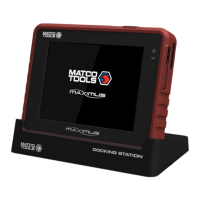
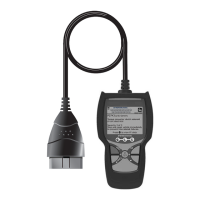
1. Connect one end of the USB cable (optional) to the Data I/O port of
the VCI device.
2. Connect the other end to the USB port of the tablet. The power
indicator of the VCI device lights up.
*Note: The USB connection provides the most stable and fastest
communication. When all the communication methods are applied
at the same time, the MAXIMUSPROHD system will use the USB
communication as the default priority.
5.3 Start Diagnostics
On the Diagnostics page, tap “Automotive/Motorcycles” to enter the
vehicle selection page.
2 approaches are provided for you to access the vehicle diagnostic
software.
5.3.1 Max VIN (VIN SCAN)
Through simple wireless (BT) communication between the
MAXIMUSPROHD tablet and VCI, you can easily get the VIN (Vehicle
Identication Number) information of the currently identied vehicle.
Once the VIN is successfully identied, the system will retrieve it from
the remote server and then guide you to vehicle information page
without the necessity of step-by-step manual menu selection.
The vehicle information page lists all historical diagnostic records
of the vehicle, which lets the technician have a total command of
the vehicle faults. In addition, a quick dial to manual diagnosis and
diagnostic function are also available on this page for reducing the
roundabout time and increasing productivity.
*Notes:
• Before using this function, please make sure the VCI is properly
connected to the vehicle’s DLC. For detailed connection, see
Chapter 5.1.3 “Vehicle Connection”.
• A stable network connection is required for this function.
Follow the steps below to proceed.
1. Tap “MaxVIN”. If the VCI dongle does not pair with the tablet
before, the following screen will appear.


 To Next Page