43
User Manual
MDMAXPROHD
www.matcotools.com 877-853-3738
“Firmware Fix” to update and x the diagnostic rmware. During
xing, please do not cut power or switch to other interfaces.
• If you use the current account to test a vehicle with another tablet,
tap “Unpair” to unpair the VCI device with the previously paired
tablet.
* Note: please be sure to keep the VCI device powered on while performing
the operaon.
6.5.3 Icon Size
This feature allows you to set the size of the diagnostic software icon
according to your preference.
Drag the slider to different size and the system will display the
corresponding eect.
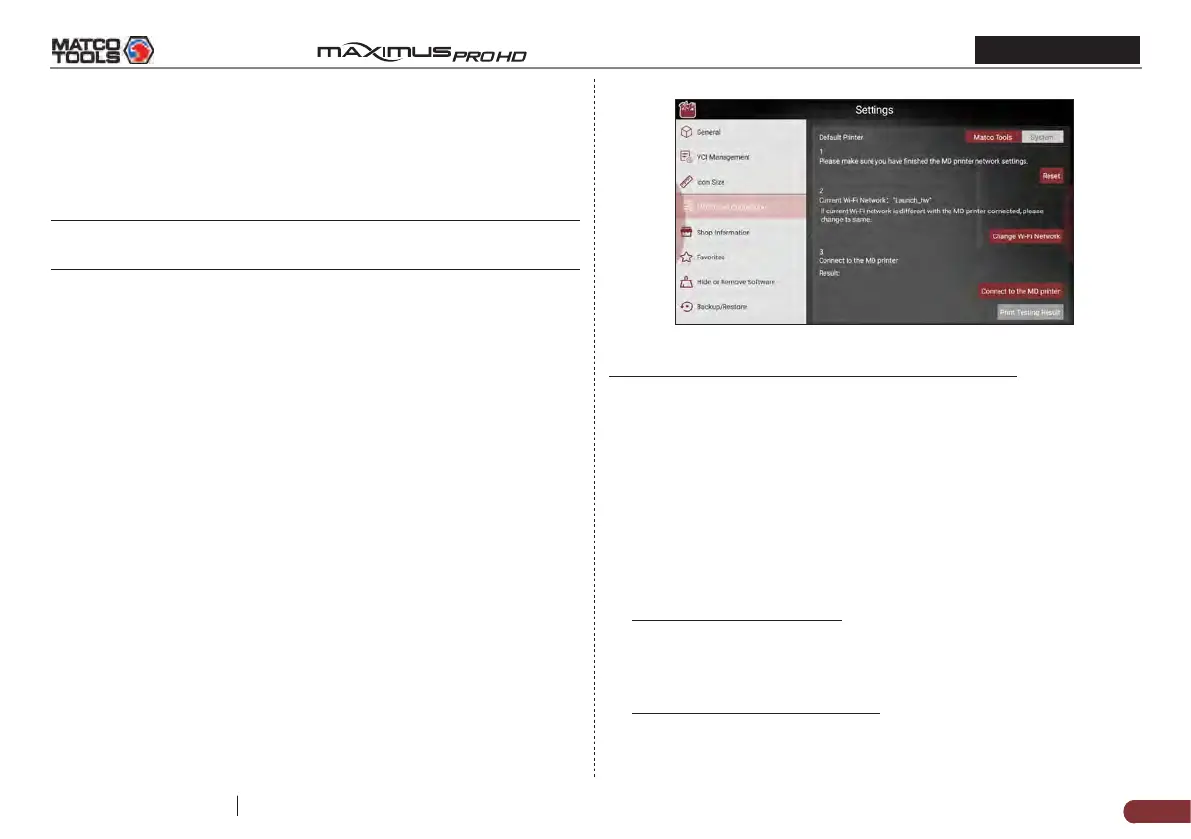
6.5.4 MD Printer Connection
This option is used to establish a wireless connection between the
tablet and the printer (sold separately) while performing printing
operations.
The App is compatible with the “Matco Tools Wi-Fi Printer” (sold
separately) and “System” (external printer).
Follow the steps below to connect the Wi-Fi printer.
1. Tap “MD Printer Connection”.
Below describes how to congure the Wi-Fi Printer.
Fig. 6-15
A. If it is the rst time you have operated this printer, please proceed
the following:
2. For initial use, you are suggested to reset the printer: Press and
hold [MODE] & [FEED] for 8 seconds, the following resetting
command will be printed out:
at + default = 1
ok
at + reboot = 1
rebooting...
3. Tap “Reset” to congure Wi-Fi printer.
Step 1: Connect the printer:
Tap “Scan” to select the desired printer hotspot named with
X-431PRINTER-XXXX (XXXX stands for 4 characters), and then tap
“Connect” to enter Step 2.
Step 2: Join the printer into LAN:
Tap “Scan” to select the desired local Wi-Fi network from the
list, and type in the security password (If it is an open network,


 To Next Page