45
User Manual
MDMAXPROHD
www.matcotools.com 877-853-3738
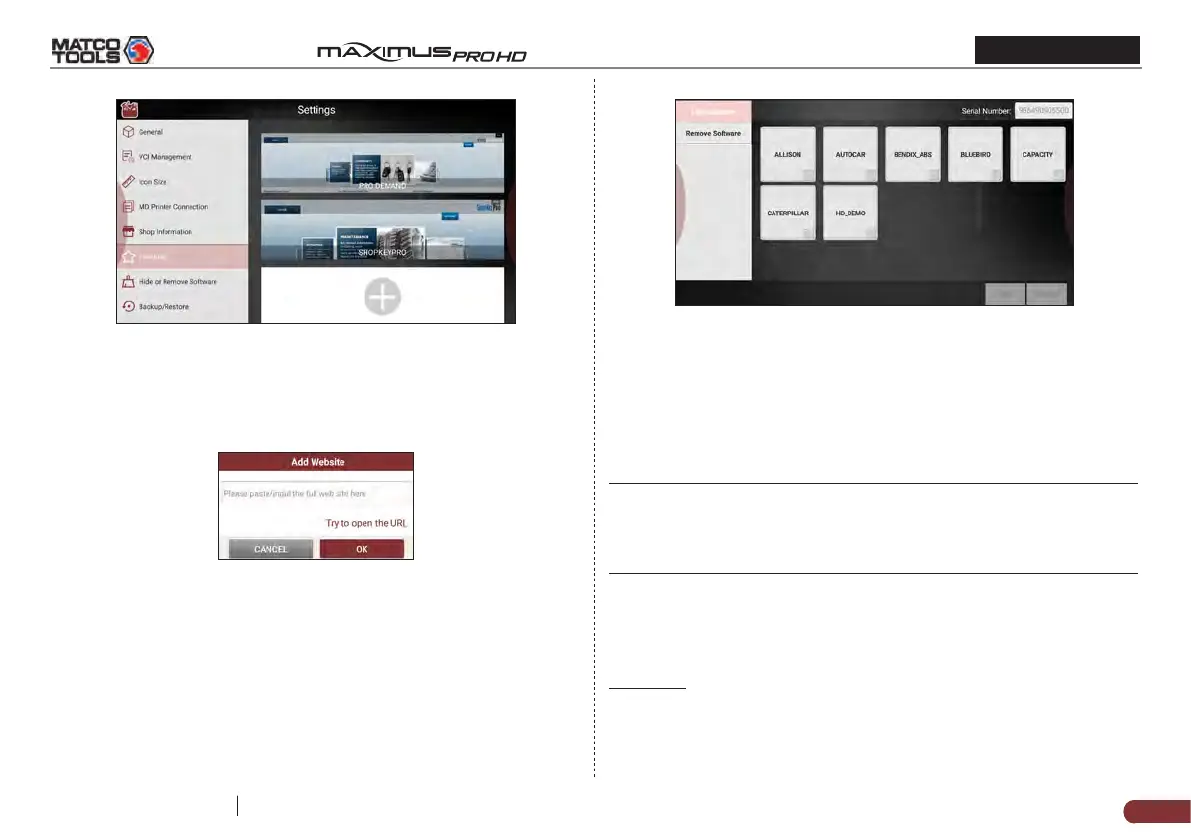
Fig. 6-18
Tap the desired website to visit it.
To add certain website into favorites, scroll the screen to until it
reaches to the bottom, tap “+”, a dialog box similar to the following
appears.
Fig. 6-19
Type in the full web site in the blank, and tap “OK”, it will be listed in
the Favorites.
6.5.7 Hide or Remove Software
This item allows you to hide/clear the diagnostic software that is not
frequently used.
Tap “Hide or Remove Software”, the screen displays as follows:
Fig. 6-20
Under the “Hide Software” tab, select the desired software logo (a
“Checkmark” will show in the checkbox located at the lower right
corner) and tap “Hide”, it will become invisible. Tap “Unhide” to undo
the hide operation.
Under the “Remove Software” tab, select the desired software logo
and tap “Delete”, it will disappear from the screen.
*Note: Removing soware may completely delete the soware from the
tablet. If some soware is not used and the tablet runs out of space, you
can use this feature to remove it. To re-download it, go to “Update” -> “All
Soware”.
6.5.8 Backup/Restore
This option lets you backup/restore the important data to/from external
storage device.
A. Backup
1). Insert the U disk into the Data Transmission Port of the tablet.
2). Tap “Backup” to select the data folder to be backed up.
3). Tap “Backup” on the bottom of the screen to copy it to the U disk.


 To Next Page