Filter
COA
OPT
IIS
USB/NET
Play
09
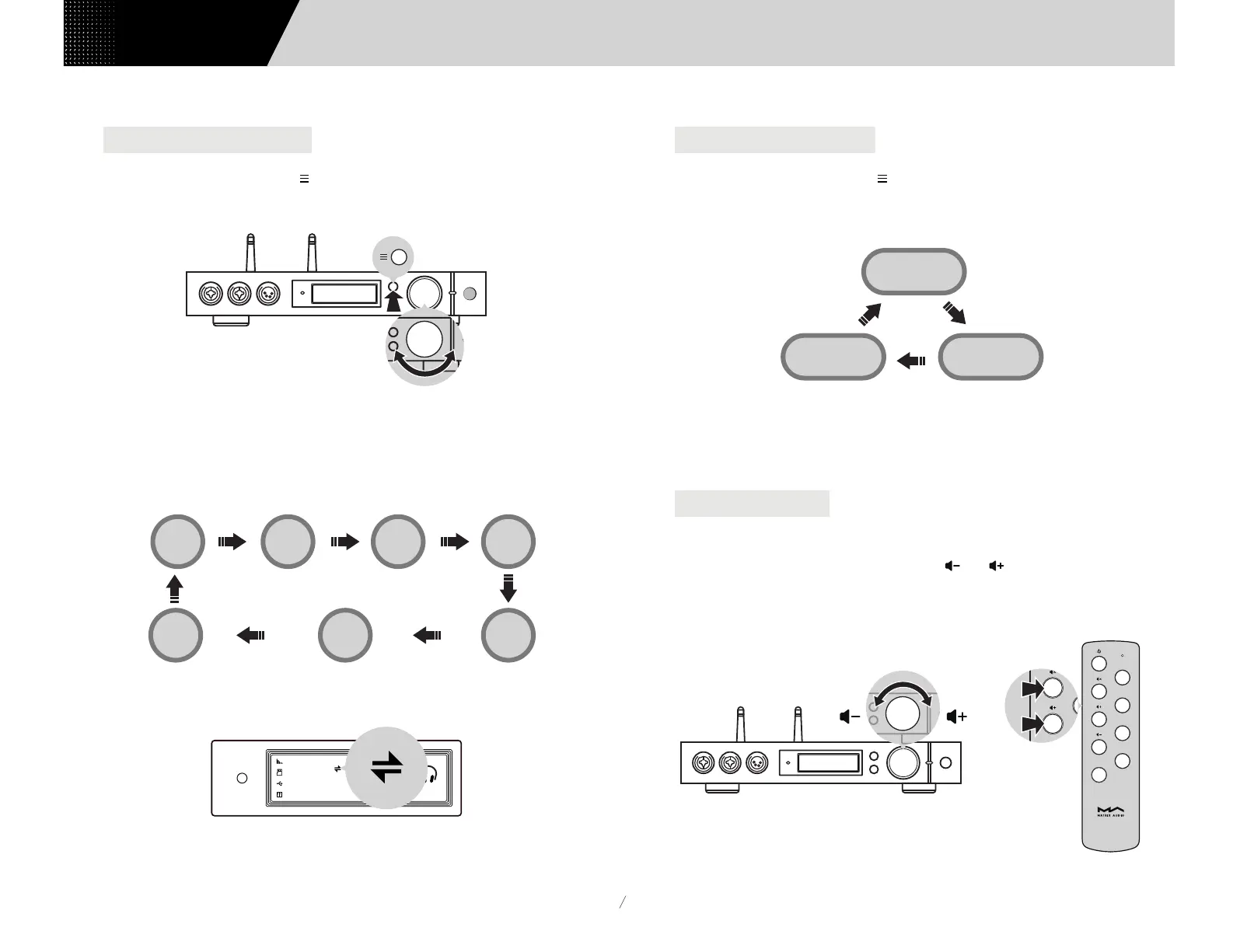
Repeat pressing the menu button ' ' and switch to input channel selection menu,
then rotate the knob to select between auto, coaxial 1, coaxial 2, optical 1, optical
2, IIS LVDS, USB Audio and network, you can press the knob to confirm the
selection.
Under 'Auto' mode, element X will automatically scan all digital input channels, the
first connected input channel will be locked immediately. It will continue to scan
other channels until the current channel signal is lost. When there are several input
channels being connected, element X is always locking the signal which is detected at
first. The order of input channel scanning is as shown,
When selected 'Auto' channel and the input signal being locked, it will show the auto
scan mark beside the of the channel name. As shown,
4.1.2 Select the input source
Repeat pressing the menu button ' ' and switch to output channel selection menu,
you can select output channel between balanced headphone output, single-ended
headphone output and line output, then push the button to confirm. The switching
order is as follow,
When single-ended headphone output is changed to balanced headphone output, in
order to avoid being scared, the output volume will reduce 6dB to make the balanced
headphone have the same volume as single-ended headphone.
4.1.3 Select output channel
The volume can be adjusted by the knob or the and key on the remote control,
and the screen will show the current volume level at the same time. Line output and
headphone output have independent volume control level, also, the line output can
be configured as fixed level output.
4.1.4 Volume control
4.1.4.1 Volume adjustment
Single-ended
headphone
Balanced
headphone
Line out
When using network related music source such as AirPlay, DLNA, ROON or MA player,
please select Network input channel.
PCM 44.1
Optical 1
Filter 5
k
UNBAL
USB
COAX 1 COAX 2 OPT1
OPT2
IIS LVDS
Network
Users Manual


 To Next Page