Settings
15
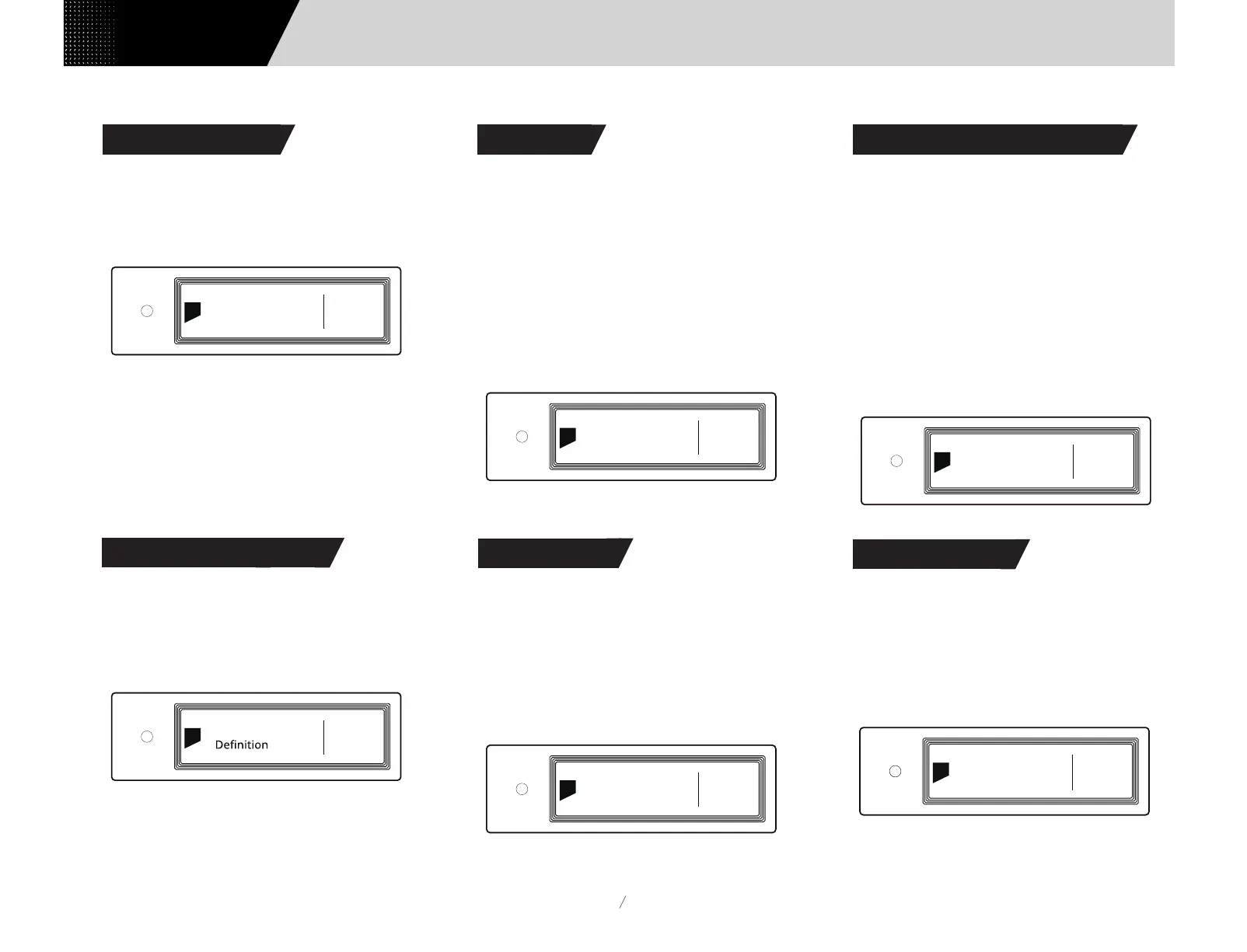
Set the DPLL Bandwidth
Low: Low bandwidth High: High bandwidth
Normal: Standard bandwidth (Default)
It's recommended to set the DPLL bandwidth to
default, but when the quality of digital signal which
output from front-end device is poor and the element
X can not lock the signal stablely, please select high
bandwidth, The sound quality may be reduced in high
bandwidth mode.
5.7 DPLL Bandwidth
There are 4 kinds of IIS LVDS port definition provided,
for detailed definition diagram, please refer to section
6.4 (page 17).
TYPE A (Default) TYPE B TYPE C TYPE D
Please select 'TYPE A' when collocated with Matrix
Audio products.
5.8 IIS-LVDS Port Definition
In order to avoid the interference from the LED
indicator and the screen, element X can enter dimmer
mode after no operation for 2 minutes, when this
option is turned on. At dimmer mode, the LED
indicator will reduce brightness and the screen will
turn off. The screen can be activated by operating on
the remote control or on the unit body. Turn off this
option to prevent element X enter dimmer mode.
ON
OFF (Default)
5.9 Dimmer
When there is no input signal from the selected
channel and no operation for more than 5 minutes,
element X will enter Sleep mode. element X will not
enter 'Auto Sleep' mode when 'Auto Sleep' function is
off.
ON
OFF (Default)
5.10 Auto Sleep
DPLL Bandwidth
Normal
7
IIS-LVDS Port
TYPE A
8
Dimmer
ON
9
Auto Sleep
ON
10
Set the function of '〇' button on the front panel
There are 4 actions available:
INPUT: Set 'Input Channel Select' as a shortcut, switch to
next input channel by every pressing
OUTPUT: Set 'Output Channel Select' as a shortcut,
switch to next output channel by every pressing (Default)
FILTER: Set 'Filter Select' as a shortcut, switch to next
filter by every pressing
INFO: Set 'Product Info' as a shortcut to display hardware
and software information of the unit
5.11 User defined button settings
Select network access method for element X, when
you select the option LAN, Wi-Fi is disabled and vice
versa if you select Wi-Fi, ethernet is disabled.
LAN: Wired network
Wi-Fi: Wireless network (Default)
5.12 Network Type
11
"O"Button Func
OUTPUT
12
Wi-Fi
N etwork Typ e
Users Manual


 To Next Page