19
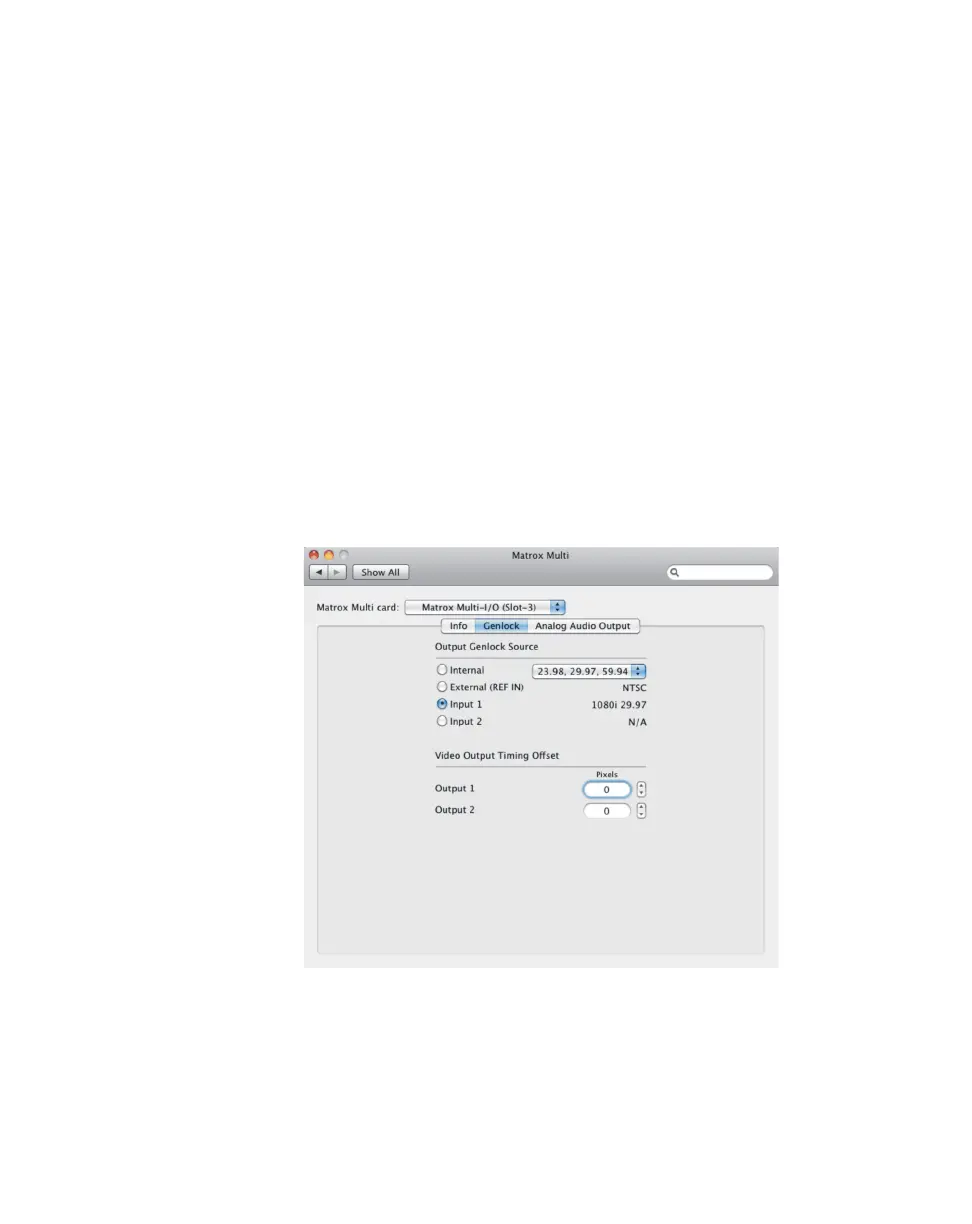
Specifying your genlock settings
Specifying your genlock settings
¦NoteGenlock settings do not apply to Matrox Multi-Ingest cards.
You can select the source to which you want to genlock all devices connected to
the Multi outputs (see “Outputs” on page 14). You can genlock your Multi
outputs to either an external genlock source, Multi’s internal genlock, or to any
source connected to a Multi SDI input (Matrox Multi-I/O only). If required, you
can also adjust the timing offset for each Multi video output.
¡ Important The selected genlock source applies to all Matrox Multi outputs. To
ensure good output results, make sure that your output format is compatible with
your genlock source’s video format.
1 From the Apple menu, click System Preferences, and then click the
Matrox Multi icon.
2 If you have more than one Multi card installed in your system, select the card
that you want to configure from the
Matrox Multi card list (see “Matrox
Multi card selection and settings” on page 18).
3 Click Genlock.
4 Under Output Genlock Source, select the source to which you want to
genlock all Multi outputs. When a source is connected to a Multi input, or its
REF IN connector, Multi automatically detects the format of the signal and
displays it next to the corresponding input:
$ Internal Genlock to Multi’s internal reference signal at the selected
frame rate.











 To Next Page