Preparing Your Object for Scanning
Some objects (as listed above) will require a bit of prep work
to allow them to scan properly, or at all. Pre-treating your
objects with matte paint, foot sprays or baby powder will give
the best results. If using paint, a light grey color is best.
If you want to capture color data, be aware that any
treatment may alter the color as it appears in the final scan.
Download and Install
Download the MFStudio soware from
www.matterandform.net/download .
If you don’t already have an account you’ll be prompted to
register your email.
Make sure to download the appropriate soware for your
computer!
Follow the setup wizard and complete the install process.
Setting Up Your Scanner
Choose a location close to your computer that has even,
ambient light and a stable, level surface. The first step is to
connect the scanner:
1. Plug the USB Type A connector end into the
computer;
2. Plug the USB Type B connector end into the scanner;
3. Connect the power cable to the scanner and plug the
power cable into a surge protector;
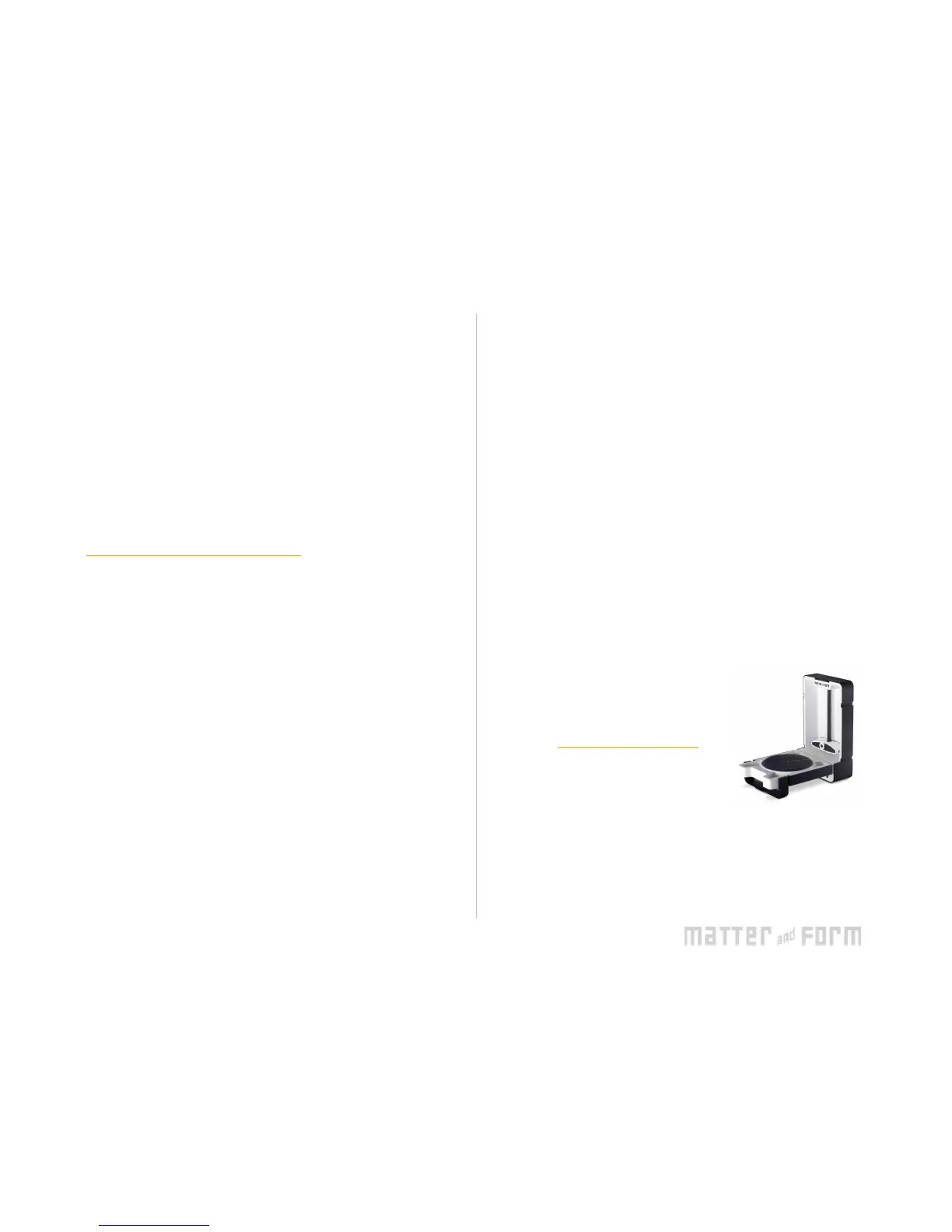
4. Open the scanner on by gently depressing the release
button on the top of the scanner and swing it open,
revealing the scanner head and the turntable. Turn
the handle 90° until it locks in place as the scanner
leg.
5. Power the scanner on. To do so, push the MF logo on
the lower front of the scanner until it lights up;
Open the soware. The soware will search and
detect the scanner. Once it does, you’re ready to start



 To Next Page