Ethernet LED does not light up
Make sure that:
• The Ethernet cable is securely connected to the Ethernet port on your Thomson Gateway and your
computer.
• You are using the correct cable type for your Ethernet equipment, that is UTP CAT5 with RJ-45 connectors.
No Wireless Connectivity
Try the following:
• Change the wireless channel.
• Make sure that the wireless client is configured for the correct wireless settings (Network Name, security
settings).
• Check the signal strength, indicated by the wireless client manager. If the signal is low, try repositioning
the Residential Gateway or directing the Residential Gateway’s antenna(s) for optimal performance.
• Make sure that the wireless client adapter is enabled (message like “radio on”).
Poor Wireless Connectivity or Range
Try the following:
• Change the wireless channel.
• Check the signal strength, indicated by the wireless client manager. If the signal is low, try to place the
Residential Gateway or to direct the Residential Gateway’s antenna(s) for optimal performance.
• Use WPA(2)-PSK as encryption.
Change the wireless channel
Proceed as follows:
Change the wireless channel.
1. Browse to the Residential Gateway GUI.
2. On the left menu, click Home Network.
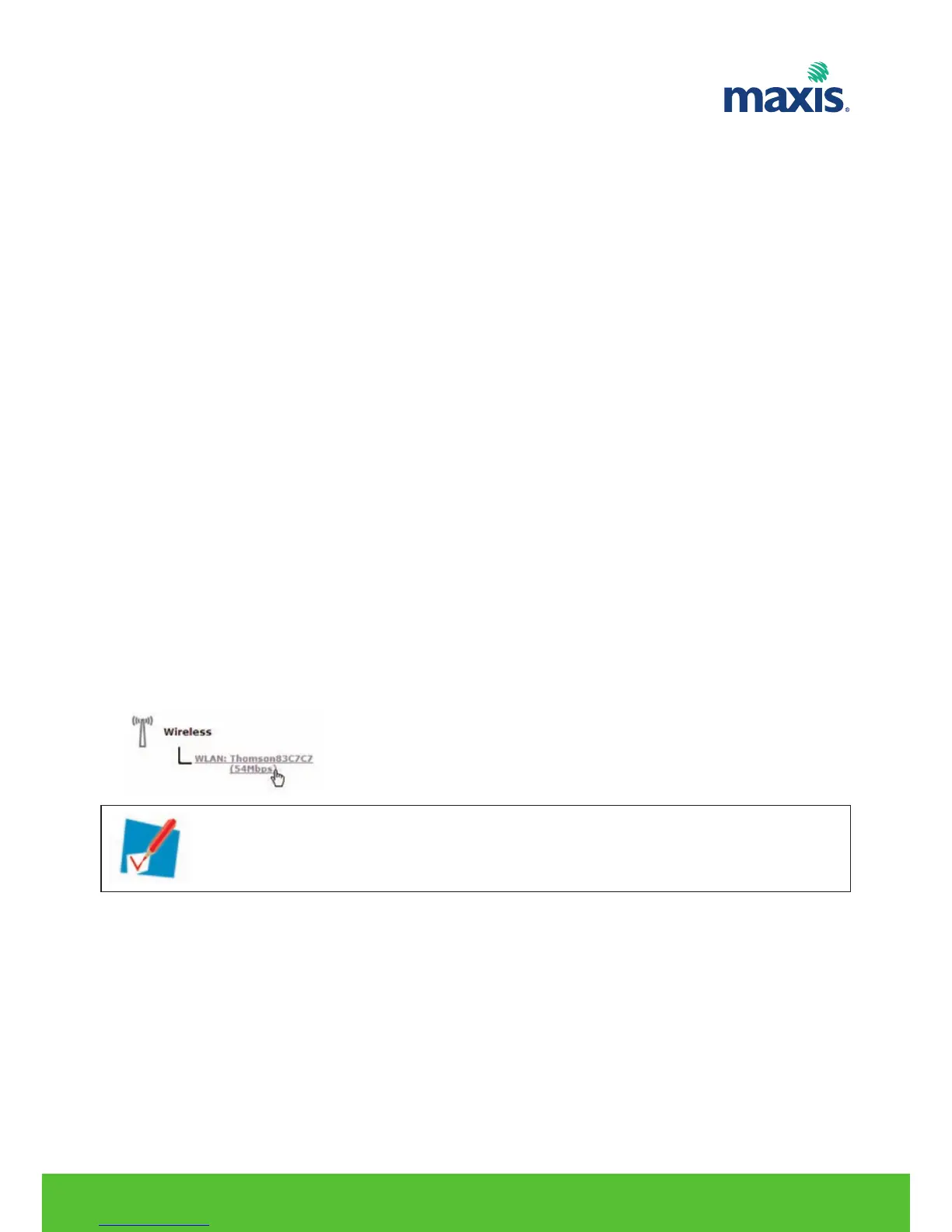
3. Under Wireless, click your access point.
4. The Wireless Access Point page appears.
5. In the Navigation bar, click Configure.
6. Under Configuration, select the channel of your choice in the Channel Selection list.
7. Click Apply.
RESIDENTIAL GATEWAY MODEL TG799VN | 35
Your access point will be listed in the following format: “WLAN:<Network Name> (<Actual
Speed>)”. For example, WLAN: Residential83C7C7 (54Mbps).


 To Next Page