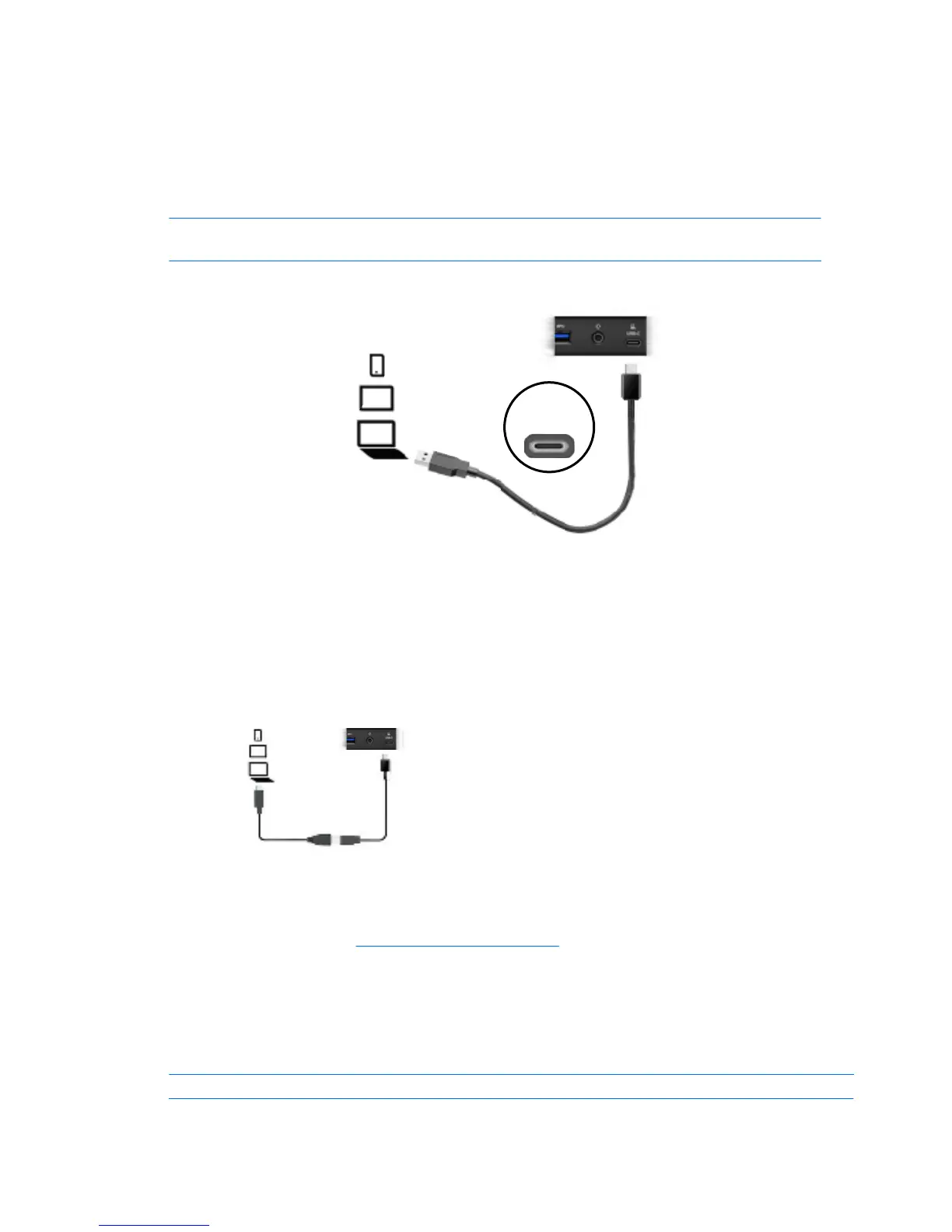
Step 2: Connecting to the device
1.
2.
NOTE: For a faster connection and better performance, use a USB 3.0 port on your device if one is
available.
To connect a device to the docking station via USB Type-C, use the included USB–to–USB-Type-C adapter:
1.
2.
3.
Step 3: Prevent Sleep or Hibernation
When using an external display device, you might want to close the computer. For more information on
To ensure that the computer does not initiate Sleep or Hibernation when it is closed:
1.
2.
3.
NOTE:
Setting up the universal dock 5
To connect the device to the universal dock via USB Type-C:
Connect the USB Type-C end of a USB Type-C cable to the USB Type-C port on the rear of the universal dock.
Connect the other end of the USB cable to a USB port on the device.
Connect the USB Type-C end of a USB cable to the USB Type-C port on the rear of the universal dock.
Connect the USB cable to the USB Type-C end of the adapter.
configuring an external monitor, see Using the software on page 7.
Open Control Panel and select Power Options. Then click the Advanced tab.
Click Choose what closing the lid does.
Under On battery and Plugged in, select Do nothing and then click Save changes.
For instructions on accessing the Power Options page, see Help and Support on the computer.
Connect the USB3 end of the adapter to a USB3 port on the computer.
USB
Type-C



 To Next Page