- 11 -
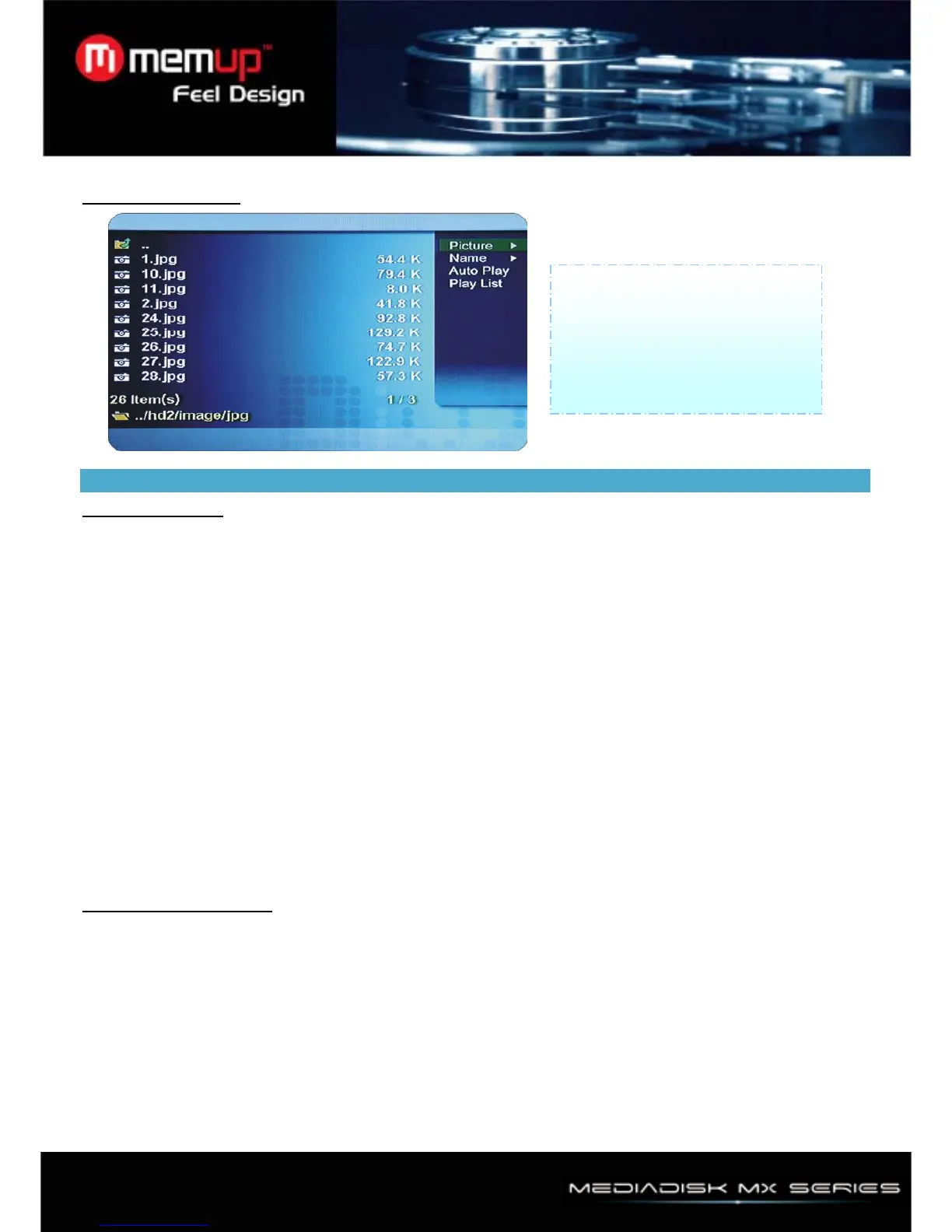
10、Play Photo Files
8. Upgrading process
Firmware Upgrade
Firmware version check
1、Connect Player to your TV and turn on Player
2、Navigate with buttons to move to “F/W” menu and check your current firmware version.
3、Check the latest firmware version of Player. You ’ll be posted for any firmware updates or news if you
fill our the customer registration form at http://www.memup.com
How to download firmware
1、Download the latest firmware from http://www.memup.com to your PC.
2、Connect Player with your PC through USB cable and turn it on.
3、Your system will recognize Player as an external hard drive.
4、Make “firmup” folder at root directory.
5、Copy firmware files into “firmup” folder at the Player hard drive.
6、Turn off Player and bring it to your TV for firmware upgrade.
How to upgrade firmware
1、Connect Player to your TV and turn on Player.
2、Move to setup firmware upgrade menu
3、Press "OK" button more than 3 seconds to initialize update.
USB Connection with PC
Windows 98SE Driver Installation
1、Please run setup. exe file before connecting Player.
2、Please reboot after installation.
3、After reboot the system. please connect Player. Add New Hardware.
4、You will be able to see the new HDD disk drive inside Player on the “Device Manager tab”
Windows ME/XP/2000 Driver Installation
1、Windows ME/XP/2000 offer driver by itself. So you don’t need to install software.
2、If connect Player with PC run plug & play.
3、You will be able to see new HDD disk drive inside the Player on the “Device Manager tab”
Select [Media] ->Picture->Then
you will see video files you saved
into Player.
Select a file you would prefer and
press [OK] button then file will be
played


 To Next Page