Section 1 - General Information
90-8M0074777 eng MAY 2013 Page 3
Mark–Menu: The Mark–Menu has two functions and is dependent on which screen mode is active. Press the Mark–Menu
button while the chart plotter is visible to access waypoints and other functions. Press the button while SmartCraft information is
visible to open the scroller bar.
Standby–Auto: Allows the operator to suspend or engage Navico
®
systems operation.
Exit: Closes a menu and removes the cursor from the screen.
Rotary Knob: Used for maneuvering in menus, zooming in charts and can be pressed to enter a selection.
Goto–Pages: A short press displays the home panel pages and can be pressed multiple times to toggle through the home
page menus. A long press displays the Goto menu options.
In Out–MOB: Zoom buttons for various NMEA backbone components. Pushing the In and Out buttons at the same time will
mark the position of the vessel with a man overboard (MOB) icon.
Power–Standby–Brightness: Press once to access the standby mode or change the backlighting of the unit or go to Night
mode.
Card Reader: Allows VesselView software to be upgraded, navigation charts uploaded, and allows waypoints and settings to
be saved.
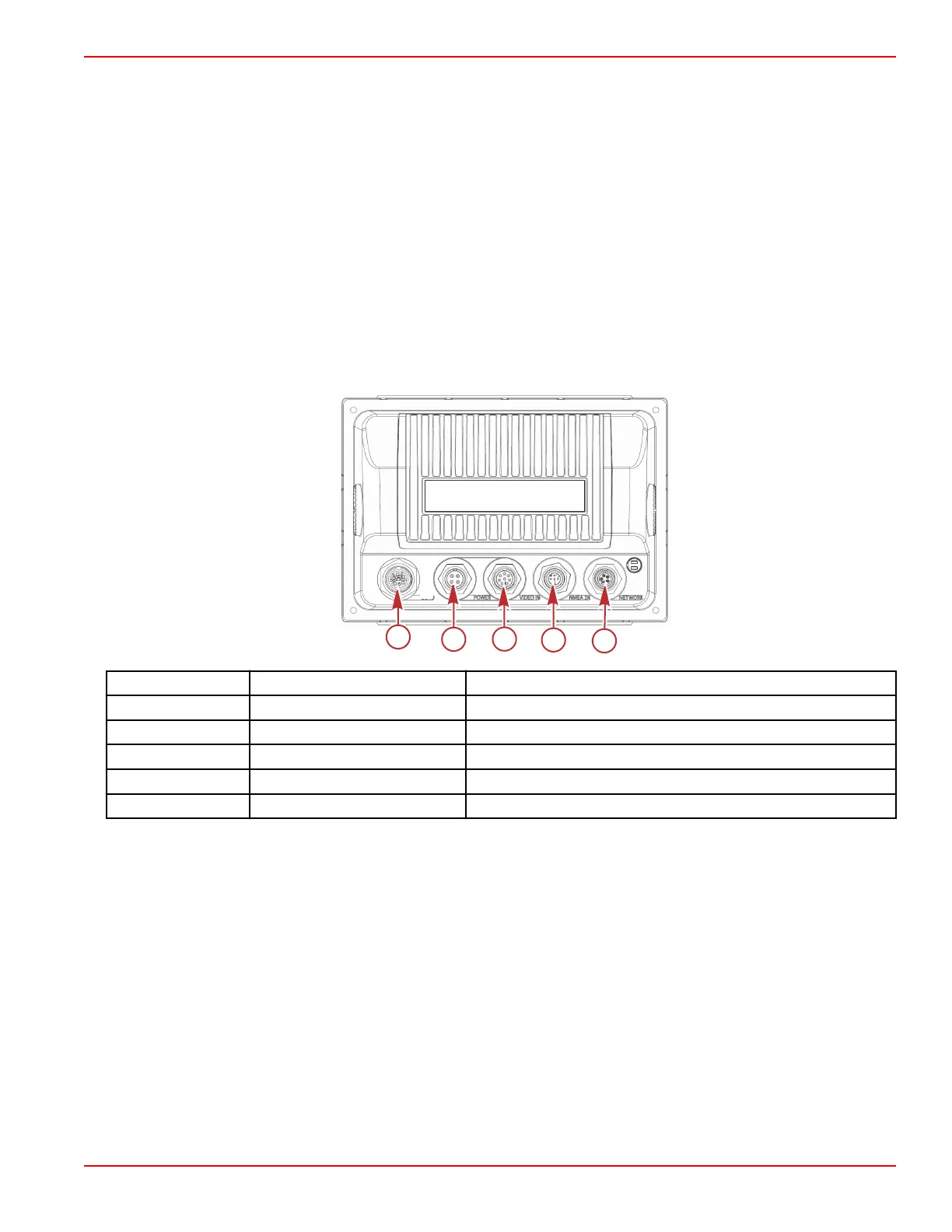
Rear Panel
Item
Function Description
a SmartCraft Connects to the SmartCraft network, links SC 100 gauges
b Power Power input and external alarm
c Video in Provides two composite video inputs
d SIMNET/ NMEA 2000 Connects to NMEA 2000 network
e Network Ethernet network ports






 To Next Page