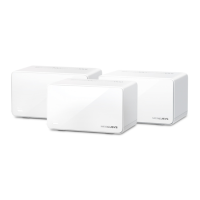
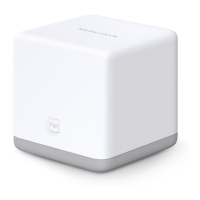
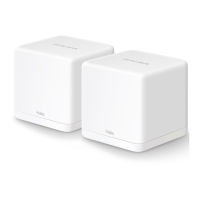
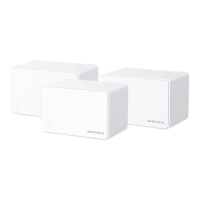
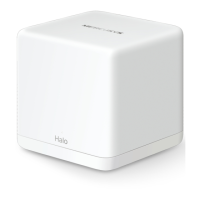
The MERCUSYS BE9300 Whole Home Mesh Wi-Fi 7 System is a comprehensive solution designed to provide seamless and high-performance wireless internet coverage throughout your home. This user guide details the device's appearance, setup process, and various features for managing your Wi-Fi network.
Function Description:
The MERCUSYS BE9300 is a Whole Home Mesh Wi-Fi 7 System, meaning it utilizes multiple units (referred to as "Halo" units) to create a unified and expansive Wi-Fi network. This mesh technology ensures that devices can seamlessly switch between different Halo units as users move around their home, maintaining a strong and stable connection. The system supports Wi-Fi 7 (802.11be) standards, offering advanced features for enhanced speed, coverage, and device capacity. It acts as a central hub for internet connectivity, distributing Wi-Fi signals and managing network traffic. The system can operate in two primary modes: Router (Default) mode, where it connects directly to the internet via Dynamic IP, Static IP, or PPPoE, and shares internet access with multiple wired or wireless devices, enabling NAT and DHCP server functions; and Access Point mode, where it extends the wireless coverage of an existing wired or wireless router via an Ethernet cable, with functions like NAT, Parental Controls, and QoS not supported in this mode.
Important Technical Specifications:
While specific numerical specifications like processor speed or RAM are not explicitly listed, the manual highlights several key technical capabilities:
- Wi-Fi Standard: Wi-Fi 7 (802.11be), backward compatible with Wi-Fi 6 (802.11ax) and earlier standards.
- Advanced Wi-Fi Features: Supports Multi-Link Operation (MLO), 320 MHz Bandwidth, 4K-QAM, Multi-RUS, OFDMA, and MU-MIMO. These features require client devices to also support the corresponding technologies for optimal performance.
- Operating Frequencies and Maximum Transmitted Power (CE Mark Warning):
- 2400MHz~2483.5MHz: 20dBm
- 5150MHz~5250MHz: 23dBm (Indoor use only, restricted use in road vehicles, trains, aircraft, and specific outdoor limitations for UAS)
- 5250MHz~5350MHz: 23dBm (Indoor use only, restricted use in road vehicles, trains, and aircraft)
- 5470MHz~5725MHz: 30dBm (Restricted use in road vehicles, trains, aircraft, and for unmanned aircraft systems (UAS))
- 6105MHz~6425MHz: 23dBm (Restricted to indoor use, including in trains with metal-coated windows and aircraft; outdoor use, including in road vehicles, is not permitted)
- Ports: Each Halo unit features 3 WAN/LAN auto-sensing Ethernet ports and a power slot.
- LED Status Indicators: A single LED on each Halo unit changes color to indicate its operational status:
- Solid Yellow: Starting up.
- Pulsing Yellow: Being reset.
- Solid Blue: Setting up.
- Pulsing Blue: Ready for setup.
- Solid White: Registered and all is well.
- Pulsing White: Updating firmware.
- Solid Red: Has an issue.
- Pulsing Red: Disconnected from main Halo.
- Reset Button: A single press resets the Halo to factory default settings.
- Environmental Operating Conditions (CE Mark Warning):
- Operating Temperature: 0°C~40°C (32°F~104°F).
- The device should not be exposed to water, fire, humidity, or hot environments.
- Adapter should be installed near the equipment and easily accessible.
- Only use power supplies provided by the manufacturer.
Usage Features:
The MERCUSYS BE9300 system is managed primarily through the MERCUSYS app, offering a user-friendly interface for setup and control.
- Easy Setup: The system can be set up by downloading the MERCUSYS app, logging in or signing up with a Mercusys ID, and following step-by-step instructions to connect and configure the Halo device(s). Additional Halo units can be added to expand the network.
- Dashboard: The app's dashboard provides an overview of the network's working status, allows management of connected devices, and facilitates adding more Halo units. Users can view connected devices, check Halo status, and access detailed information for each connected device, including connection preference (e.g., 5GHz), family member assignment, and high priority settings.
- Wi-Fi Settings:
- Network Name & Password: Users can customize the network name (SSID) and password for 2.4GHz, 5GHz, and 6GHz bands.
- Hide Network: The option to hide the network from Wi-Fi lists for increased privacy.
- MLO Network: Enable Multi-Link Operation to simultaneously send and receive data across different bands for improved performance.
- Guest Network: Create separate guest networks for 2.4GHz, 5GHz, and 6GHz bands with customizable names, passwords, and turn-on durations. Bandwidth limits can be set for guest networks in Advanced settings.
- Blacklist: Compile a list of devices to block from accessing the network, enhancing security. Devices can be selected from the client list or added manually by MAC address.
- Advanced Features:
- WAN Settings: Modify IPv4 and IPv6 settings, including connection type (Dynamic IP), IP address, subnet mask, default gateway, and DNS servers.
- IPv6 Firewall Rules: Configure firewall rules for IPv6.
- LAN IP: Modify the LAN IP address.
- DHCP Server: Set up the DHCP server.
- IPTV/VLAN Mode: Enable IPTV/VLAN mode and select an ISP Profile.
- MAC Clone: Enable MAC Clone using a client MAC address or a custom MAC address.
- Address Reservation: Reserve specific IP addresses for devices, simplifying network administration and troubleshooting.
- Port Forwarding: Configure port forwarding rules to make local network devices accessible from the internet.
- DDNS (Dynamic DNS): Register a friendly domain name to access the Halo and local resources using a domain name instead of an IP address.
- SIP ALG: Enable SIP ALG for clients to communicate with SIP servers via NAT.
- Fast Roaming (IEEE 802.11r): Allows wireless devices to switch connections between different Halos seamlessly. Note: May disconnect older wireless devices; forgetting and rejoining the network may be necessary if issues occur.
- Beamforming: Concentrates Wi-Fi signals towards connected devices for stronger connections.
- LED Control: Manage the LED indicator on the Halo units, including a Night Mode to turn off the LED during specified hours.
- Operating Mode: Switch between Router (Default) and Access Point modes.
- Notifications: Configure notifications for firmware updates and new device detection.
- WPS (Wi-Fi Protected Setup): Easily connect clients to the network by enabling WPS on a nearby Halo unit and then on the client device.
- Parental Controls: Create profiles for family members, assign devices, and set individualized parental controls.
- Filter Level: Set content filter levels (Child, Pre-Teen, Teen, Adult) to block inappropriate content categories (e.g., Adult Content, Online Communication, Download, Pay to Surf, Games, Social Networking, Media).
- Filter Websites: Add specific websites to block.
- Time Controls: Set daily time limits and bed times for weekdays and weekends.
- Control Devices: Add or remove devices associated with a parental control profile.
- QoS (Quality of Service): Prioritize specific devices for a set duration or permanently to ensure smooth performance, especially during activities like video calls. Users can set total bandwidth limits (download and upload) and assign high priority to selected devices.
- Monthly Report: Review monthly usage statistics, security threats, and total connected network devices. This feature can be enabled or disabled, and report data can be cleared.
- Managers: Add friends and family members as managers to help administer the network. Each manager requires their own Mercusys ID.
Maintenance Features:
- Online Update: Update the Halo firmware when prompted by the MERCUSYS app. The system supports Auto Update, which automatically updates during a selected time.
- Reset Button: A physical reset button on each Halo unit allows for a quick return to factory default settings, useful for troubleshooting or reconfiguring the device.
- Troubleshooting: The guide implicitly supports troubleshooting by providing clear instructions for setup and feature configuration. For instance, it advises forgetting and rejoining the network if devices disconnect after enabling/disabling Fast Roaming.
- Regulatory Compliance: The device adheres to EU Declaration of Conformity (2014/53/EU, 2009/125/EC, 2011/65/EU, (EU) 2015/863, and EC Decision (EU) 2021/1067) and UK Declaration of Conformity (Radio Equipment Regulations 2017), ensuring it meets health and safety standards. It also includes warnings regarding radio interference and specific usage restrictions for certain frequency bands (e.g., indoor use only, restrictions in vehicles/aircraft).
- Environmental Responsibility: The product bears the WEEE symbol, indicating it should be handled for recycling to minimize environmental impact.
- Safety Information: Provides crucial safety guidelines, including not disassembling or repairing the device, using only approved chargers/cables, avoiding extreme temperatures/humidity, and ensuring proper ventilation. It also warns against interference with pacemakers and other implanted medical devices.

 Need help?
 General

 To Next Page