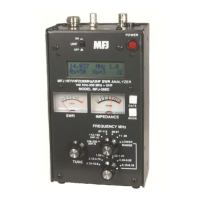
MFJ-269D Instruction Manual LF/HF/VHF/UHF SWR Analyzer
25
5. Pressing Mode again takes the display to section 5.5.3.2. Pressing Gate takes the display to a Line
Length adjustment function.
l = 100.0 ft
6. To increase line length, press the Gate. To decrease line length, press Mode. When the desired length
appears, simultaneously press and hold Gate and Mode to lock it in. The display will now change to:
l = 67.2. ft
7. Pressing Mode switches the display to Length in Feet for the degrees programmed in at the selected
Vf.
5.5.3.2 Line Length in Feet
This mode displays the length in feet required to obtain a certain number of electrical degrees for the
velocity factor (Vf) and Frequency selected. It is useful for determining the Physical Length required
for matching sections, phasing lines, or antennas if the velocity of propagation, electrical length required,
and frequency are known.
This mode is useful for calculating the required length in feet of matching sections and phasing lines if
you know the required variables, velocity factor and electrical degrees. The analyzer can also directly
measure and display length using the distance to fault mode (see section 5.5.1 for HF/VHF).
If this mode is entered after using distance to fault (see section 5.5.1), VF and length will be programmed
automatically using distance to fault data. The physical or electrical length of the line can also be
programmed manually. If a length is not programmed, a default length of 360 degrees is selected
automatically.
1. Simultaneously press and hold Gate and Mode buttons until Advanced-2 appears. The display will
show the default Vf (0.66):
2. Set Vf to the desired value (Gate to increases, Mode to decrease). Then, simultaneously press and
hold Gate and Mode to lock it in. The Distance to Fault screen will appear.
Note: If you know the true electrical length in degrees, set velocity factor to VF=1.0 and enter the
electrical length in degrees as indicated in step 5.
3. Press and release the Mode button. The display will flash Line Length in Degrees.
After a moment, the display changes to (sample screen):


 To Next Page