1.
2.
3.
1.
2.
3.
4.
1.
2.
3.
4.
5.
6 Usage Examples
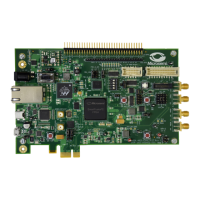
This section shows the usage examples for the VSC8489, VSC8490, and VSC8491 evaluation boards.
6.1 Packet BIST
Perform all steps outlined in section 2.
On the BIST page. Check in the Packet BIST box, this enables the Packet BIST. Click in Enable Read
the TX pane. The count of valid packets sent is seen in the Current Count box. Clicking again Read
will show the amount since the last read in the Current Count and the Cumulative Count since the
BIST was enabled. The button terminates packet transmission, and resets and erases the Stop Clear
counters.
In the RX pane, click to update the desired counter. Both current and cumulative counts are Read
shown similar to the TX pane.
6.2 Packet BIST Part 2
Perform all steps outlined in section 2.
On the BIST page, to exercise the PRBS31 BER, click on Start Generator and Start Checker. Starting
the checker will start the timer and show the current Error count and Bit Error Rate. The value of
error count and BER is continuous and updated once every second. The previous cumulative values
of both error count and BER are shown in the cumulative box fields respectively. Click Stop Checker
to stop the timer. The display will retain the last error count and BER.
Clicking Start Checker again will clear the error counts and restart the pollingand calculation.
The 1 second polling will continue even if the user moves to other pages. Upon returning to the BIST
page the error count and BER will display the cumulative numbers.
6.3 IEEE 1588
Perform all steps outlined in section 2.
On the Clocking page. In the 1588 Block, select from the Clock Selection list and click Internal Clock
the option. Click on .Egress Mode Egress timestamp using MDIO
Send up to 5 PTP packets from the traffic generator.
Click the button. This will display the 26 relevant bytes separated into the 10 byte timestamp Read
and 16 byte frame signature from the first packet. Clicking again will display the next packet in Read
the next set of fields.
In the same 1588 pane on the clocking page, load any time in the range of 0-FFFFFFFF into the Secs
and the Nanosecs field of the Local Time Counter and press in the Load pane. Once the time Update
is set, clicking in the save pane will fetch the local time from the device and display it into Update
the respective secs and NanoSecs fields.



 To Next Page