
 Need help?
Do you have a question about the Microsoft Surface Pro Signature Keyboard and is the answer not in the manual?
Identifies key parts like the storage tray, pen, keyboard, and touchpad.
Connects via storage tray or Swift Connect for automatic pairing.
Manually pair the pen using Bluetooth settings and the pen's top button.
Wipe Alcantara material with a damp, lint-free cloth for routine maintenance.
Tips for optimal battery usage, including charge cycles and proper storage.
Instructions to avoid damaging the power cord by twisting, pinching, or pulling.
Verify pen compatibility, inking, and touch interaction for basic diagnostics.
Steps to resolve issues when the pen fails to write or draw on the screen.
Steps to resolve issues when the pen fails to connect via Bluetooth.
Understand the meaning of pen LED light patterns for troubleshooting connection issues.
Resolve issues with the pen's top button not opening assigned shortcuts.
Customize pen shortcuts for desired actions and button functions.
Address issues with jagged writing or non-functional buttons.
Information on obtaining and replacing a broken or worn pen tip.
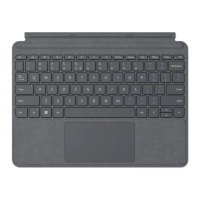
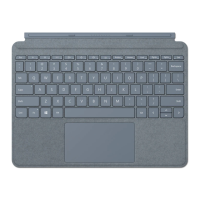
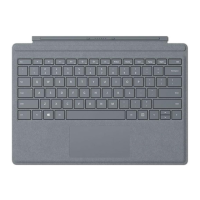
The Surface Pro X Signature Keyboard is an accessory designed for the Surface Pro X, offering enhanced functionality and protection. Its primary function is to provide a physical keyboard and a large glass trackpad for typing and navigation, transforming the Surface Pro X into a more traditional laptop-like experience. A key feature of this keyboard is its integrated storage tray, which not only securely holds the Surface Slim Pen but also charges it, ensuring the pen is always ready for use. The keyboard itself is crafted with Alcantara material, providing a distinct tactile feel.
The Surface Pro X Signature Keyboard serves as an input device for the Surface Pro X, enabling users to type, navigate with the trackpad, and interact with the device using the Surface Slim Pen. The integrated storage tray for the Slim Pen is a central functional aspect, allowing for convenient storage and wireless charging of the pen. This design ensures that the pen is always accessible and powered, facilitating quick transitions between typing and inking tasks. The keyboard connects to the Surface Pro X, providing a stable and responsive input experience.
Setting up the Surface Pro X Signature Keyboard is straightforward. Users attach the top of the keyboard to the bottom of their Surface Pro X. The Surface Slim Pen can then be placed in the storage tray for charging and to wake it up. An amber LED light on the Slim Pen indicates that it is charging. Once charged, removing the pen from the tray prepares it for writing on the Surface.
Connecting the Slim Pen to the Surface Pro X can be done automatically in two ways:
Alternatively, the Slim Pen can be paired via Bluetooth:
Start > Settings > Devices > Add Bluetooth or other device > Bluetooth.The top button of the Slim Pen has a default function to launch Microsoft Whiteboard. This shortcut can be customized, along with other pen settings, by going to Start > Settings > Devices > Pen & Windows Ink.
Maintaining the Surface Pro X Signature Keyboard and its associated components involves general cleaning recommendations to ensure longevity and optimal performance.
Start > Settings > Devices > Bluetooth & other devices. Replace or charge the battery if low.Start > Settings > Devices > Pen & Windows Ink. Adjust pen pressure settings in the Surface app.Start > Settings > Devices > Bluetooth & other devices, ensure Bluetooth is on, and select "Add Bluetooth or other device" to pair. If the pen is already paired to another Surface, remove it from that device's Bluetooth list.Start > Settings > Devices > Pen & Windows Ink. General
| Material | Alcantara |
|---|---|
| Backlit | Yes |
| Connection | Magnetic |
| Compatibility | Surface Pro 8, Surface Pro X |
| Dimensions | 289.1 mm x 226.1 mm x 4.8 mm |
| Weight | 280 grams |
| Layout | QWERTY |
| Colors | Platinum, Poppy Red, Ice Blue |
| Trackpad | Precision glass trackpad |




 To Next Page