EasyManua.ls Logo

Microsoft Surface Type Cover - User Manual

Microsoft Surface Type Cover
5 pages
Print Icon
To Next Page IconTo Next Page
Loading...
How to use your Surface Type Cover
Applies to: Surface Devices
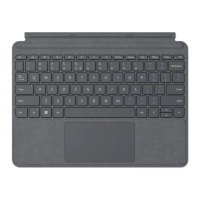
The Surface Type Cover is a slim keyboard that has moving keys. Use it to get the speed and feel
of a classic keyboard and to go from tablet to laptop.
Type Covers click magnetically into place and provide protection for your Surface touchscreen.
All Surface Type Covers have a standard keyboard layout, shortcut keys, and a two-button
touchpad that supports touch gestures.
For more info about touchpad taps and gestures, see Touchpad gestures for Windows 10.
Get started with your Type Cover
Select an action and learn how to use your Type Cover with your Surface.
Connect the Type Cover
Fold the Type Cover back
Close the Type Cover
Use the touchpad
Use the keyboard
Use the fingerprint reader
Add an input language to your Surface
Have an issue with your Type Cover?
Connect the Type Cover
The Type Cover attaches magnetically to
your Surface. Bring the two closer together
until the Type Cover aligns and clicks into
place.
Once the Type Cover is connected, it stays
put. When you want to remove it, just pull it
away.

Question and Answer IconNeed help?

Do you have a question about the Microsoft Surface Type Cover and is the answer not in the manual?

Summary

Connect the Type Cover

Fold the Type Cover back

Close the Type Cover

Use Type Cover Features

Use the Touchpad

Explains the Type Cover touchpad's buttons and gesture support.

Use the Keyboard

Details special keys and function keys for common tasks.

Lock Keys into Function Mode

Instructions on how to lock and unlock function keys on the Type Cover.

Use the Fingerprint Reader

Information on the fingerprint reader for signing in with Windows Hello.

Add an Input Language

Summary

Connect the Type Cover

Fold the Type Cover back

Close the Type Cover

Use Type Cover Features

Use the Touchpad

Explains the Type Cover touchpad's buttons and gesture support.

Use the Keyboard

Details special keys and function keys for common tasks.

Lock Keys into Function Mode

Instructions on how to lock and unlock function keys on the Type Cover.

Use the Fingerprint Reader

Information on the fingerprint reader for signing in with Windows Hello.

Add an Input Language

Microsoft Surface Type Cover Specifications

General IconGeneral
Connection TypeSurface Connector
LayoutQWERTY
FeaturesBacklit keys
MaterialAlcantara
ChargingVia Surface Connect
TouchpadPrecision Glass Touchpad

Related product manuals