PHOTO AND VIDEO
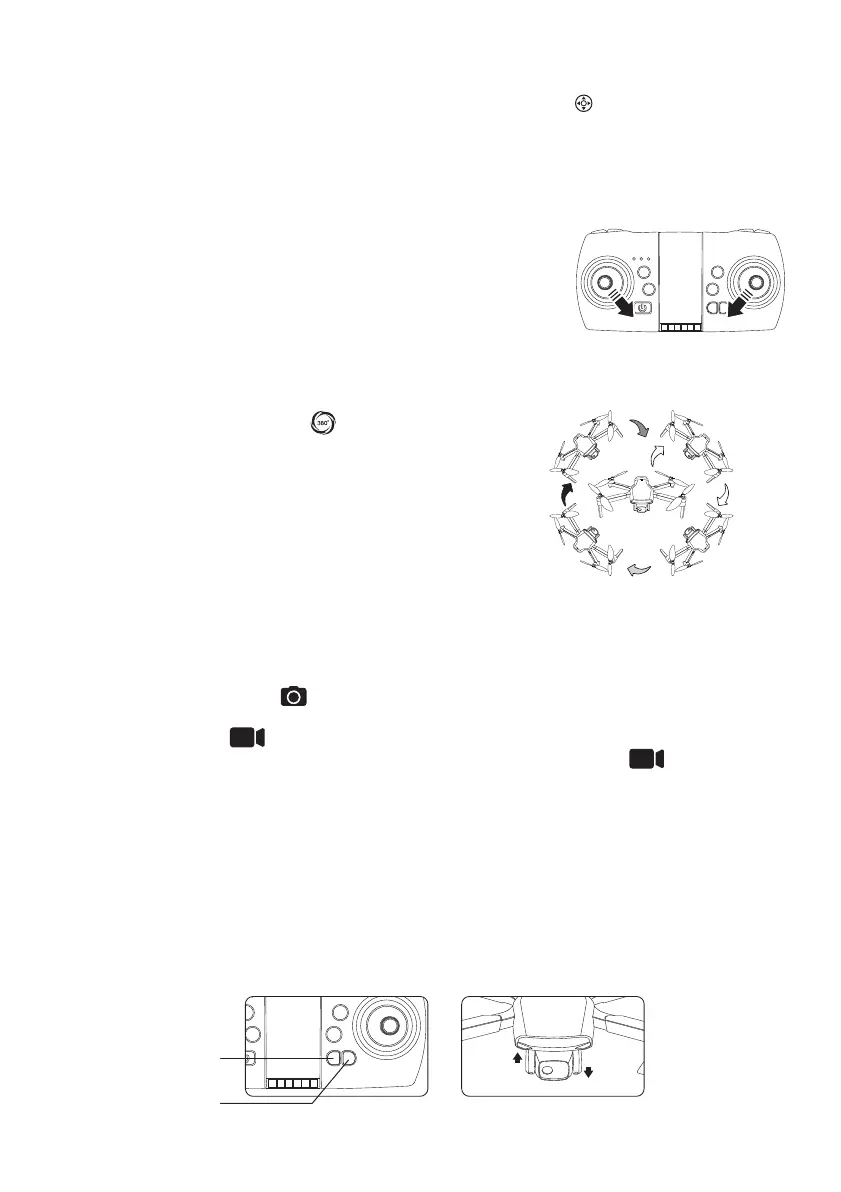
GYROSCOPE RESET / CALIBRATION
Please perform this calibration if the drone is flying unstably. This
function is making a reset the drone's gyro and of the fine
adjustments (TRIM). Before calibration, it is required to place the
drone on a flat surface. (If the landing gear is out of shape, the
reset function will be affected). Push both joysticks as shown on
the right picture, after 2 second the drone’s lights will blink fast sevral
times, the calibration is now completed.
360° FLIP
Short press the “Flip 360°” button , the remote control
emits a “beep” sound. Push the right stick in the desired
direction and the drone rotates in the direction of the push. At
the same time, the sound disappears, the drone returns to
normal mode.
Note: The effect is best when the battery is fully charged, this
function is not possible if the battery is not sufficiently
charged.
NOTE: You can also trigger photos and videos using the buttons on the remote control without a
micro SD card inserted into the drone, but then it must be connected by wifi to the smartphone
with the Midrone 420 app opened. The photos and videos will then be saved in the smartphone
gallery. More information on the wifi connection with the smartphone later in this manual.
Taking photos and videos with the remote control requires a micro SD card to be inserted into
the slot provided for this purpose under the drone.
Short press the photo button on the remote control and the indicator light behind the
drone flashes quickly to confirm the photo has been taken.
Press the video button on the remote control to trigger a video recording, the indicator
light behind the drone flashes quickly while recording. Press the video button again to
stop the current recording. The light behind the drone turns solid to confirm the end of recording.
Camera up
up down
Camera down
ADJUSTING THE CAMERA ANGLE
The camera's shooting angle can be adjusted via the “UP” or “DOWN” button on the remote
control (see image below).
MICRO ADJUSTMENTS (TRIM)
If the drone drifts while hovering, press the “Micro adjustments” button on the remote control,
then use the right stick on the remote control and push it in the opposite direction of the devia-
tion (forward, backward, left or right) to correct it. Once the drone is stabilized, press the TRIM
button again to save the correction.



 To Next Page