INSTRUCTIONS FOR USE IN WIFI MODE
You can either control the drone by Midrone VISION 420 application on the smartphone, or mount
the smartphone on the remote control and use the smartphone screen only for video transmission.
This second option will be explained later in this manual.
WIFI CONNECTION BETWEEN THE DRONE AND SMARTPHONE
Download and install the application
The app Midrone VISION 420 is needed to control the drone through the smartphone.
It is available free for download on Google Play for Android phones and on the App
Store for iPhones. Just make a search on the words VISION 420 to find it.
WiFi connection
1. Insert the battery into the drone and press the ON/OFF button located on top of the drone,
the LED lights will flash to indicate that the drone is waiting for a connection.
2. Go to the WiFi settings of the smartphone and start the search for new devices.
3. Select MIDR_HD420W-xxx from the list and wait until the connection is successfully established.
4. Place the drone on a flat surface and start Midrone VISION 420 application on the smartphone.
Important informations
It is recommended to set the smartphone in airplane mode during control of the drone to avoid
receiving a call during the flight or any other disturbance which could alter the signal and cause
loss of control of the drone.
Other WiFi networks nearby can disturb the video signal.
Do not use the drone near high-voltage cables or other magnetic fields to avoid the alteration
of the transmission signal and loss of control of the drone.
When the drone is turned off and on, verify that the wireless connection is restored correctly.
CONTROL THE DRONE WITH THE SMARTPHONE
It is possible to control the drone without the remote control directly through the smartphone
screen. Place the drone on a flat surface and make sure the WiFi connection is established.
Start MiDrone VISION 420 APP on the smartphone.
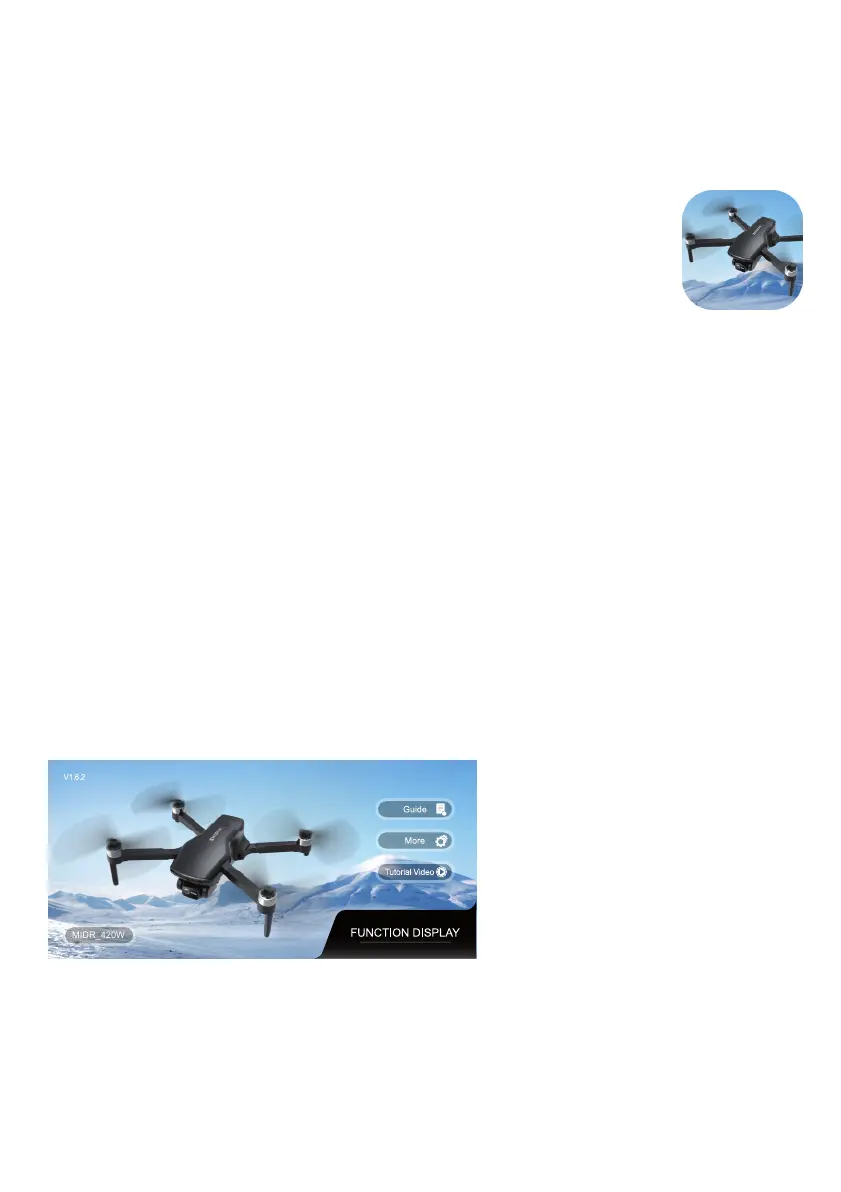
Home Screen:
1. Press this key to access the application manual.
2. Tap here to access app settings.
3. Press this button to view the video tutorial.
4. Tap here to access the drone control screen.
MIDR_420W
1
2
3
4



 To Next Page