GR8-1250 WALMART
Midtronics Inc. 7000 Monroe Street Willowbrook, IL 60527
www.midtronics.com
32
Edit Coupon
The EDIT COUPON utility allows you to create and
store a promotional coupon or message on the
printed test results you give tor your customers.
The utility’s two information screens contain eight
lines of text with a maximum of 17 characters per
line. To enable and disable the inclusion of the text
on your test results, use the COUPON utility.
To create and edit a coupon, see the procedure under “Shop”
in this chapter for using the keypad to enter and backspace
over characters.
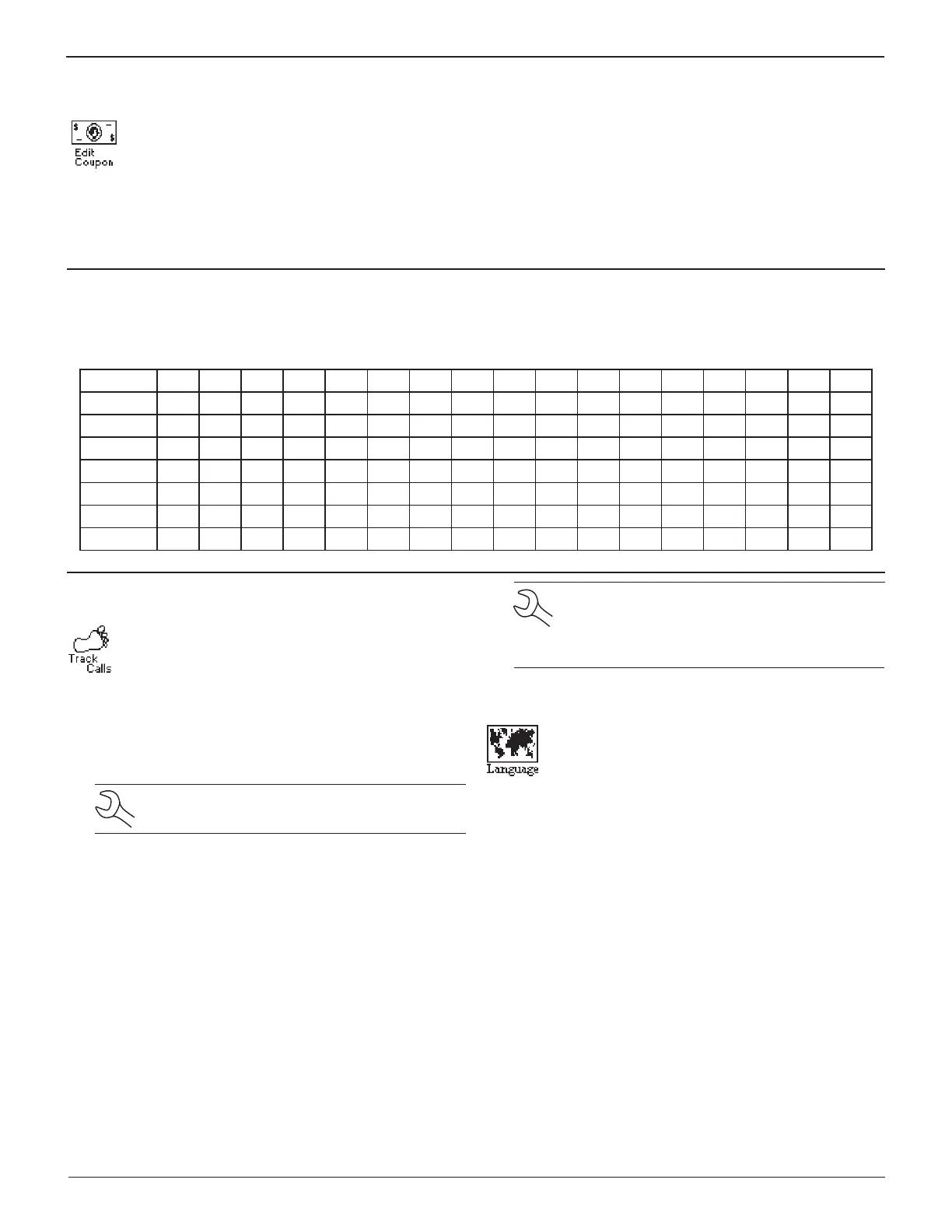
To help you edit and center your coupon, use a pencil to write the information in the template below before entering it into the
Battery Diagnostic Station.
Coupon Template
Line 1
Line 2
Line 3
Line 4
Line 5
Line 6
Line 7
Line 8
Track Calls
The TRACK CALLS utility stores the test results and
test codes by date as an .xml (Extensible Markup
Language) le in a folder named ”XML” on the data
card.
This utility requires a standard data card reader (not included)
to read or transfer the le to a PC.
You can open the le in
Internet web browser. The data in the le is separated by tags
(identiers enclosed in angle brackets) that dene the data.
NOTE: To avoid corrupting the le, copy rather
than move the le to your PC.
The default is OFF. To set your preference:
1. Use the UP or DOWN ARROW key, or press the correspond-
ing numerical key (1 or 2) to move the dot to the option
button of your choice.
1 TRACKING OFF
2 TRACKING ON
2. If you have used the ARROW keys, press the SAVE soft key
to save your setting or the BACK soft key to return to the
Admin / Utility Menu without saving the changes.
If you use the alphanumeric keypad to enter the number
preceding the option button, no additional keypress is needed
to save your selection
NOTE: Over time disk access slows as the data
card reaches its capacity. To free up card space,
transfer the les to a PC and reformat the card to
permanently erase data no longer needed.
Language
The LANGUAGE utility allows you to select a lan-
guage for the display and printouts. You can over-
ride the selection when the Battery Diagnostic Sta-
tion displays the language option after you turn it
on or print results.
To set your preference:
1. Use the UP or DOWN ARROW key or press the correspond-
ing numerical key (1, 2, or 3) to move the dot to the option
button of your choice.
1 ENGLISH
2 ESPAÑOL
3 FRANÇAIS
2. If you used the ARROW keys, press the SAVE soft key to
save your setting or the BACK soft key to return to the Ad-
min / Utility Menu without saving the changes.
If you use the alphanumeric keypad to enter the number
preceding the option button, no additional keypress is needed
to save your selection.
Chapter 9: Setup


 To Next Page