Quick Start Guide
www.milesight.com
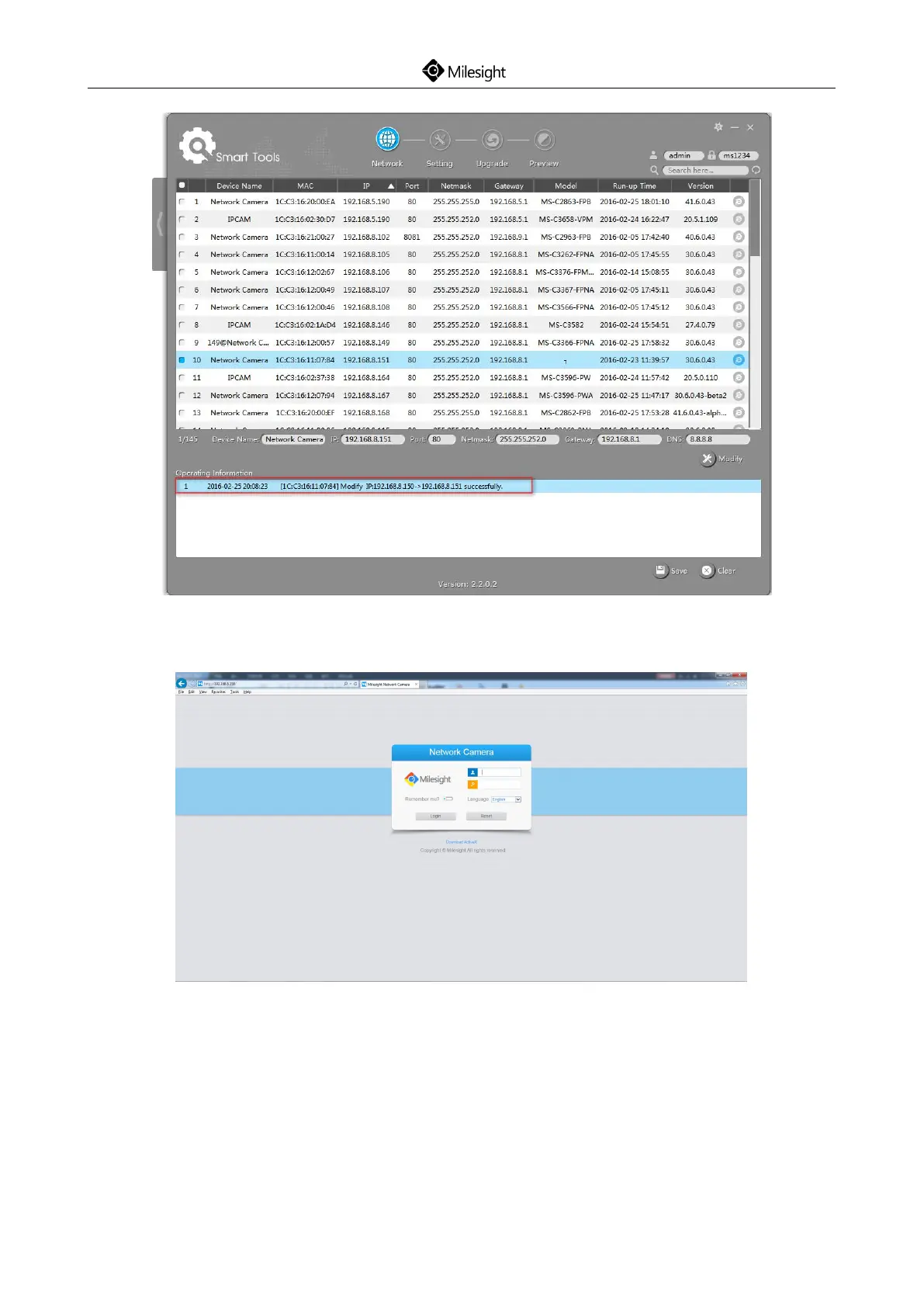
Step6: Change the IP address successfully;
Figure 8-6 Change IP address successfully
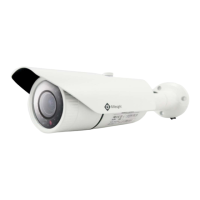
Step7: By double clicking the selected camera, you can access the camera via web browser directly.
The Internet Explorer window will pop up.
Figure 8-7
More usage of Smart Tools, please refer to the Smart Tools User Manual.
8.1.2 Assign an IP Address via Browser
If the network segment of the computer and that of the camera are different, please follow the
steps to change the IP address:
Step1: Change the IP address of computer to 192.168.5.0 segment, here are two ways as following:



 To Next Page