Milestone Husky - Administrator Manual
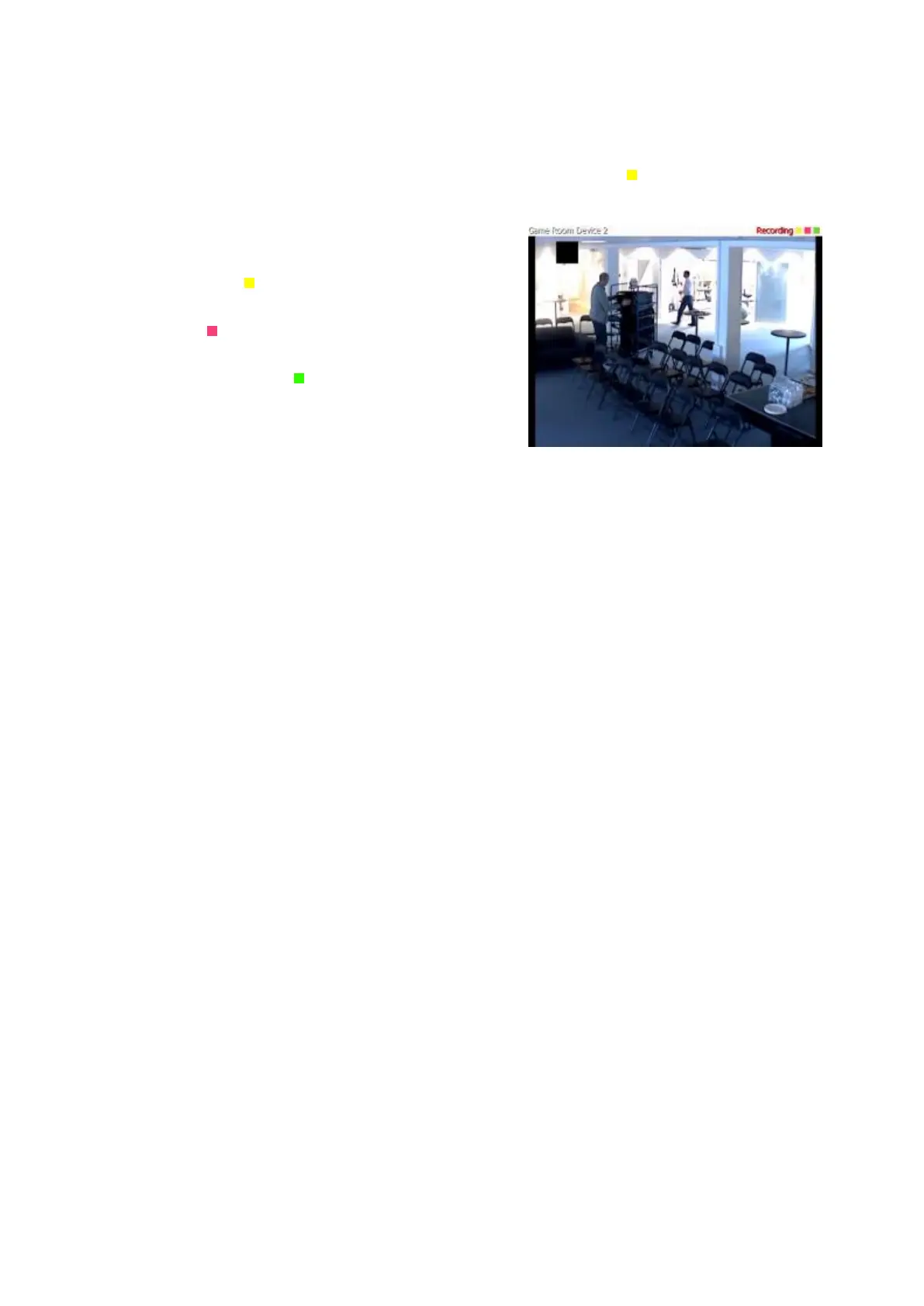
In XProtect Smart Client, event notification is given by a yellow indicator which lights up when a
relevant event has taken place. You can also add an optional sound on event notification in
XProtect Smart Client itself.
Three indicators are available for each camera in XProtect
Smart Client:
The yellow event indicator. Lights up when a
relevant event has taken place.
A red motion indicator. Lights up when motion
has been detected.
An optional green video indicator. Lights up
when video is received from the camera.
You can turn off the bar in which the indicators are
displayed in XProtect Smart Client. Do not turn off if
XProtect Smart Client must rely on event notifications.
Select required events
1. In the Available events list, select the relevant event. You can only select one event at a
time.
2. Click the >> button to copy the selected event to the Selected Events list.
3. Repeat for each required event.
If you later want to remove an event from the Selected Events list, select the relevant event, and
click the << button.
Output
When you configure video and recording (see "About video and recording configuration" on page
60) for specific cameras, you can also associate a camera with particular hardware output (see
"Add a hardware output" on page 110), for example the sounding of a siren or the switching on of
lights.
Associated output can then be activated automatically when motion is detected in video from the
camera, or manually when XProtect Smart Client users with the necessary rights (see "Configure
user and group rights" on page 167) view live video from the camera.
1. In the Available output list, select the required output. It is only possible to select one
output at a time. If you have not yet defined any suitable output, you can quickly do it:
Use the Configure Output button, located below the other fields.
2. Click the >> button to copy the selected output to the:
o On manual activation list, in which case the output is available for manual activation
in XProtect Smart Client.
and/or
o On motion detected list, in which case the output is activated when motion is
detected in video from the camera. If relevant, the same output can appear on both
lists.
3. Repeat for each required output.


 To Next Page