miniDSP Ltd, Hong Kong / www.minidsp.com / Features and specifications subject to change without prior notice 15
6 SOFTWARE INSTALLATION
If you purchased your product directly from miniDSP, your software will be available from the User Downloads
section of the miniDSP website when your order ships.
If you purchased your product from a miniDSP dealer, you will receive a coupon together with the product.
Redeem this coupon and select the Plugin Group “UMA-8” at the link below:
• https://www.minidsp.com/support/redeem-coupon
To access the download, you will need to be logged into the miniDSP.com website with the account you created
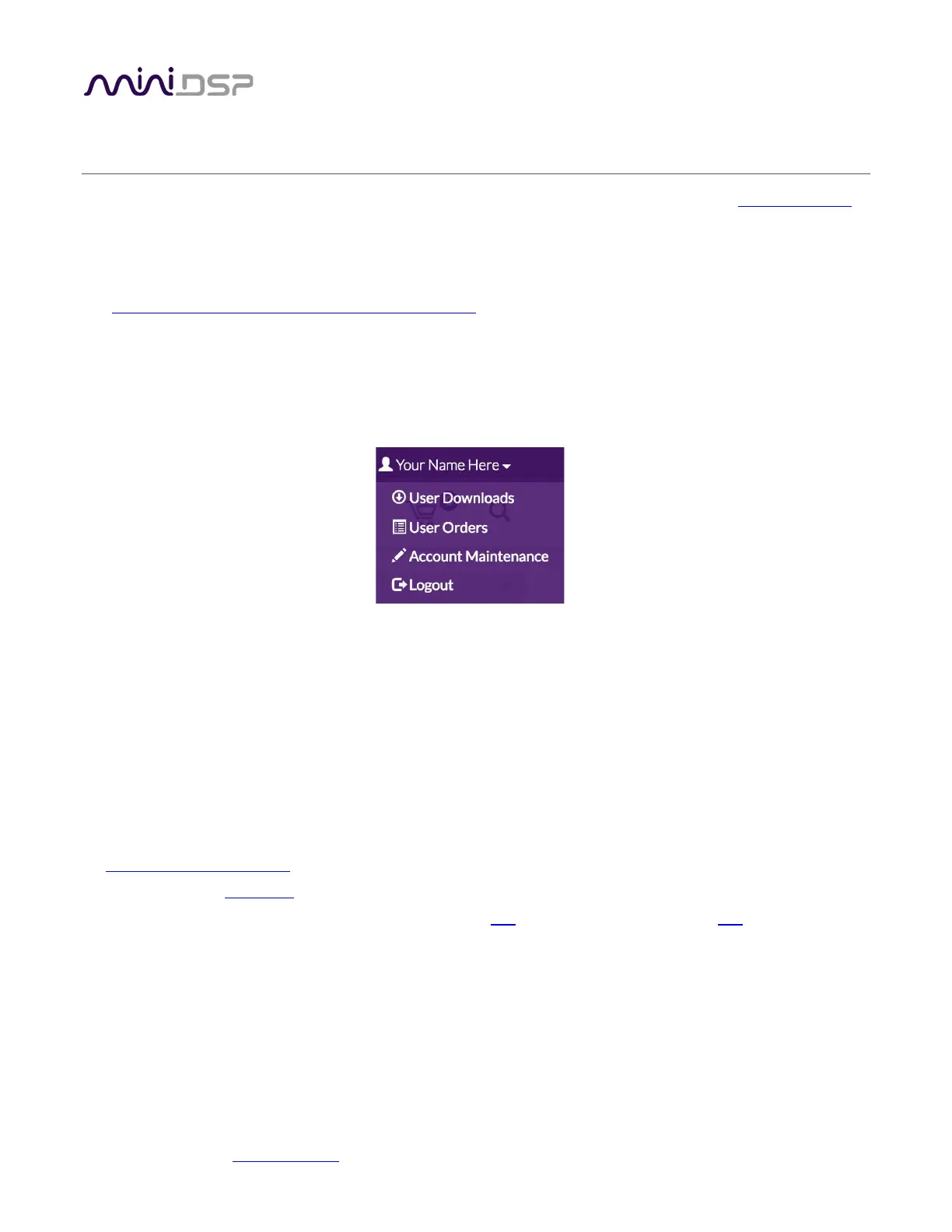
when purchasing. The User Downloads link is visible from the dropdown menu at the top right of the website
page:
Navigate to the UMA-8 section and download the zip file. Unzip the downloaded file: on Windows, right-click
and select “Extract All...”; on Mac, double-click.
6.1 WINDOWS INSTALLATION
The miniDSP software requires that other frameworks are installed for it to work. For Windows 7 and later,
these packages should be installed automatically by the miniDSP installer.
For Windows XP and Vista, please download and install the following frameworks before attempting to install
any miniDSP software:
• Microsoft .NET framework
(version 3.5 or later)
• Latest version of Adobe Air
• Microsoft Visual C++ 2010 Redistributable Package: for x86 (32-bit operating system) or x64 (64-bit operating
system)
To install the plugin:
3. Navigate to the Windows folder of the software download.
4. Double-click on the Mic-Array.exe installer program to run it. We recommend that you accept the default
installation settings.
5. The plugin will start automatically if you accepted the default installation settings. To make it quicker to run
in future, right-click on its icon in the taskbar and select “Pin to taskbar.”


 To Next Page