11 12
PoWerInG UP anD vIeWInG MeDIa
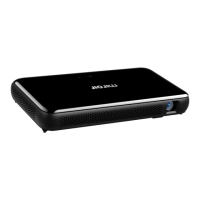
Power on the Projector by sliding the Power Switch to on.1.
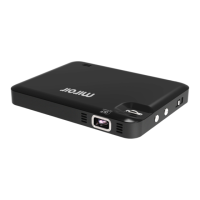
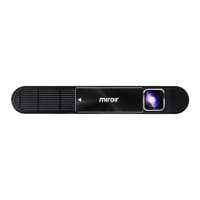
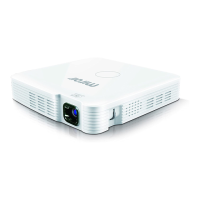
Touch the Circle Mode area on the top of the Projector, the screen will then 2.
show you a choice of two modes, “Movie” for video and “Document” for
text-based media. Select your preference by touching the Mode area on the
top of the Projector while your choice is highlighted.
Choose the media you would like to view from the menu on your device and 3.
play it as you normally would.
The Projector can display media just about anywhere! However, for the best 4.
quality, we suggest you nd a light colored wall (preferably smooth and
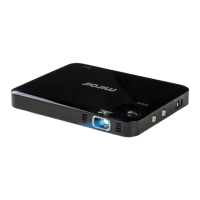
white) and place the Projector with its lens facing the location. The Projector
can show media up to 60”, just move the projector towards and away from
the wall to adjust the size of the picture. Dimming room lights will also add
to viewing quality.
aDjUstInG volUMe
Touch Mode area rst to highlight. Adjust the volume of your video by lightly
touching on the + or – symbols on the top of the Projector.
aDjUstInG focUs
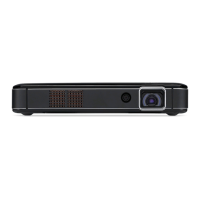
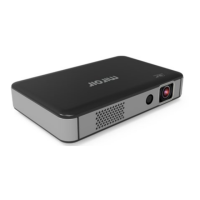
Simply roll the Focus Wheel on the projector up and down to ne-tune
the picture.
caUtIon
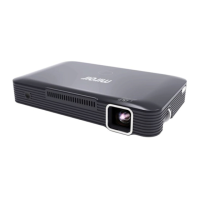
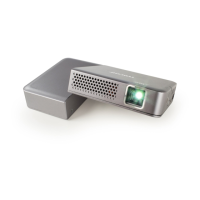
do noT block The airflow venTilaTions on The sides
of your ProjecTor. doing so May resulT in overheaT-
ing and daMage To The uniT.
cHarGInG YoUr DevIce WItH
tHe Projector
The Projector will also work as a back-up battery for your smartphone device.
Connect your device to the fully-charged Projector with a USB cable 1.
(not included).
Your device’s screen will let you know your device is charging and 2.
when it’s fully charged.


 To Next Page