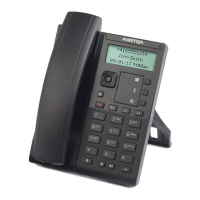
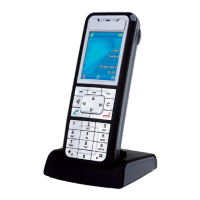
Mitel Deskphones
Revision: 4.5_6630 3
3. Wait until answer, then you can ask the 3rd par-
ty if you should transfer the call.
4. Transfer the call by pressing the Xfer softkey.
Blind transfer: 1. During your call, press the Xfer softkey.
2. Type the number to the 3rd party and press
Xfer key.
Table 9. Holding and parking calls
Holding a call:
Press . This will put the call on hold and play
on-hold music, if that is configured.
Resume a held call:
Press again.
Parking a call: Press the Park softkey to park an ongoing call.
Pick up a parked call: Press the softkey configured with Pickup.
Table 10. Conference
Conference 1. When a call is established with one party, press
Conf and enter the number to third party.
2. Press Dial. The other party is put on hold.
3. After answer from third party, press Conf to
start the conference.
Table 11. Presence
Select presence: 1. Press the Presence softkey. The Presence
menu is displayed.
2. Select your preferred presence, and press Se-
lect. The option will be highlighted.
Presence shortkey: Press the Presence shortkey to change back to
the selected shortkey option, for example Office.
The presence states listed in the menu are configured by the system administrator.
If a desired presence state is not listed, contact your administrator to have it added.
Table 12. Recording
Record a call: During a call press the Recording softkey.
Table 13. Get my active call
A call is ongoing: 1. A call is ongoing on a device that belongs to
you, for example a mobile phone or the soft-
phone.
2. Press *6* to pick up the call from the other de-
vice that belongs to you.
Table 14. Common Call Pickup
A group call is ongoing: Press *5* to pickup any alerted group members
calls. (Enabled by System Administrator).
Note
Function codes for SIP phones can be configured as function key
“Phone Number”.
3. Advanced call handling
Table 15. Extensions
Answer a call to an extension: 1. The lamp at the Extension softkey is flashing.
2. Press the Extension softkey to answer the
call.
Call an extension: Press the Extension softkey to call.
Answer a monitored exten-
sion call during an ongoing
call:
1. Park the ongoing call by pressing the Park soft-
key.
2. Answer the monitored call, press the alerted
Extension softkey.
Other extensions can be monitored from softkeys on your telephone. The monitoring
keys are called Extension. When the monitored extension is busy in a call the lamp
next to the softkey is lit in red. If the extension is free the lamp is green.


 To Next Page
 Loading...