© Copyright 2024, Mitel Networks Corporation. All Rights Reserved. 58017055 REV00
The trademarks, service marks, logos and graphics (collectively "Trademarks") appearing on Mitel's Internet sites or in its publications are registered and unregistered trademarks of Mitel Networks Corporation (MNC) or its subsidiaries (collectively "Mitel") or others.
Use of the Trademarks is prohibited without the express consent from Mitel. Please contact our legal department at legal@mitel.com for additional information. For a list of the worldwide Mitel Networks Corporation registered trademarks, please refer to the website:
http://www.mitel.com/trademarks.
Mitel’s Power Over Ethernet (PoE) Powered Device (PD) products are covered by one or more of the U.S. patents (and any foreign patent counterparts thereto) identified at Mitel’s website: www.mitel.com/patents. For more information on the PD patents that are licensed,
please refer to www.cmspatents.com.
QUICK REFERENCE GUIDE
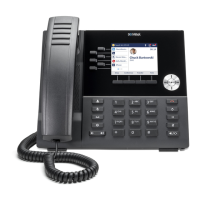
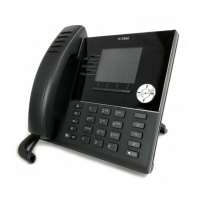
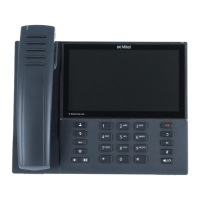
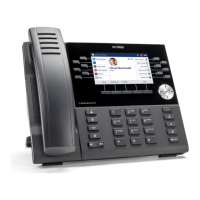
Quick Reference Guide - PCLink for Mitel 6920w 6930w and 6940w IP Phones
Configuring Mitel’s MiTeam Meetings to Use Mitel IP
Phone for Audio
On Your Windows 10 PC
1. Join a MiTeam Meetings session.
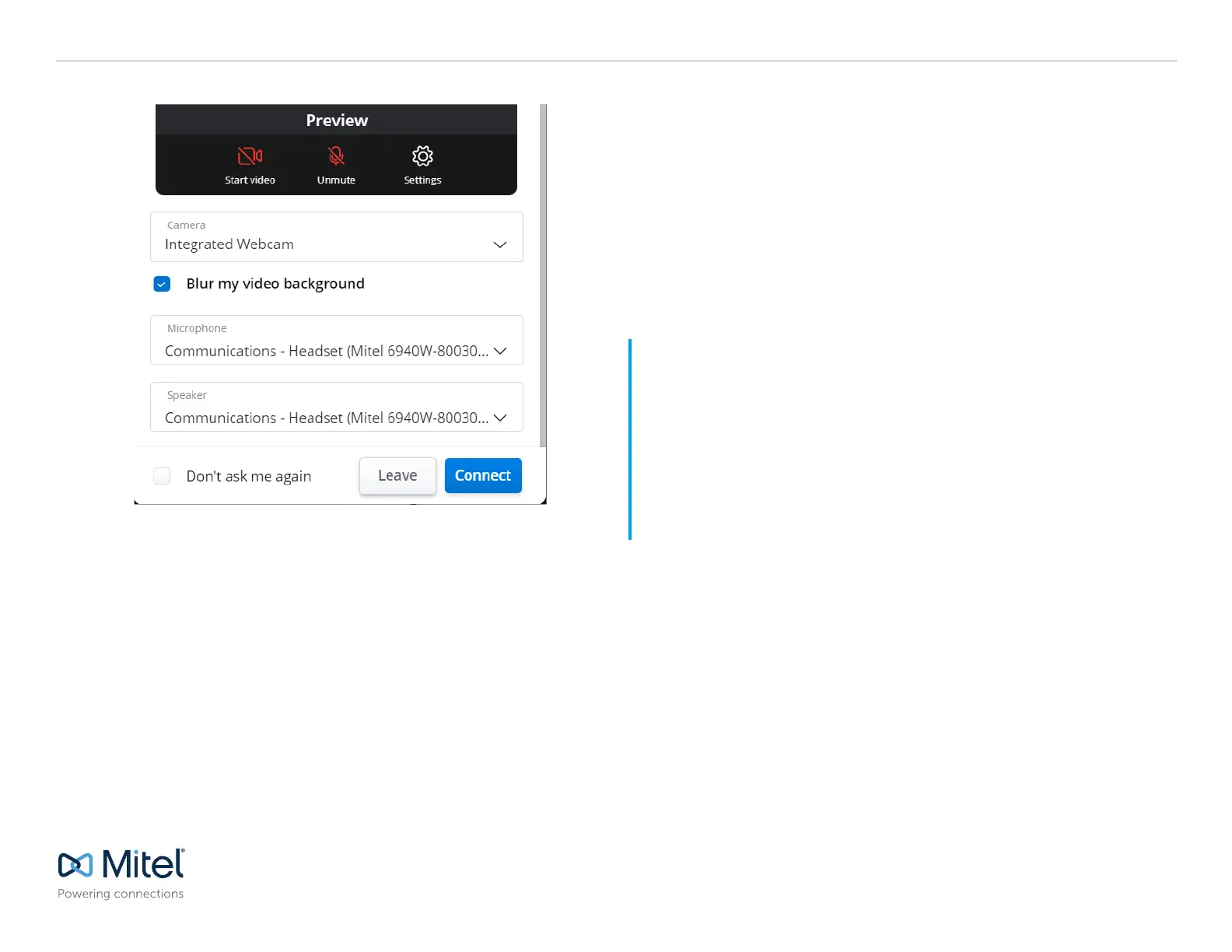
2. The Audio and Video Preview window opens. Click Settings.
3. From the Microphone drop-down list, select the Mitel IP Phone (pick any of the Mitel
IP Phones listed if more than one)
4. From the Speaker drop-down list, select the Mitel IP Phone from the list (pick any of
the Mitel IP Phones listed if more than one).
5. Click Connect.
Using Mitel IP Phone with Third-Party Video
Collaboration Applications
Please follow these recommendations when using the Mitel IP Phone with the below video
collaboration applications:
Microsoft (MS) Teams
It is recommended that you use the MS Teams PC application to host/access MS Team
meetings. Accessing MS Teams from a browser may result in issues switching between
PCLink audio and phone calls.
Google Workspace (GSuite / Google Meet)
It is recommended that you use Google Chrome to host/participate in Google Workspace
meetings. Using a different browser will result in issues trying to setup the Mitel IP Phone
as the Google Workspace audio device.
Notes:
• Once selected, MiTeam Meetings will continue to use the Mitel IP Phone as the audio device for
subsequent meetings.
• You can also access Settings > Audio from the MiTeam Meetings control panel once you have
entered a meeting to change to the Mitel IP Phone as the audio device.
• It is recommended that you select the Mitel IP Phone as the audio device from within other
video collaboration applications that you are using, which can be done in a similar manner.
• It is recommended to enable Call Forward Always (CFA) or Do Not Disturb (DND) when on a
PCLink Call to stop calls from ringing on your phone.
• PCLink audio cannot be used with the S720 Bluetooth speakerphone.


 To Previous Page
 Loading...