EasyManua.ls Logo

Mitsubishi CP710E - User Manual

Mitsubishi CP710E
75 pages
Print Icon
To Next Page IconTo Next Page
Loading...
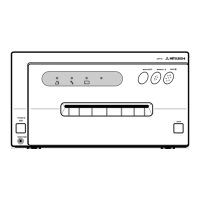
COLOUR VIDEO COPY PROCESSOR
MODEL
CP710E
OPERATION MANUAL
THIS OPERATION MANUAL IS IMPORTANT
TO YOU.
PLEASE READ IT BEFORE USING YOUR
COLOUR VIDEO COPY PROCESSOR.
POWER
OPEN
REMOTE
MEMORY
PRINT
MONITOR
CP710
This video copy processor complies with the requirements of the EC
Directive 89/336/EEC, 73/23/EEC, 93/42/EEC and 93/68/EEC.
The electro-magnetic susceptibility has been chosen at a level that
gains proper operation in residential areas, on business and light
industrial premises and on small-scale enterprises, inside as well as
outside of the buildings. All places of operation are characterised by
their connection to the public low voltage power supply system.

Questions and Answers

  • R
    Russell HoffmanAug 16, 2025
    Why Mitsubishi CP710E Computer Hardware has no power?
    • M
      Mariah LambertAug 16, 2025
      The Mitsubishi Computer Hardware might not be receiving power because the power cord plug is not properly connected to the outlet. Ensure the power cord is firmly plugged into the outlet.
  • R
    reyescatherineAug 19, 2025
    What to do if Mitsubishi CP710E displays 'PAPER EMPTY'?
    • D
      Daniel CraneAug 19, 2025
      If the Mitsubishi Computer Hardware displays a 'PAPER EMPTY' message, it means that paper is either not set, not set correctly, or ran out during printing. Make sure to set the print paper correctly.
  • C
    carrieparkerAug 22, 2025
    What to do if Mitsubishi Computer Hardware displays 'OVER HEAT'?
    • M
      Maureen RobinsonAug 22, 2025
      If your Mitsubishi Computer Hardware shows an 'OVER HEAT' message, it indicates that the temperature inside the unit is too high. Wait until the message disappears.
  • J
    Jose ReyesAug 26, 2025
    What to do if Mitsubishi CP710E Computer Hardware wired remote control cannot be operated?
    • K
      Kenneth BallAug 26, 2025
      If the wired remote control for your Mitsubishi Computer Hardware isn't working, check whether the remote control's plug is disconnected from its terminal on the unit. If it is, connect the plug of the remote control to the REMOTE terminal on the front of the unit.
  • D
    Damon BrooksAug 28, 2025
    What to do if Mitsubishi Computer Hardware displays 'DOOR OPEN'?
    • J
      johnfrancoAug 28, 2025
      If your Mitsubishi Computer Hardware displays a 'DOOR OPEN' message, it means the printing unit is not correctly inserted. Insert the printing unit until it locks into place.
  • K
    kevin47Aug 31, 2025
    What to do if Mitsubishi CP710E Computer Hardware displays 'SHEET END'?
    • J
      John Owens DVMAug 31, 2025
      If the Mitsubishi Computer Hardware displays 'SHEET END', it means the ink-sheet is used up. Replace the ink-sheet with a new one.
  • M
    Mary GreenSep 3, 2025
    What to do if Mitsubishi CP710E displays 'SHEET CARTRIDGE EMPTY'?
    • G
      Gina QuinnSep 3, 2025
      If your Mitsubishi Computer Hardware displays 'SHEET CARTRIDGE EMPTY', it means that the ink-cassette is not installed. Install the ink-cassette.
  • B
    Bradley RobinsonSep 6, 2025
    How to resolve Mitsubishi CP710E Computer Hardware 'TECHNICAL ERROR'?
    • M
      Matthew ThomasSep 6, 2025
      To resolve a technical error (J22, J23, J24) on your Mitsubishi Computer Hardware, press the MEMORY button for more than 1 second while pressing the MONITOR button. If this doesn't improve the status, consult your dealer.
  • R
    randall56Sep 9, 2025
    Why is Mitsubishi CP710E Computer Hardware color different between memorized and printed image?
    • M
      Mr. Chad Curtis PhDSep 9, 2025
      If the color or picture quality differs between the memorized image and the printed image on your Mitsubishi Computer Hardware, it might be because the color of the image stored in memory is not adjusted. Adjust the color of the image stored in the memory to match the desired output.
  • M
    Michael MaySep 12, 2025
    Why Mitsubishi Computer Hardware set comments do not appear on print paper?
    • E
      erin70Sep 12, 2025
      If the set comments are not appearing on the print paper from your Mitsubishi Computer Hardware, it might be because the COMMENT setting is 'OFF'. Enable the COMMENT setting or input the comment.

Summary

Safety Precautions and Installation Guidelines

General Safety Precautions

Critical safety instructions for operation, handling, and preventing damage or injury.

Installation Location and Environment

Guidance on suitable placement, ventilation, and environmental conditions for the unit.

Initial Setup and Preparations

Removing Shipping Protections

Steps to remove transit screws and cushions before first use.

Loading Print Paper and Ink Cassette

Instructions for correctly installing print paper rolls and ink cassettes.

External Connections and Unit Features

Connecting External Video Equipment

How to connect monitors and video sources for image input and display.

Front Panel Interface

Explanation of buttons, indicators, and controls on the front of the unit.

Rear Panel Interface

Description of input/output terminals and connectors located on the rear panel.

Printing Procedures and Settings

Basic Printing Operations

How to perform standard printing, select image modes, and input signals.

Advanced Printing Modes

Guides for multi-image, photo, separate, and strobe printing functions.

Function Settings and Menu Navigation

How to configure settings like color, size, comments, and use menu options.

Troubleshooting and Maintenance

Error Messages and Solutions

Identifies common error messages and provides troubleshooting steps.

Cleaning the Thermal Head

Instructions for cleaning the thermal head to ensure print quality.

Mitsubishi CP710E Specifications

General IconGeneral
BrandMitsubishi
ModelCP710E
CategoryComputer Hardware
LanguageEnglish

Related product manuals