User Manual Mobius Maxi 4K Camera Version: V2.0
18
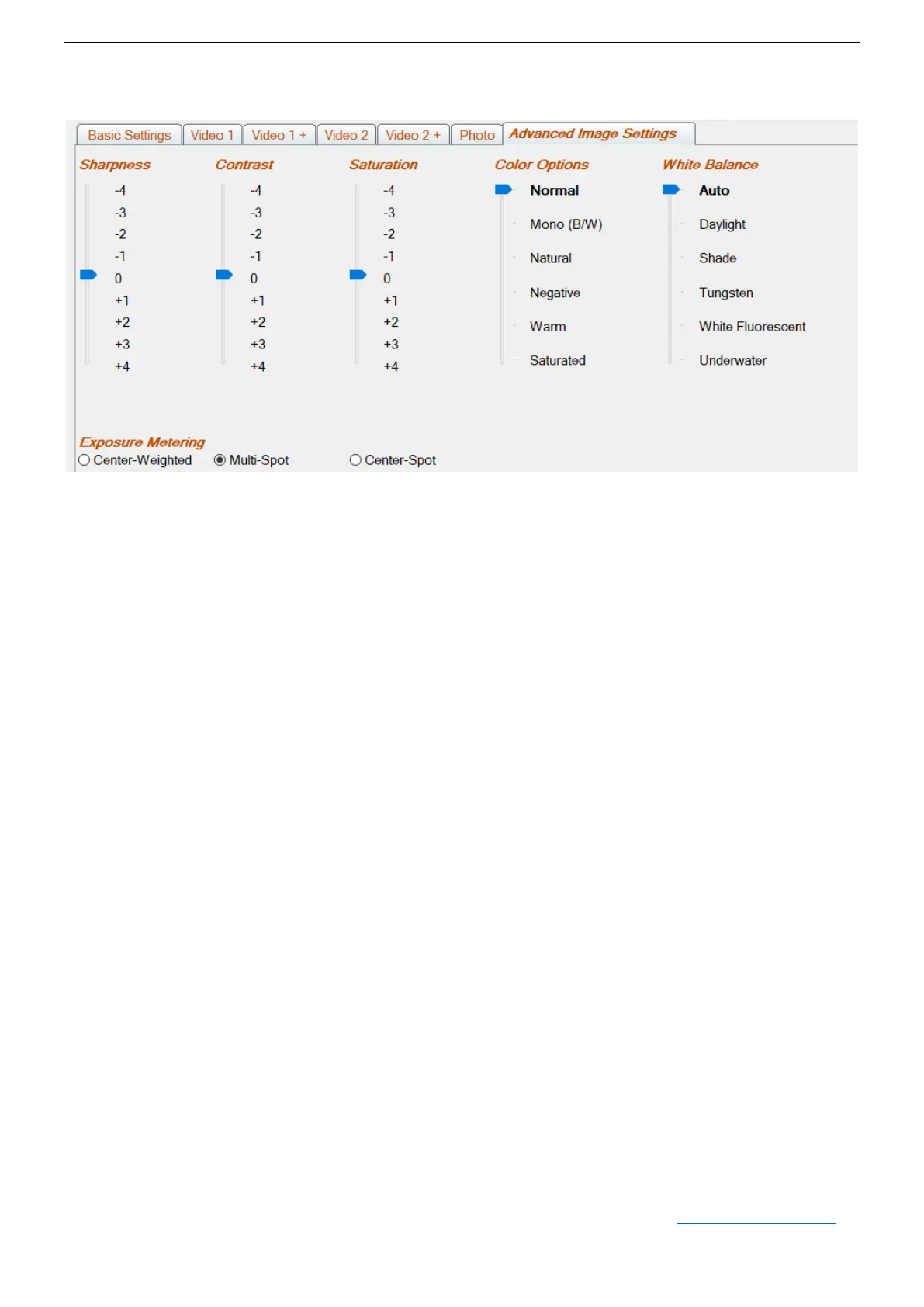
Advanced Image Settings
- Sharpness
To set sharpness of image. Minus side: less sharp; Plus side: sharper.
- Contrast
To set contrast of image. Minus side: lower; Plus side: higher.
- Saturation
To set saturation of image. Minus side: lower; Plus side: higher.
- Color Options
To set color options.
- White Balance
To set white balance.
- AE Metering
You can set Exposure Metering to better control the exposures. It’s Multi-Spot by default.
Firmware Updating
Camera will be well supported and new firmware may be released to provide new functionality or bug fixes if any.
You can use mSetup (click the 'Tools' button) to automatically update the firmware. This is by far the easiest method.
Manual Firmware Update
1. DO NOT PRESS ANY BUTTONS during the firmware update process.
2. Always charge the camera and format the memory card first before doing firmware updating.
3. Connect the camera to PC as USB drive.
4. Copy the new firmware file (MAXI4K.BRN) into the camera's flash card root folder.
5. Disconnect the camera from PC and wait until it turns off, all LEDs off.
6. Connect the camera to PC. The green LED, indicating the battery is charging, may turn on. WAIT.
7. Camera will be on and the rear red LED will blink indicating the firmware is being updated. WAIT
8. The firmware will be updated when the rear red LED stops flashing, and camera will be turned off. DONE
Note: The firmware file will have been automatically deleted.
The date and time and all parameters will be reset to their default values.
Important: If camera can no longer be connected as a USB drive, you can use a card reader to copy the firmware,
insert the memory card with firmware file, and then do steps from 6. (Back to Table of Contents)


 To Next Page