User Manual Mobius Maxi 4K Camera Version: V2.0
7
Type C USB Interface
Maxi 4 Camera uses popular Type C USB connector. It supports USB2.0.
The provided USB cable is Type A to Type C. Please connect Type A end with your charger or computer, and Type
C end with the camera. Please use the provided USB cable for charging and USB data transferring.
►Important Note: if your charger or your computer has Type C output only, Type C to Type C cable may not work.
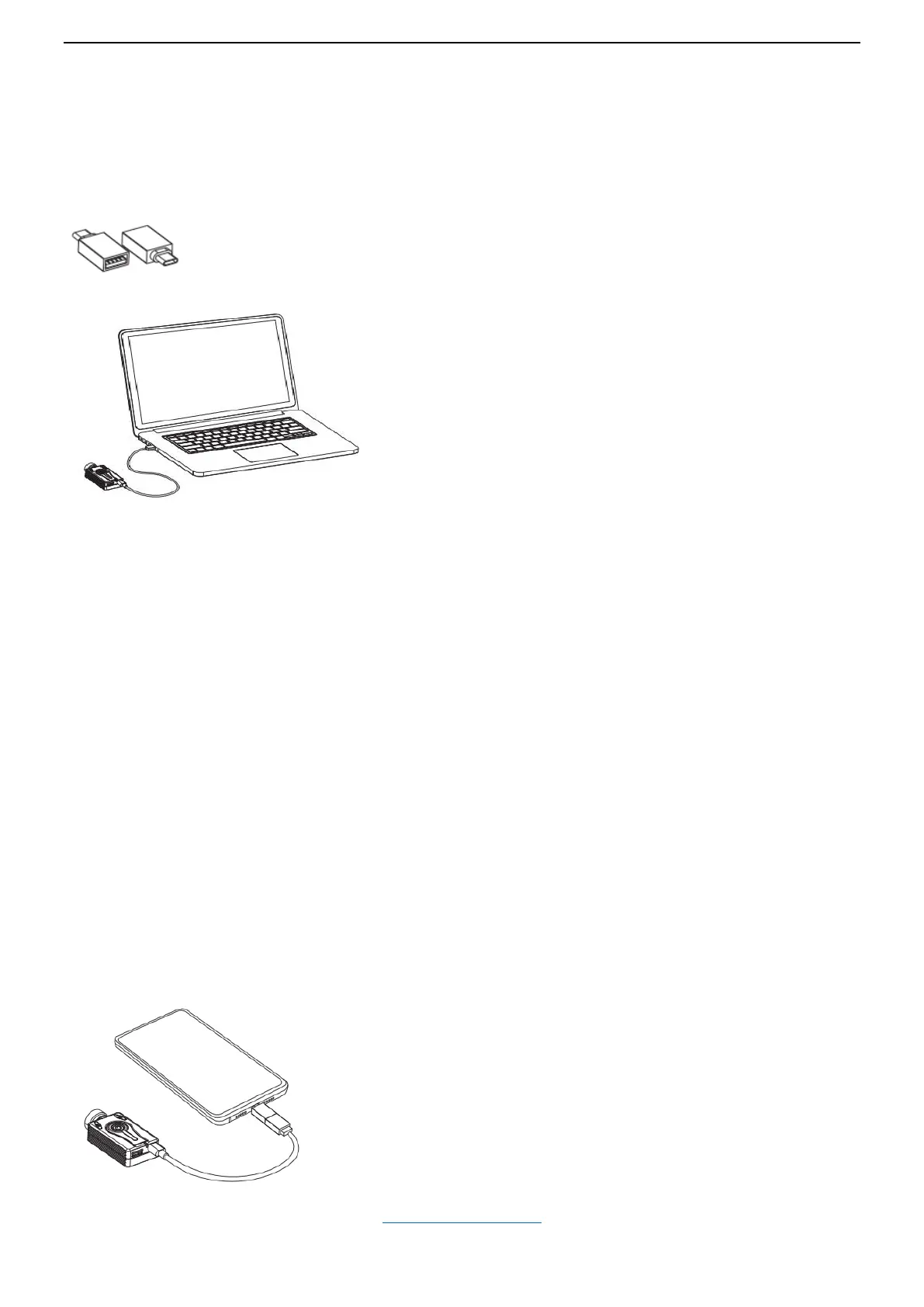
You can use the provided USB adapter (Type C to Type A Female)
Connect with Computer
USB Drive (Removable Disk Mode)
Connect camera with card inserted to USB port of PC using provided USB cable, the camera will turn on and should
be recognized as USB Drive, and the red LED will turn on. The green LED may turn on at the same time indicating
that the battery is charging.
You can access video and photo files on memory card.
Press the Shutter button to enter Webcam mode (blue LED). Press the Shutter button again, to revert back to USB
Drive mode.
► Note: Turn the camera off if you just want to charge the battery.
► Note: Camera may not work with some USB hubs. If connection fails with a USB hub, please connect the camera
directly to the PC.
► Note: You cannot record videos or take photos if the camera is connected to the PC as USB drive.
USB PC Camera (Webcam Mode)
There are two ways in which you can enter webcam mode.
Method 1: Remove the SD card and connect the camera to the PC.
The camera will connect in webcam mode.
Method 2: Connect the camera to the PC until it is in USB Drive (Removable Disk) Mode. See above.
Press the Shutter button. Camera will exit USB Drive (Removable Disk) Mode and enter Webcam Mode.
► Note: Turn the camera off if you just want to charge the battery.
The Win10 system “camera” program is a recommended free and versatile webcam program.
Connect with Smart Phone
(Back to Table of Contents)
If your smart phone has Type C interface and supports USB OTG, you
can wire them using provided USB cable (to camera) and Type C USB
OTG adapter (to phone).
The camera can work as a USB Disk to your phone, and you can easily
access the files on the memory card.
The camera can even work as a USB camera if you have the correct app.
(Press Shutter button to switch between USB Disk /Camera mode).
The camera can connect with different computer systems
as a generic USB device. Normally it’s Plug and Play.
Note: if this is the first time you are connecting the camera
to the PC, the operating system may attempt to install the
required drivers automatically. This may take a few minutes.


 To Next Page