User Manual Mobius Maxi 4K Camera Version: V2.0
5
Super Capacitor
You can choose Mobius Maxi 4K to come with a super capacitor pack instead of a built-in battery.
Unlike batteries, capacitors don’t pose the risk of overheating.
A super capacitor can only provide enough power to properly save a file before shutting off when external power
is disconnected. It cannot supply enough power to record a video clip. A fully charged super capacitor will only last
a few seconds. A super capacitor also charges very quickly.
►Important: NEVER disconnect with USB power when you try to update firmware.
Only consider a capacitor version if:
○ You have external power supply (USB 5V) and you need the Maxi 4K to record continuously for many hours.
○ The camera will work or be used in extreme temperatures (for example, used as a dash cam in a car sometimes
parked under direct sun light especially in summer).
Memory Card
The camera has no internal memory and requires a memory card (sold separately).
It supports Micro-SD (also known as TF cards), Micro SDHC, Micro SDXC cards.
It supports both FAT32 and exFAT formats. Cards with a capacity of up to 512GB and 1TB have been tested.
It is recommended to use cards with a U3 rating or above for 4K recording.
►Important: If the firmware detects that the card is too slow (class rating too low), camera may take it as an invalid
card, and it won’t start; or it may cause sudden stop of video recording. Please change a new faster card.
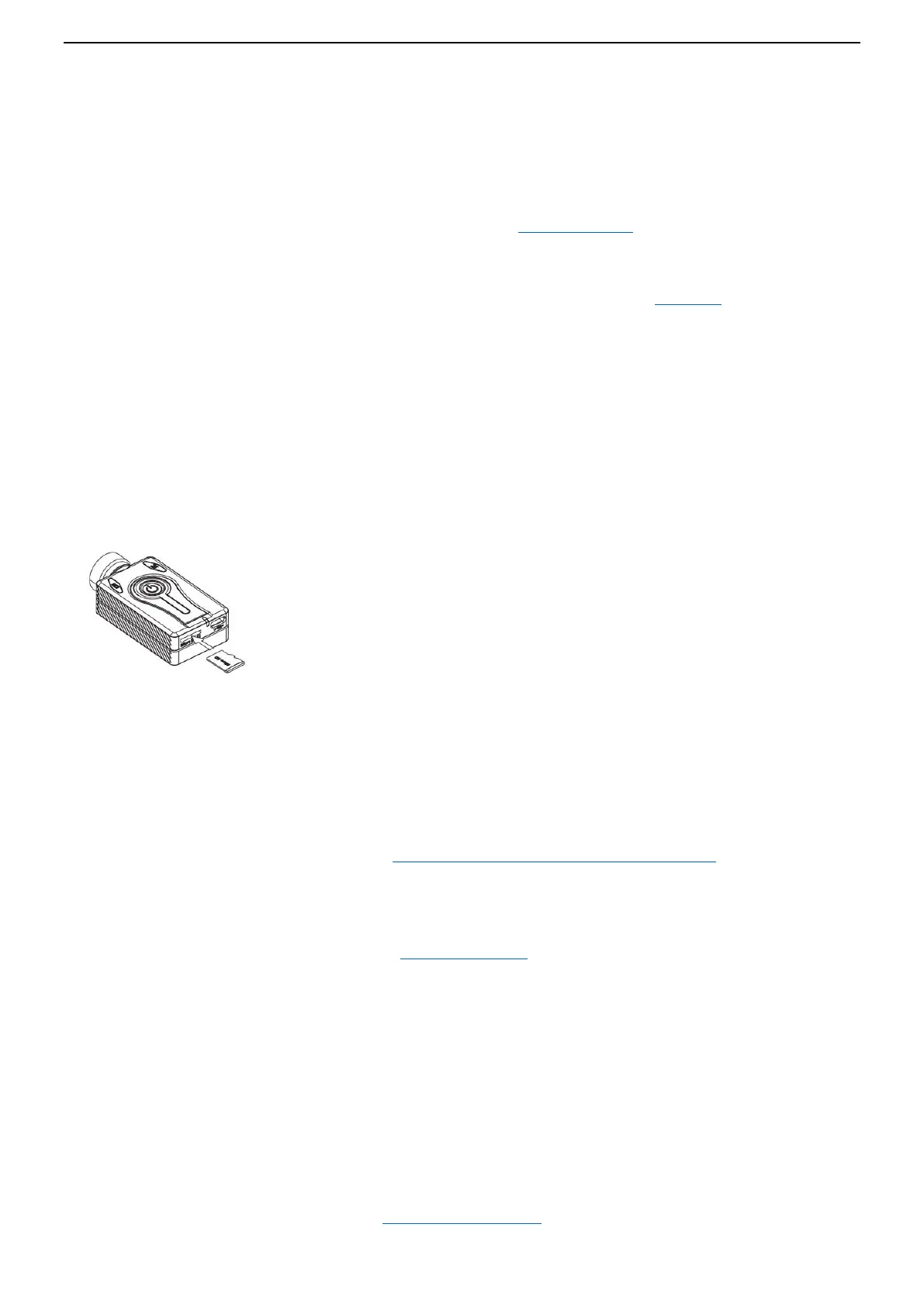
Install and remove the memory card:
Formatting
►Important: Make sure to backup all files stored on the card before any card formatting.
You can use standard formatting tools provided by the operating system to format the cards, in FAT32 or exFAT.
For optimal card performance it is recommended to do in-camera formatting.
Another excellent formatting utility is "SD Formatter" which can be downloaded from the site below, this utility has
been specifically designed to format SD cards. https://www.sdcard.org/downloads/formatter/.
In-Camera Formatting
○ Use the TXT configuration file to do In-Camera formatting.
○ Use mSetup tool or mTool to do In-Camera formatting.
○ In-Camera formatting is also available via the TV out OSD menu.
○ The Camera contains a built-in formatter which is recommended to be used to format the SD card.
1. Make sure the camera is disconnected and is turned off.
2. Turn on the camera and wait until it is in one of the Standby modes (steady yellow, blue or red LED).
3. ► If the camera was set to auto-record, press the Shutter button (top left) to stop the recording.
4. Press and hold down the Shutter button. DO NOT RELEASE the button.
5. Very quickly press the Mode button 4 times.
6. ► If the LEDs don't start to blink, release the buttons and start over again at 4.
7. The LEDs will blink very quickly while the card is being formatted.
8. Release the Mode and Shutter buttons once the LEDs start to blink.
9. The camera will return to Standby mode when the formatting is finished.
(Back to Table of Contents)


 To Next Page