User Manual Mobius Maxi 4K Camera Version: V2.0
11
3. Manual configuration using a text file
Like previous Mobius cameras, you can always edit the txt config file to change the settings and sync the date
/time. It’s useful when you are not on a Windows PC.
The camera will always write a txt file on the memory card’s root folder, named SYNC_PARA.CFG.BAK, which can
be opened and edited with a plain text editor, like the Windows Notepad program.
Connect camera to PC, working as a USB drive.
Edit txt file SYNC_PARA.CFG.BAK, only change the values in brackets [ ] and then edit the file name and save file as
SYNC_PARA.CFG (with .BAK deleted).
Camera will detect the renamed configuration file and load in the parameters when it turns on again, and will write
a new ".BAK" file to the memory card confirming the new settings have been loaded.
4. Manual configuration using an external TV/monitor
It is also possible to manually change the configuration settings by using the On Screen Display (OSD) by
connecting the camera to an external TV/monitor.
1. Connect the camera with a TV/monitor, please see TV Out.
2. Turn the camera on. It will enter Video 1 mode with live preview on TV/monitor
3. Press Mode button, it will enter Video 2 mode with live preview on TV/monitor
4. Press Mode button again, it will enter Photo mode with live preview on TV/monitor
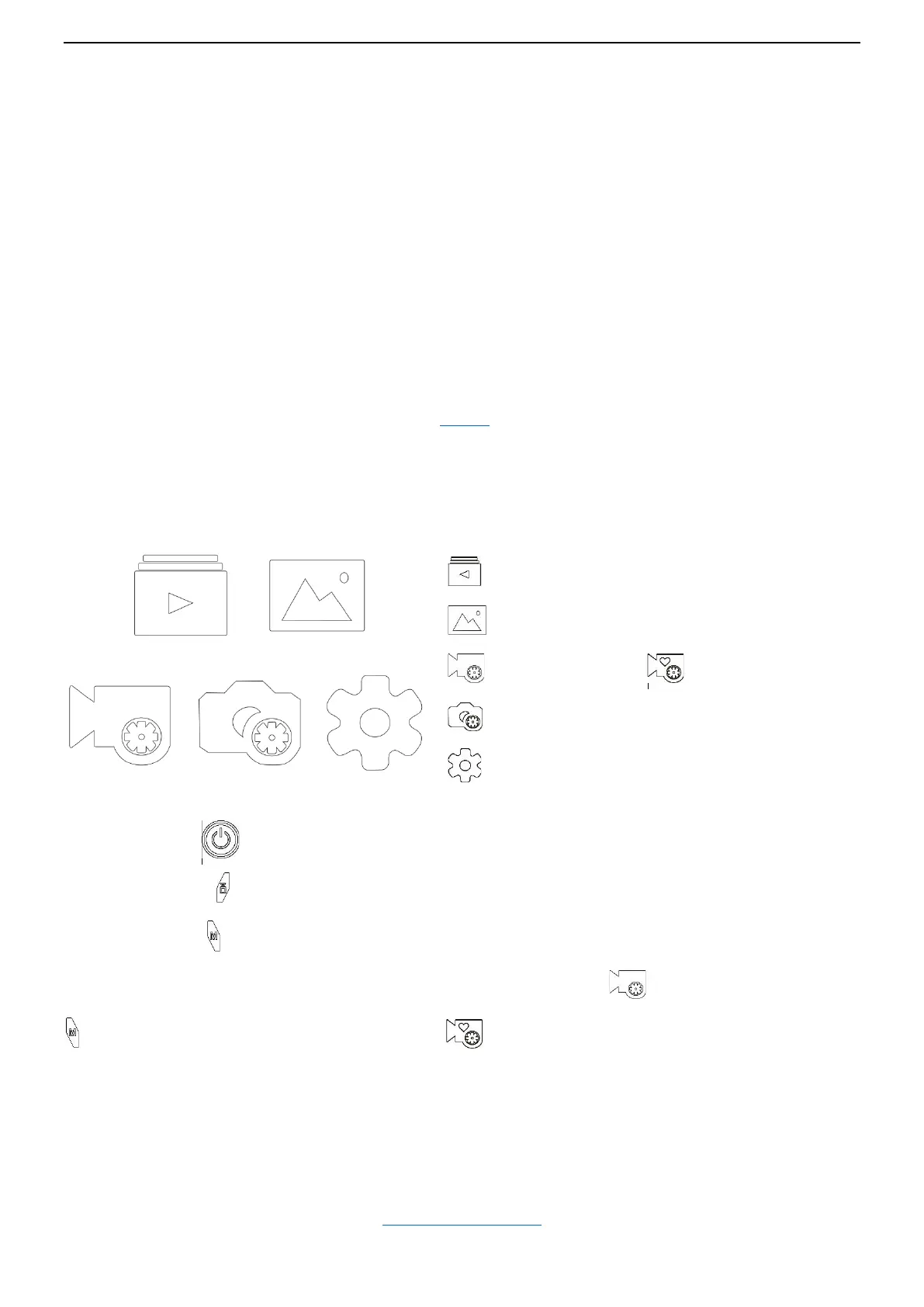
5. Press Mode button again, it will enter OSD mode on TV/monitor and shows the screen below:
Video Files, to playback video files on the card;
Photo Files, to review photos on the card;
Video1 Mode Settings Video2 Mode Settings
Photo Mode Settings
System Settings
Press Power button , to move the selection downwards, and then back to first one from bottom;
Press Shutter button , to enter /selection;
Press Mode button , to exit
How to enter Video 2 Mode Settings: when move to Video 1 Mode settings , press and hold Mode button
approx 2 seconds, it enters Video 2 Mode Settings (with a heart shape)
(Back to Table of Contents)


 To Next Page