User Manual Mobius Maxi 4K Camera Version: V2.0
8
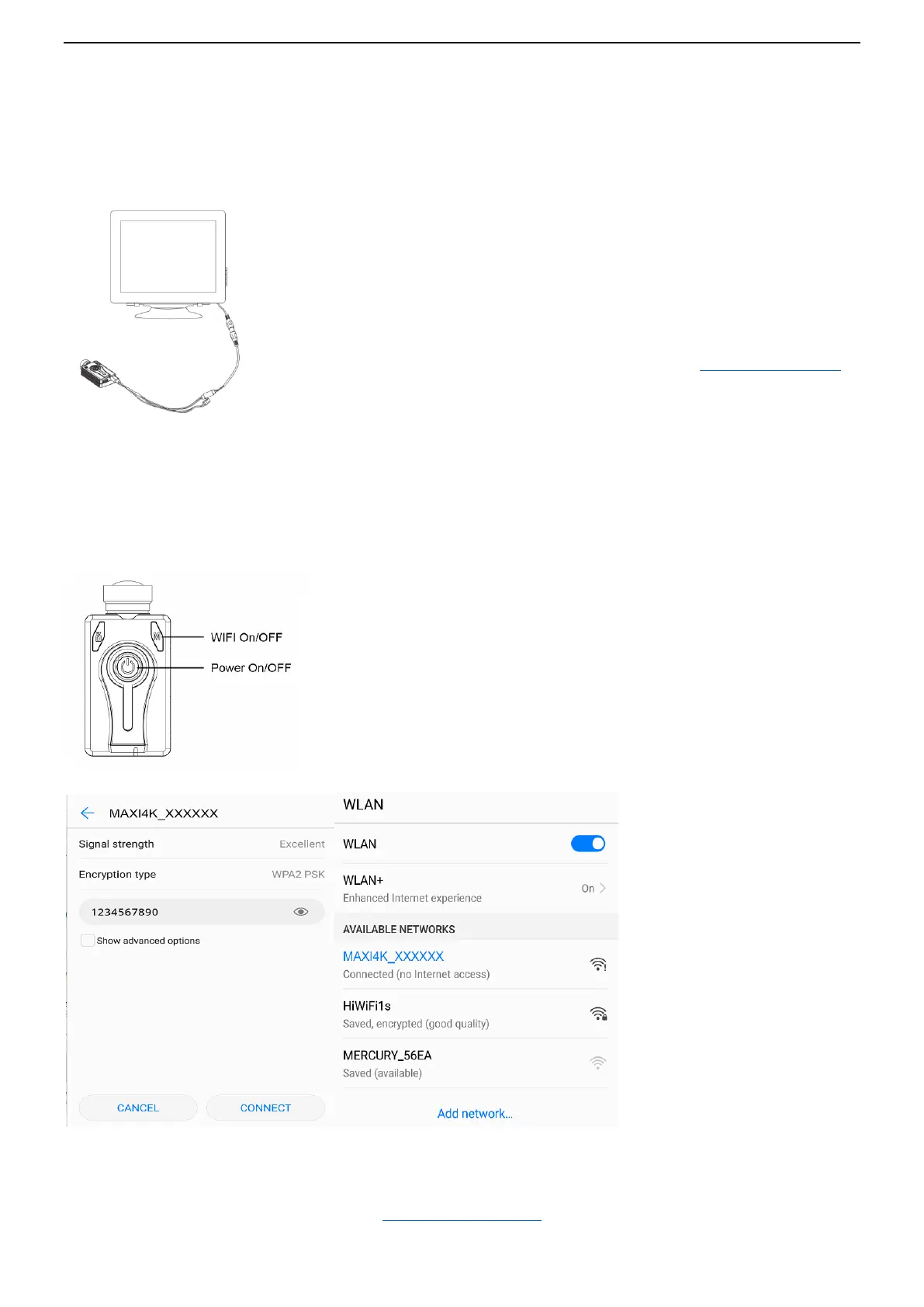
TV out (Composite Video Output)
Maxi 4K camera supports TV composite video output.
Please connect the camera to the TV/monitor with CVBS Input using the TV out cable (may be sold separately).
See diagram below.
WiFi Connection
Maxi 4K camera supports WiFi connection with smart phones.
Note: There is no specific WiFi app for this camera. You can use the general iCatch app below to preview videos
and download video / photo files to your phone. No camera settings can be modified using the wifi app.
Please download and install the app iSmart DV2 from Google Play or Apple App Store.
When WiFi connection is established, red rear LED stops blinking and will remain on. Beeping stops.
Open the iSmart DV2 app on your phone. Connect camera. And then you can have live preview of camera.
You can also access memory card of camera to copy files to your phone.
(Back to Table of Contents)
Turn camera on, enter Video 1 mode, you will have live video preview on the
TV / monitor right away.
You can operate camera as usual, with live preview on TV / Monitor.
Press Mode button, enter Video 2 mode with preview; -> Press Mode button
again, enter Photo mode with preview; -> Press Mode button again, enter TV
out OSD setting screen. You can make the settings. See TV out OSD settings.
-> Press Mode button again, back to Video 1 mode
1. Press Power button to turn camera on The camera will enter standby
mode.
2. Press and hold the Mode button for approx. 3 seconds until you hear 2
beeps, the red rear LED will start flashing continuously, along with a
beeping sound. WiFi is enabled, waiting for connecting.
3. In Settings of your phone -> WLAN -> Select Maxi4K as your Wi-Fi
connection
WiFi SSID: MAXI4K_XXXXXX, the default password: 1234567890
4.


 To Next Page