Setting your Mac’s Audio Input and Output
YounowneedtosetyourMac’saudioinputandoutputto“Bluetooth”
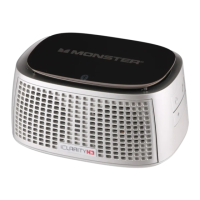
toenableiClarityHDPrecisionMicroBluetoothSpeakertotransmitaudio
fromyourMacandsendaudiofromitsbuilt-inmicrophonetoyourMac.
1.ChooseApplemenu>SystemPreferencesandthenclick“Sound.”
2.Clickonthe“Output”Tab.
IfyouwanttouseiClarityHDPrecisionMicroBluetoothSpeakerfor
stereoaudioplayback,likemusicandmovies,highlight“iClarityHD
PrecisionBluetoothHeadphones.”
Ifyouwanttouse“iClarityHDPrecisionMicroBluetoothSpeaker”
asaspeakerphoneforSkype,iChatorotheronlinechatapplications,
highlight“iClarityHDPrecisionBluetoothHeadset.”
4.ClickAdd(+).TheBluetoothSetupAssistantwilllaunchautomatically.
Click“Continue.”
5.Onthenextscreen,select“Headset”andthenclick“Continue.”
6.Thedevice“iClarityHD”shouldshowup.Clicktohighlight,
thenclick“Continue.”
7.Afteryourcomputergathersinformation,click“Continue.”Ifaskedfor
apasskey,enter0000andclick“Continue.”iClarityHDPrecisionMicro
BluetoothSpeakerwillnowbepairedwithyourMac.Click“Quit”.
IfyouhaveaBluetoothequippedWindowsPC,pleaseconsultyour
owner’smanualforpairinginstructions.



 To Next Page