30 Chapter 3 Using your Tablet PC
Using Motion QuickNav
Motion QuickNav provides multiple QWERTY keyboard lay-outs and numeric pads for
quickly entering text, numbers, and symbols into documents and applications. It also lets
you quickly take a picture using the camera, record or play back a voice note, and acquire a
GPS location.
To start Motion QuickNav
Do one of the following:
• Press the Motion QuickNav button ( ).
• Go to Start -> All Programs-> Motion QuickNav, then click Motion QuickNav.
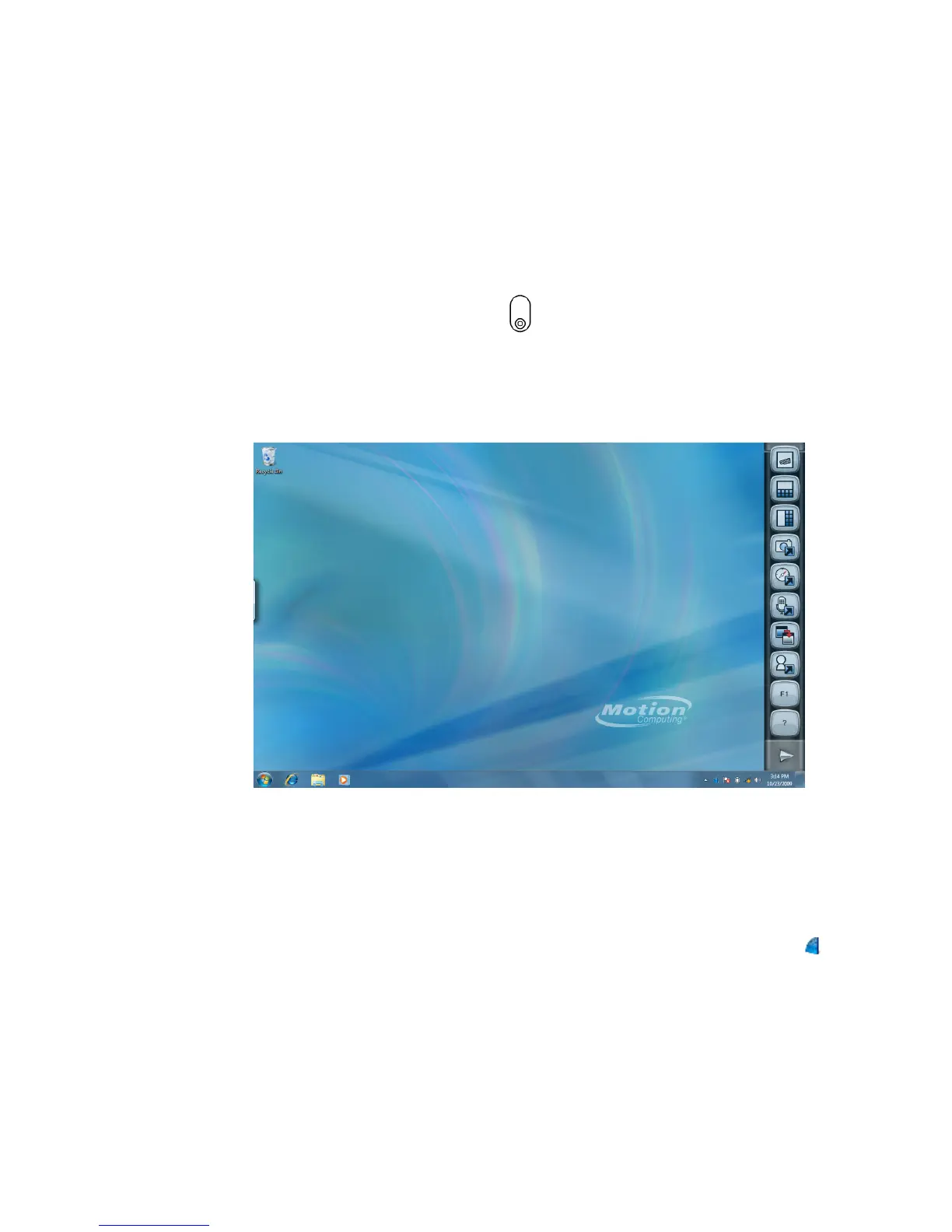
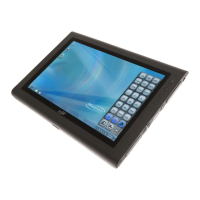
The following illustration shows Motion QuickNav in its default location on the right side of
the Tablet PC screen.
Tap the buttons to open QuickNav’s various features. For example, tapping the top buttons
opens one of QuickNav’s keyboard layouts.
For more information on using QuickNav, tap QuickNav’s help button to view the Motion
QuickNav online help.
Note: Once Motion QuickNav has been launched, you can tap on the QuickNav icon ( )
in the system tray and configure your desired options.


 To Next Page