34 Chapter 3 Using your Tablet PC
Using the Express card reader (optional)
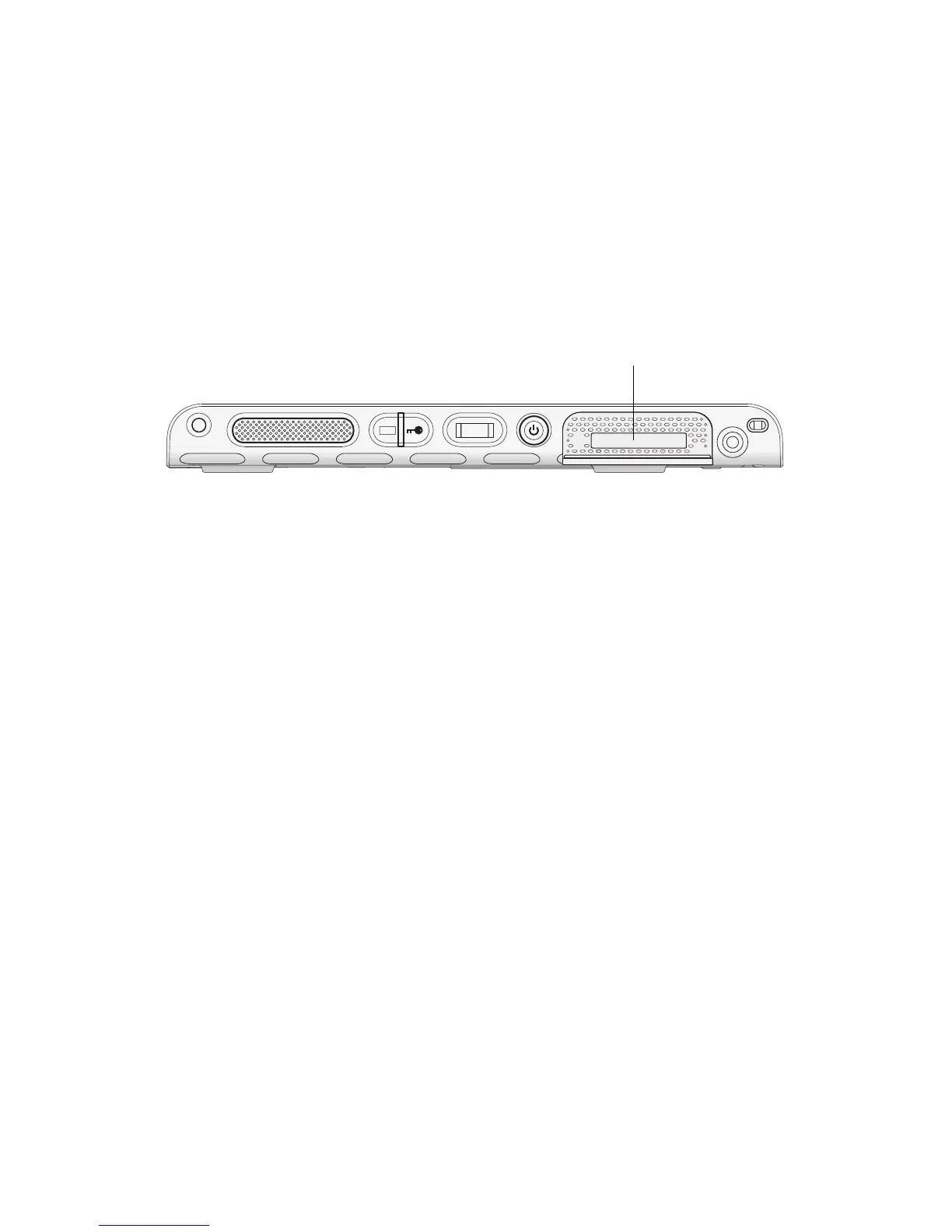
The Express card slot holds one Express card for networking, memory expansion, or
accessories.
• To insert an Express card, remove the card slot cover and place the Express card in the
slot with the label side up.
• To remove the card, pull the card out of the slot and replace the card slot cover.
The J3500 includes a cover for the Express card slot. To protect the Express card slot, you
should leave the cover in place when you do not have an Express card in the slot.
Using the display
Use the procedures in this section to customize your display settings. You can adjust the
brightness level, rotate the display, and change the order in which the display rotates.
Adjusting the display brightness
Use this procedure to change the brightness of the display.
To adjust the display brightness
1. Open Motion Dashboard to the Display panel (page 24).
2. Set the Brightness slider to the appropriate level.
For optimal battery conservation and viewability, set the brightness scale to the mid-
point or slightly above.
3. Select one of the following:
• Fixed. Sets the display brightness to a constant level. Use the slider to adjust the
display to the desired brightness level. The ambient light sensor is not used with fixed
brightness.
• Dynamic. Uses the ambient light sensor to maintain an appropriate brightness level
for the current lighting conditions. Using dynamic brightness helps to reduce power
consumption while running on battery power.
Express card reader slot (cover removed)


 To Next Page