EasyManua.ls Logo

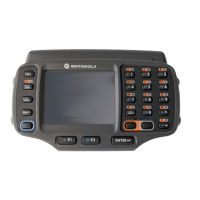
Motorola WT4090 - User Manual

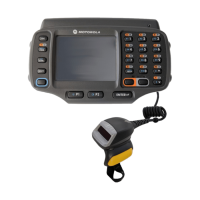
Motorola WT4090
114 pages
Print Icon
To Next Page IconTo Next Page
Loading...
WT4070/90 Wearable Terminal
User Guide

Table of Contents

Other manuals for Motorola WT4090

Questions and Answers

  • D
    Dawn WestAug 13, 2025
    How to fix a Motorola Touch terminal that does not turn on?
    • J
      John McneilAug 13, 2025
      If your Motorola Touch terminal doesn't turn on, it might be due to a discharged lithium-ion battery. Try charging or replacing the battery. Another possibility is that the battery isn't installed correctly; ensure it's properly installed. If the issue persists, the system may have crashed, in this case try performing a warm boot. If that doesn't work, perform a cold boot.
  • J
    juliecrosbyAug 17, 2025
    Why is my Motorola Touch terminal rechargeable battery not charging?
    • C
      Curtis MasonAug 17, 2025
      If the rechargeable lithium-ion battery of your Motorola Touch terminal isn't charging, the battery might have failed and needs replacement. If replacing the battery doesn't solve the issue, try a warm boot, then a cold boot. Also, ensure the terminal remains in the cradle while charging; the standard capacity battery charges fully in under four hours, and the extended capacity in under eight. The ambient temperature of the cradle may also be a factor; move the cradle to a location where the temperature is between 0 °C and 40 °C (32 °F and 104 °F).
  • M
    Mrs. Katie BlackwellAug 21, 2025
    What to do if my Motorola Touch terminal won't turn on?
    • E
      Elizabeth BowenAug 21, 2025
      If your Motorola Touch terminal doesn't turn on, the lithium-ion battery may not be charged or properly installed. Try charging or replacing the battery, and ensure it's correctly installed. Alternatively, the system may have crashed; in this case, perform a warm boot. If that doesn't work, try a cold boot.
  • P
    Philip MosesAug 25, 2025
    Why is my Motorola Touch terminal rechargeable lithium-ion battery not charging?
    • A
      Anne BlackwellAug 25, 2025
      Your Motorola Touch terminal rechargeable lithium-ion battery may not be charging because the battery has failed (replace it and try a warm or cold boot), the terminal was removed from the cradle during charging (reinsert to charge fully in under four hours), or the cradle's ambient temperature is outside 0°C to 40°C (move the cradle to a more suitable environment).
  • D
    Dana RogersAug 28, 2025
    How to fix no sound on Motorola Touch terminals?
    • K
      Kimberly JohnsonAug 28, 2025
      If no sound is audible on your Motorola Touch terminal, the volume setting may be low or turned off. Adjust the volume by going to Start > Settings > Control Panel > Volume & Sounds icon > Volume tab, and move the slider to change the volume level.
  • Y
    ywrightSep 1, 2025
    What to do if my Motorola Touch terminal transmits incomplete data?
    • G
      George HernandezSep 1, 2025
      If data transmission is failing on your Motorola Touch terminal, ensure the device remains in the cradle or the synchronization cable is attached during communication, then re-transmit. The cable configuration might be incorrect, consult the System Administrator. Also, the communication software may be incorrectly installed or configured; perform setup referring to the WT4090 Integrator Guide for details. Finally, ensure that Microsoft ActiveSync 4.5 or greater is installed on the host computer.
  • R
    Rodney HughesSep 4, 2025
    How to fix no sound on a Motorola Touch terminal?
    • J
      James BoyleSep 4, 2025
      If no sound is audible from your Motorola Touch terminal, the volume setting might be too low or turned off. Adjust the volume by selecting Start > Settings > Control Panel > Volume & Sounds icon > Volume tab and move the slider. Alternatively, use the volume control on the voice application.
  • V
    Vanessa WongSep 9, 2025
    What to do if during data communication no data was transmitted, or transmitted data was incomplete on Motorola Touch terminals?
    • A
      Amanda FullerSep 9, 2025
      If no data was transmitted or data was incomplete during communication with your Motorola Touch terminal, it may be due to the terminal being removed from the cradle or unplugged from the host computer during communication (replace the terminal in the cradle or reattach the synchronization cable and re-transmit).

Summary

About This Guide

Introduction to the User Guide

Describes the guide's purpose, versions, and overview of contents.

Service Information and Support

Provides contact information for technical support and troubleshooting assistance.

Chapter 1 Getting Started

Unpacking and Inspecting the Terminal

Steps for unpacking the device and verifying all components are present and undamaged.

Installing and Removing the Main Battery

Instructions for managing the primary battery, including installation and removal procedures.

Installing the Wrist Mount

Guide for attaching the wearable terminal to the user's wrist for hands-free operation.

Starting the Wearable Terminal

Initial power-on sequence, including boot-up process and first-time setup.

Chapter 2 Using the Wearable Terminal

Power Button Functions and Resets

Explains the power button's role in suspend mode and performing warm/cold resets.

Wearable Terminal LED Indicators

Description of status LEDs on the terminal for charging and other indicators.

Keypad Types and Navigation

Covers different keypad layouts and methods for navigating applications.

Resetting the Wearable Terminal

Detailed procedures for performing warm boots (soft reset) and cold boots (hard reset).

Data Capture and Scanning Basics

Introduction to collecting data via scanning, including laser and imager operations.

Chapter 3 Accessories

Single Slot USB Cradle Usage

Instructions for using the USB cradle for charging and synchronization.

Four Slot Ethernet Cradle Usage

Instructions for using the Ethernet cradle for charging and network connectivity.

RS409 Scanner Connection and Use

Guidance on connecting and operating the RS409 scanner with the terminal.

Freezer Pouch Guidelines and Limitations

Information on using the freezer pouch in cold environments and its operational limits.

Chapter 4 Maintenance & Troubleshooting

Maintaining the Wearable Terminal

General care tips, cleaning advice, and best practices for terminal upkeep.

Battery Safety Guidelines

Important safety precautions and handling instructions for the device's batteries.

Troubleshooting Wearable Terminal Issues

Solutions for common problems encountered with the wearable terminal.

Appendix A Specifications

Wearable Terminal Specifications

Detailed technical specifications for the wearable terminal itself.

Scanner Specifications Overview

Technical specifications for compatible scanners like RS309, RS409, and RS507.

Appendix B Regulatory Information

Accessory Power Supply Compliance

Regulatory compliance statements for power supplies used with accessories.

Glossary

Index

Motorola WT4090 Specifications

General IconGeneral
BrandMotorola
ModelWT4090
CategoryTouch terminals
LanguageEnglish

Related product manuals