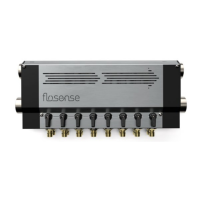
The Flosense 3.0 and 4.0 Manifold system is a device designed to facilitate Virtual Network Computing (VNC) connections, allowing it to broadcast and receive information to and from other units, typically a Machine UI on a moulding machine or other connected devices. This user guide provides detailed instructions for setting up and connecting the Flosense display, either locally to a Windows-based Machine UI or PC, or through a router for Windows.
Function Description:
The primary function of the Flosense system is to provide a display interface for manifold systems, enabling remote monitoring and control through VNC. It allows users to view and manage manifold data, including measurements (LPM, GPM, °C, °F, PSI, BAR), time/date settings, and alarm configurations. The system supports both static and dynamic IP allocation, offering flexibility in network setup. By connecting the Flosense display to a PC or Machine UI via VNC software, operators can access the display's interface remotely, making it suitable for industrial environments where direct interaction with the display might be impractical or inconvenient. The VNC functionality ensures that the Flosense system can be integrated seamlessly into existing network infrastructures, providing a centralized point of control and monitoring for manifold operations.
Important Technical Specifications:
While specific hardware specifications are not extensively detailed in the provided pages, the manual highlights key networking requirements and display features:
- Network Connectivity: The Flosense display connects via an Ethernet cable. It supports both direct local connections and connections through a router.
- IP Allocation: The system can be configured for either static or dynamic IP allocation. For static IP, the subnet mask is recommended to be 255.255.0.0, and IP addresses typically start with 192.168. The Flosense display requires a 12-digit format for IP addresses (e.g., 192.168.004.005).
- VNC Port: The default VNC port used for connection is 5901 (e.g., 192.168.4.123::5901).
- Display Interface: The Flosense display features a graphical user interface with touch-sensitive controls, allowing users to navigate through various settings such as GLOBAL, TIME/DATE, MANIFOLD, SENSORS 1, SENSORS 2, ALARMS 1, ALARMS 2, and PIN. It also shows real-time measurements and provides options to configure settings.
- Router Compatibility: When connecting through a router, the router must have DHCP (Dynamic Host Configuration Protocol) enabled to designate an IP address to the Flosense display.
Usage Features:
The Flosense system offers several features that enhance its usability and integration into various setups:
-
Local Connection (Static IP):
- Direct Ethernet Connection: The Flosense display connects directly to the Machine UI or PC using an Ethernet cable. The display must be turned off before connecting and then powered on.
- Static IP Configuration: Users must define a static IP address and subnet mask for both the PC/Unit and the Flosense display. This involves accessing the "Network and Sharing Center" on the PC, navigating to "Ethernet Properties," and configuring TCP/IPv4 settings. The recommended subnet mask is 255.255.0.0.
- Flosense Display IP Setup: On the Flosense display, users access the global settings menu to set IP allocation to STATIC and enable VNC. The subnet mask on the display must match the PC's, and the IP address should be within the same range (e.g., 192.168.xxx.xxx), ensuring it's between 1 and 255 and not identical to the PC's last six digits.
- VNC Software Connection: After configuring IP settings, users connect using VNC software (e.g., TightVNC Viewer) by entering the Flosense unit's IP address and the VNC port (e.g., 192.168.4.123::5901).
-
Router Connection (Dynamic IP):
- Ethernet Connection to Router: The Flosense display connects to a router via an Ethernet cable. The display should be turned off before connection.
- Dynamic IP Allocation: The router must have DHCP enabled. On the Flosense display, users toggle the IP allocation settings to DYNAMIC and enable VNC in the network settings. The system will then automatically receive an IP address from the router, which will be displayed in the "CURRENT IP ADDRESS" field.
- VNC Software Connection: Similar to the local connection, VNC software is used to connect to the Flosense display by entering its dynamically allocated IP address and the VNC port.
-
User Interface: The Flosense display's interface allows for easy navigation and configuration of various parameters, including:
- Measurements: Real-time display of flow rates (LPM, GPM), temperature (°C, °F), and pressure (PSI, BAR).
- Settings: Access to global settings, time/date, manifold configurations, sensor settings, and alarm management.
- VNC Enablement: A dedicated toggle within the network settings to enable or disable VNC functionality.
Maintenance Features:
The manual implicitly suggests a few maintenance considerations:
- Power Cycling: The Flosense display needs to be turned OFF before connecting or disconnecting Ethernet cables, whether directly to a PC or to a router. This practice helps prevent potential damage or network configuration issues.
- Rebooting: In cases of network connection issues, especially after disconnecting and reconnecting Ethernet cables, rebooting the system (PC/Unit and Flosense display) is recommended to ensure proper recognition of network connections.
- VNC Connection Stability: The VNC connection is lost if the Flosense display is turned off or rebooted. This implies that for continuous remote access, the display should remain powered on.
- Troubleshooting: The guide provides steps for identifying the correct Ethernet connection on a PC (by disconnecting and reconnecting the cable) and for verifying network status, which are basic troubleshooting steps for connectivity issues.
- Damage Disclaimer: The manual includes a disclaimer stating that costs connected to damages caused by not following instruction manuals will be at the customer's expense, emphasizing the importance of proper installation and usage.
In summary, the Flosense 3.0 and 4.0 Manifold system is a robust solution for remote monitoring and control of manifold operations, leveraging VNC technology for flexible network integration and user accessibility. Its design focuses on straightforward setup and operation, with clear guidelines for both direct and router-based connections, ensuring reliable performance in industrial settings.

 Need help?
 General

 To Next Page