11
MOVADO BOLD MOTION USER GUIDE
Customizing favorite contact notifications
After you configure your favorite contacts list, you receive
custom notifications when a favorite contact calls or
messages you.
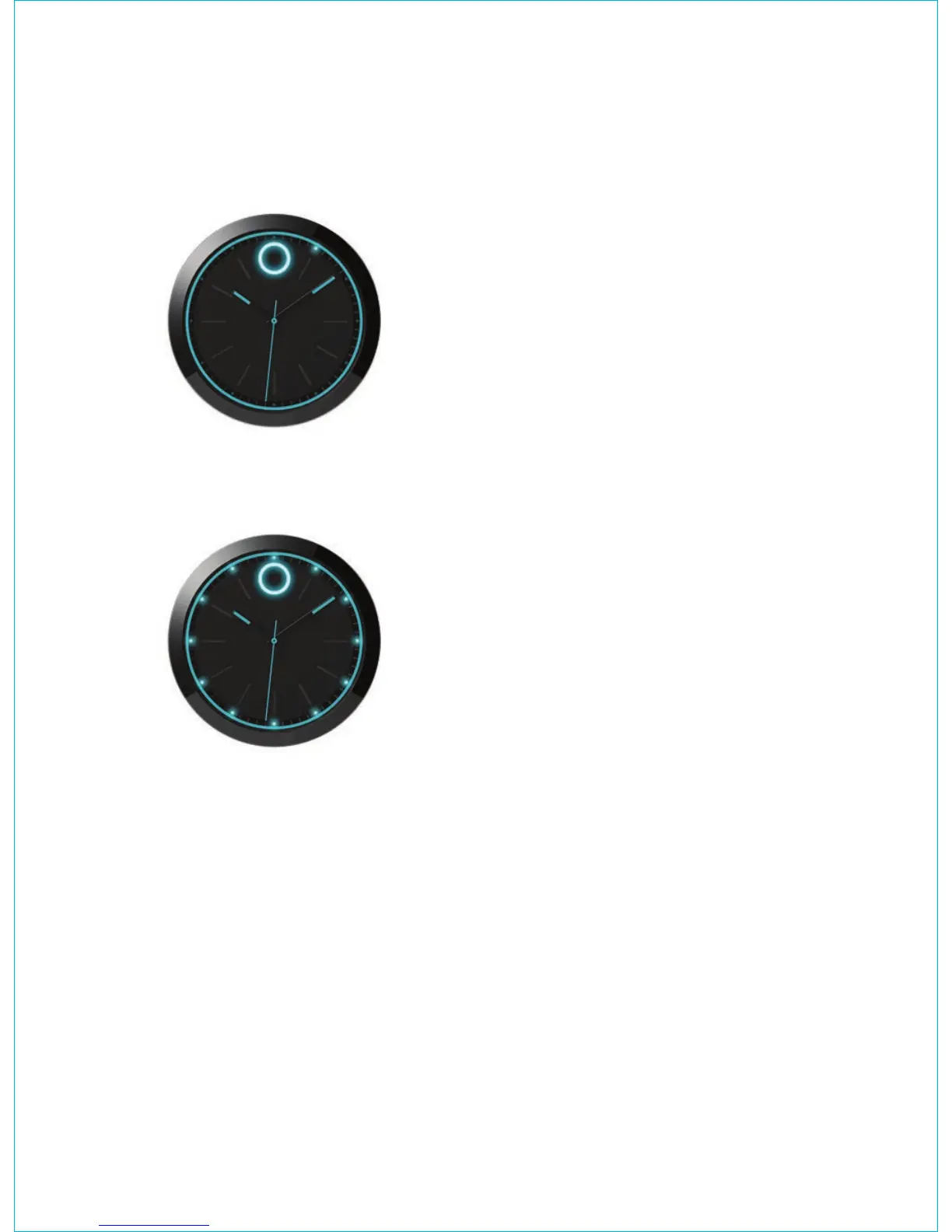
When the first contact in your favorite contacts list calls or
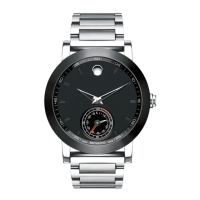
messages you, the Movado dot and the one o’clock light
illuminate.
When the second contact in your favorite contacts list
calls or messages you, the Movado dot and the lights
from one o’clock to two o’clock illuminate. When the
third contact in your favorite contacts list calls or messages
you, the Movado dot and the lights from one o’clock to
three o’clock illuminate. This pattern continues for all
favorite contacts, so that when the twelfth contact in your
favorite contacts list calls or messages you, the Movado
dot and the lights from one o’clock to twelve o’clock
illuminate.
To change the custom notification for a favorite contact,
edit your favorite contacts list to change their position in
the list.
Receiving notifications from favorite contacts only
To receive call and text message notifications from only
your favorite contacts:
1. In the phone app, select NOTIFICATIONS.
2. Next to FAVORITE CONTACTS, tap the slider next to
EDIT to turn notifications from only favorite contacts on
or off.
MANAGING QUIET MODE
By default, quiet mode is on and only incoming call and
calendar event notifications are enabled. You will receive
incoming call and calendar event notifications from 7
o’clock AM to 10 o’clock PM.
You can manage this setting the phone app to adjust the
time period when notifications are disabled or to turn
quiet mode off.
To configure quiet mode:
1. In the phone app, select PREFERENCES.
2. Select the slider next to SILENCE WATCH
NOTIFICATIONS BETWEEN XX and XX to turn quiet
mode on or off. This starts and ends quiet mode at
a specific time and can be set to reoccur, like an
alarm. Only device alerts and specifically configured
notifications are displayed on the watch in this mode.
All lights on the watch dim.
3. Click the time next to START TIME or END TIME to set
the start and end times.
MANAGING THE CONNECTION BETWEEN YOUR
WATCH AND THE PHONE
Verifying the Bluetooth connection status on the watch
From ANALOG VIEW, press the watch button four times
to display BLUETOOTH VIEW.
In BLUETOOTH VIEW, the lights show the Bluetooth
connection status between your watch and your phone.
See Page e for dial illustrations.
Verifying the Bluetooth connection status on the phone
app
The status of the Bluetooth connection between your
watch and your phone is displayed at the bottom of the
home screen, next to the watch graphic.



 To Next Page