6
MOVADO BOLD MOTION USER GUIDE
UNDERSTANDING YOUR NOTIFICATIONS
You can use the Movado BOLD app to push notifications
from any third-party app on your phone to the watch.
This includes calendar, messaging, email, and social
media apps. Other third-party apps can also be found
under the OTHER section on the Notification screen of
the phone app.
The watch uses lights and vibration patterns to alert you
when you receive a notification on your phone. You
can customize how and when most notifications occur,
including setting the notification to high priority or low
priority. All notification vibrations not enabled by default
are automatically set to low priority. For information about
changing the priority of a notification, see the section of
this guide about customizing that notification.
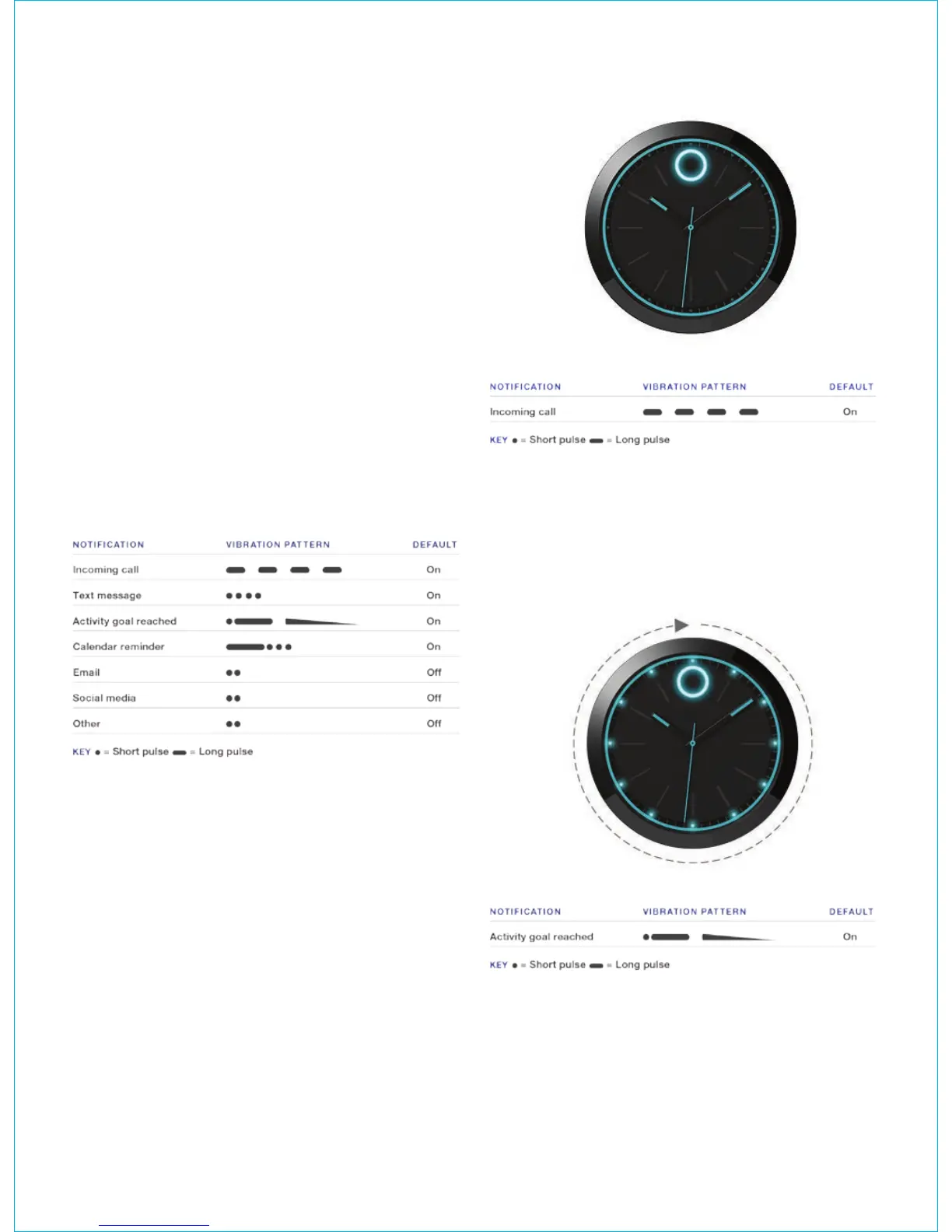
The following table describes the default vibration
patterns for notifications.
To dismiss a notification or decline a call, press the watch
button once.
Incoming call notifications
When you have an incoming call, the Movado dot
pulses. The watch vibrates using long pulses until the
call is answered or declined. To decline a call, press
the watch button once.
Progress tracker goal reached notification
When you reach your daily step goal, the Movado dot
illuminates and then all other lights illuminate in sequence.
The watch vibrates three times, one short pulse followed
by one long pulse and one pulse that gradually fades.



 To Next Page