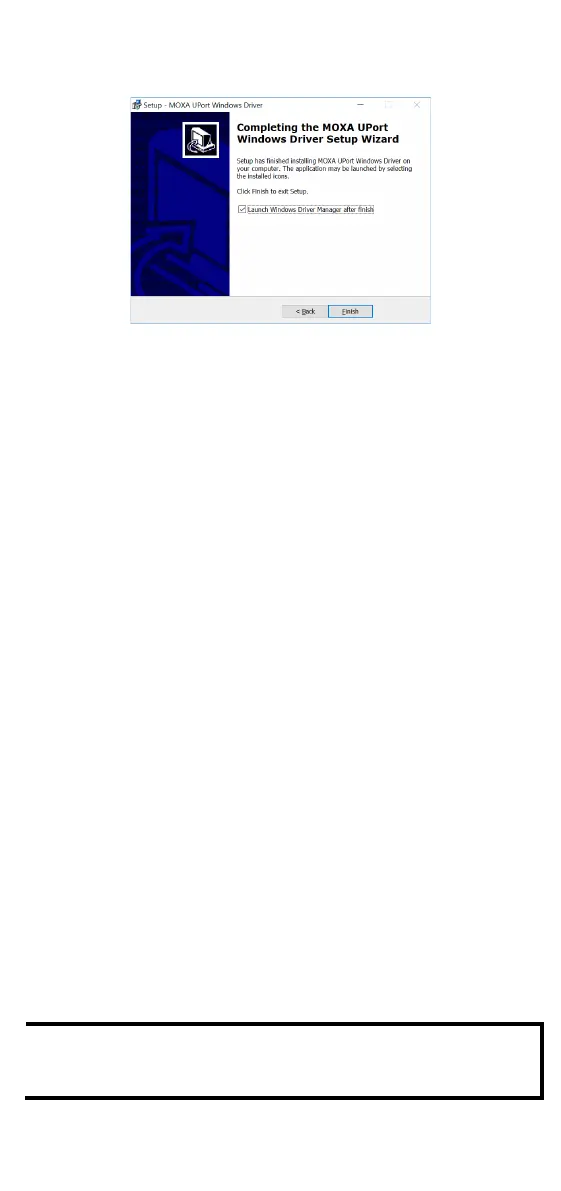
- 6 -
9. Check Launch Windows Driver Manager after finish to
configure the UPort after quitting the driver installer.
Installing the macOS Driver
For macOS 10.12 and later, follow the steps below to install the driver
1. Enter recovery mode.
2. Disable System Integrity Protection (SIP) by typing 'csrutil disable' in
the terminal.
3. Return to normal mode.
4. Launch the UPort driver installer and finish the installation
procedure.
5. Enter recovery mode again.
6. Enable System Integrity Protection (SIP) by typing 'csrutil enable' in
the terminal.
7. Return to normal mode.
For detailed instructions, please refer to the UPort 1200/1400/1600
User’s Manual on the product webpage or the ‘readme.txt’ in the driver
installation package.
Installing the Linux Driver Linux Kernel
Execute the following commands from the Linux prompt:
# CD /moxa
# tar xvfz driv_linux_uport_[VERSION]_[BUILD].tgz
Find "Makefile" in /moxa/mxuport, then run
# make install
# modprobe mxuport
For further information, please refer to readme.txt that comes with the
driver.
Serial Port Pin Assignments
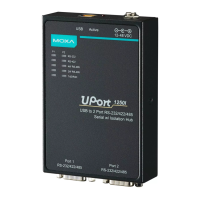
The serial ports on the UPort 1200/1400/1600 have DB9 male
connectors. Refer to the following table below for t he RS -232 and RS-
422/485 pin assignments.
For UPort with DB Male Serial Ports, you may refer to DB9 Male
Ports pin assignment section to loop back pin 2 and pin 3 for
the RS-232 interface to carry out a self-test on the device.


 To Next Page
 Loading...