Page 11
scrolling (swiping) image to the left-right using touch screen;
pressing button “ ” on the front panel;
making a direct choice of the required screen by tapping / touching interactive
button bottom-up with a number of the relevant screen;
b. transfer to configuration mode.
2.3.5 Select of active screen
The Product allows for configuration of up to 10 screens. Each screen can be con-
figured to display required NMEA data in any of three available modes: graphic, digital
of in graphs.
The user changes the screens manually in the same order as they were pre-
configured, by scrolling them using “ ” button on the front panel.
Since the Product is equipped with a touch screen, the screens can be changed by
swiping to the left-right.
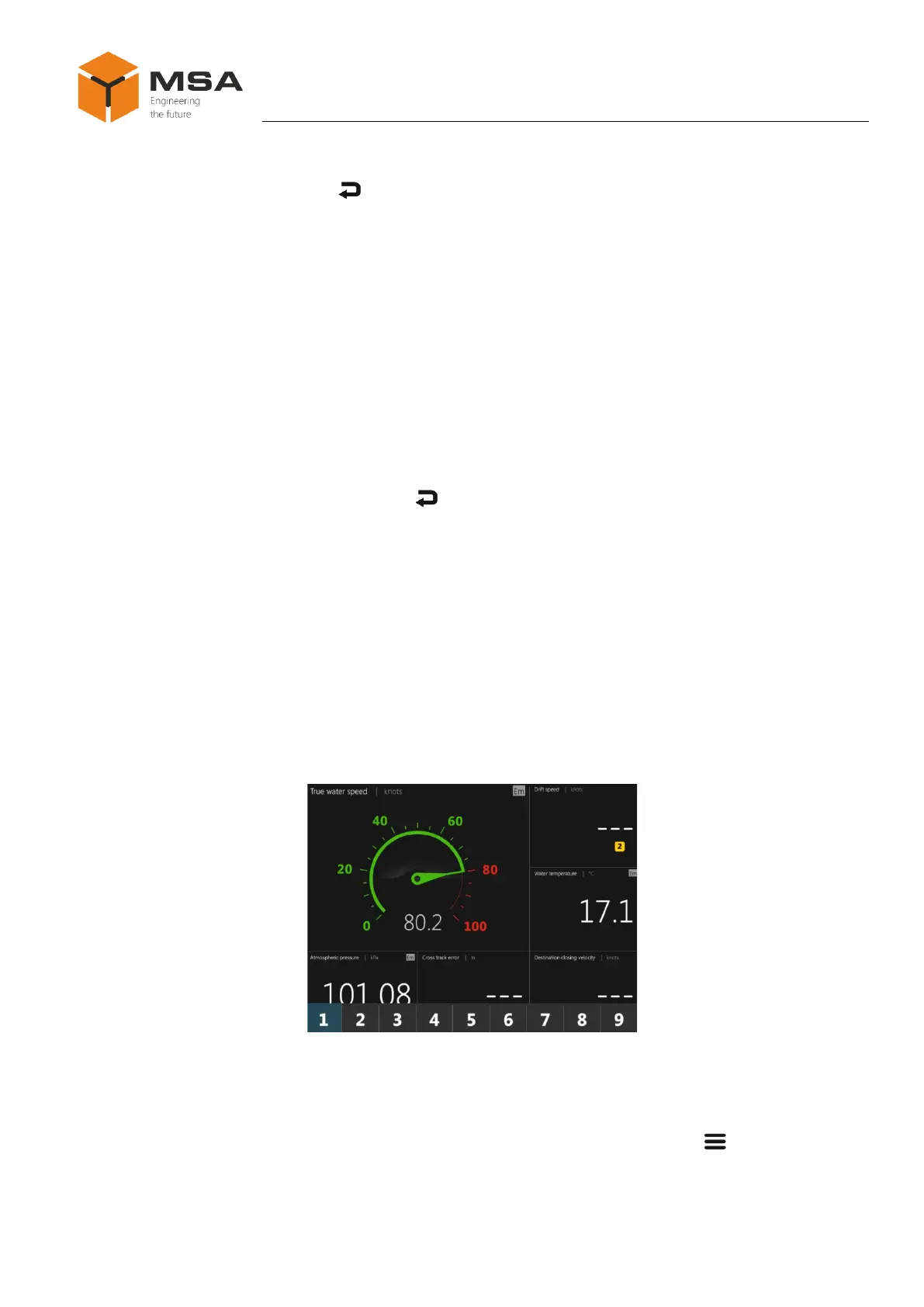
The screens can be also changed by pressing touch buttons «1», «2»… «10» on
the pop-up panel located at the bottom, see Figure 4. To call out letter/symbol panel the
user shall imitate screen swiping from bottom to top.
As soon as the Product is switched on (after de-energizing due to power failure or
the Product shut down), the screen will display the content, which was on the screen be-
fore de-energizing for more than 10 seconds or the previous screen (less than 10 seconds).
Figure 4 – Touch buttons to transfer to the required screen
2.3.6 Configuration / settings menu
To access the configuration menu of the Product, tap button “ ” on any infor-
mation screen. The structure of the configuration menu is represented in Figure 5.



 To Next Page