Page 24
The description of the numeric panel buttons is represented in Table 13.
Table 13 – The description of the numeric panel buttons
«0», «1», «2», «3», «4», «5»,
«6», «7», «8», «9»,
« . », « : », « - »
To add a relevant symbol into an entry field
To delete one symbol from the left in the selected entry field
To confirm the changes and hide the numeric panel
2.3.12 Tab page Displays
Displays tab page is designed to select a screen layout, configure modes of data
display, select types and sources of the displayed data, and edit configured screens, see
Figure 16.
The structure of Displays tab page is represented in Figure 16. The following con-
trols are located on Displays tab page, see Table 14.
Table 14 – The controls of Displays tab page
«0», «1», «2», «3», «4», «5»,
«6», «7», «8», «9», «10»
Buttons to change the current screens
To edit a screen (window)
To delete a screen (window)
To apply the selected settings
To cancel the selected settings
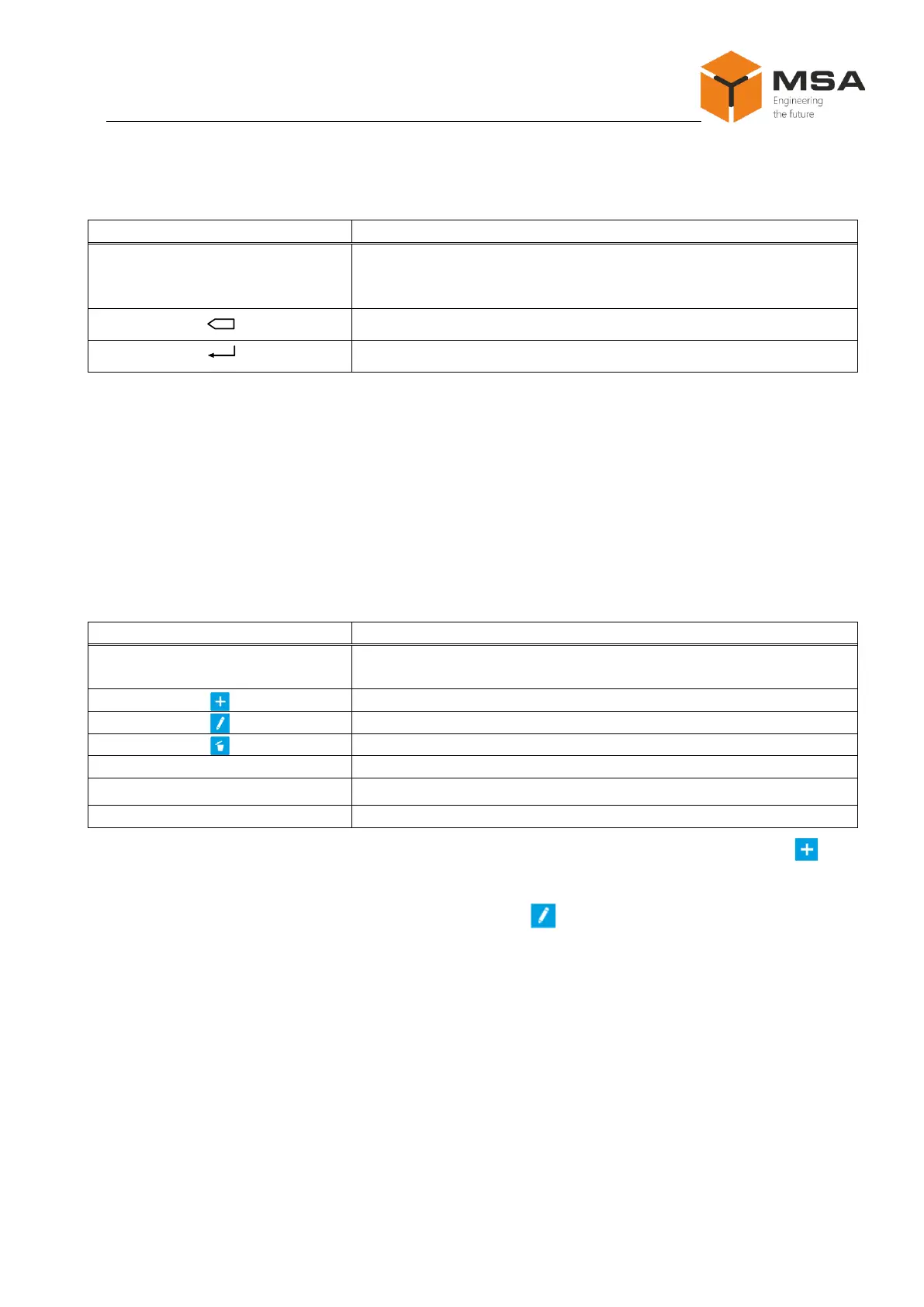
To add a new screen (if less than 10 screens are pre-configured), press « » in
the right bottom corner.
To provide settings or edit a screen, press « ».
If several screens have already been set, only that screen which was currently
displayed on the monitor is available for the editing. To edit another screen, press the
relevant number (1, 2, 3…10) at the monitor bottom.



 To Next Page