EasyManua.ls Logo

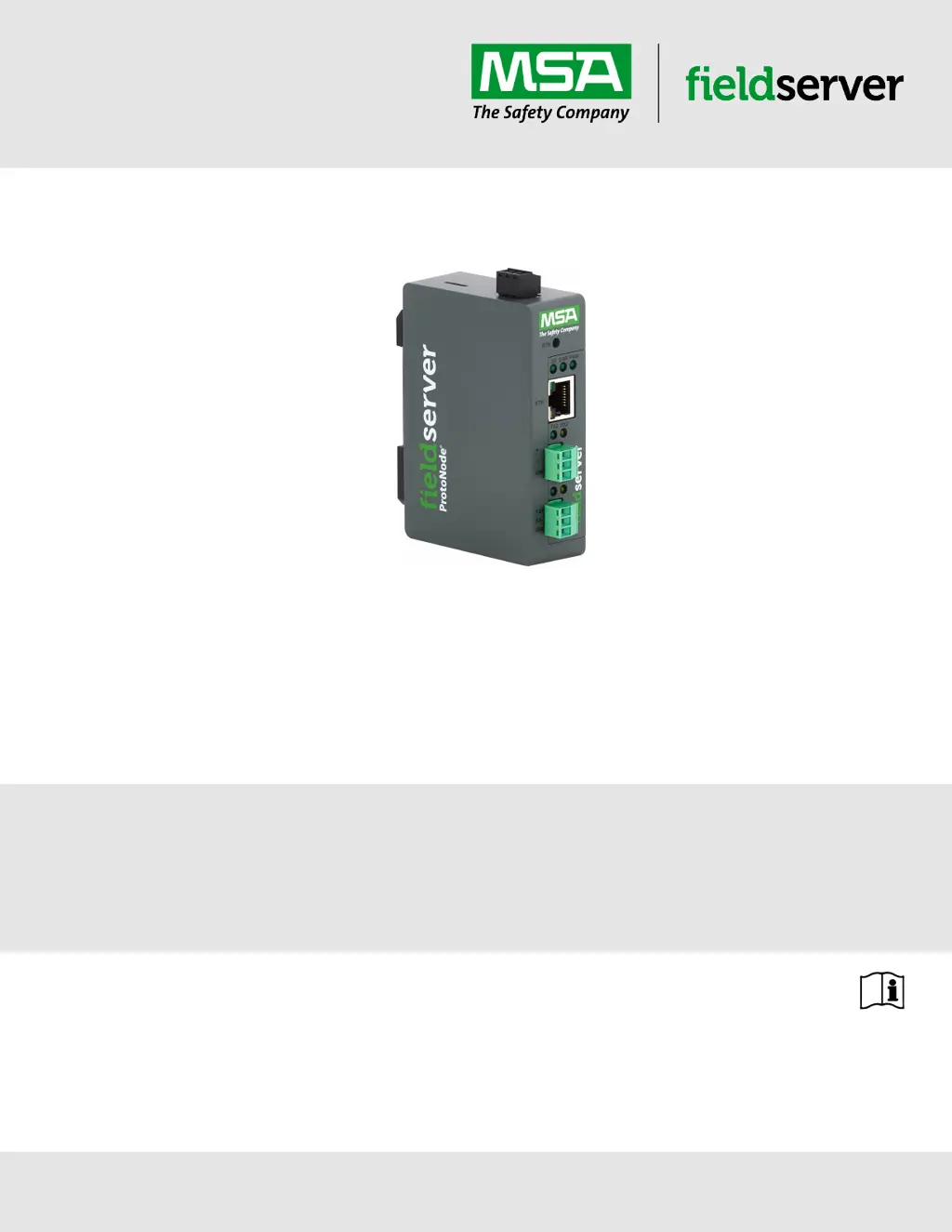
MSA fieldserver ProtoNode FPC-N54 - User Manual

MSA fieldserver ProtoNode FPC-N54
40 pages
Print Icon
To Next Page IconTo Next Page
Loading...
Operating Manual
ProtoNode FPC-N54 for Interfacing Lochinvar Products
Revision: 7.C
Document No.: CN1998
Print Spec: 10000005389 (EO)
MSAsafety.com

Table of Contents

Other manuals for MSA fieldserver ProtoNode FPC-N54

Questions and Answers

  • M
    mcuevasAug 2, 2025
    What to do if I have a lost or incorrect IP address for my MSA Gateway?
    • J
      Jeffrey ArnoldAug 2, 2025
      To resolve a lost or incorrect IP address for your MSA Gateway: * Ensure FieldServer Toolbox is installed on your PC, download it from the MSA Safety website if needed. * Extract the executable file and complete the installation. * Connect your PC to the ProtoNode using a standard Cat-5 Ethernet cable. * Open the FS Toolbox Utility and click 'Discover Now'. * Check for the IP Address of the gateway.
  • J
    Jonathon SmithAug 6, 2025
    How to resolve field COM problems with my MSA Gateway?
    • R
      Ronnie FranklinAug 6, 2025
      To resolve field COM problems: * Start with visual checks of the LEDs on the ProtoNode. * Verify the wiring. * Verify the IP Address setting. * If the problem persists, take a Diagnostic Capture and send it to support.
  • T
    Tracy PerryAug 11, 2025
    What Internet browsers are supported by MSA Gateway?
    • C
      Christine HollandAug 11, 2025
      The following web browsers are supported by MSA Gateway: * Chrome Rev. 57 and higher * Firefox Rev. 35 and higher * Microsoft Edge Rev. 41 and higher * Safari Rev. 3 and higher. Also, ensure computer and network firewalls are open for Port 80 for the FieldServer GUI to function correctly.
  • M
    Melissa DownsAug 15, 2025
    How to view diagnostic information on my MSA Gateway?
    • C
      Catherine MooreAug 15, 2025
      To view diagnostic information on your MSA Gateway: 1. Type the IP Address of the FieldServer into a web browser, or use the FieldServer Toolbox to connect to the FieldServer. 2. Click on 'Diagnostics and Debugging', then 'view', and then 'connections'. 3. If errors appear on the Connection page, refer to Section 7.3 Checking Wiring and Settings for the relevant wiring and settings.
  • J
    Joshua TaylorAug 19, 2025
    What to do if I can't resolve an on-site problem with my MSA Gateway?
    • L
      Lawrence MayerAug 19, 2025
      If you are unable to resolve an on-site problem: 1. Perform a Diagnostic Capture. 2. Email it to technical support. 3. Access the FieldServer Diagnostics page via the FieldServer FS-GUI page (click Diagnostics) or the FieldServer Toolbox software (click the diagnose icon). 4. Go to Full Diagnostic and select the capture period. 5. Click the Start button to start the capture. 6. When finished, click Download to save the capture to your PC. 7. Email the diagnostic zip file to technical support (smc-support.emea@msasafety.com).
  • A
    anthony62Aug 25, 2025
    What to do if there are no COMS on the serial side of my MSA Gateway?
    • M
      Michael WhiteheadAug 25, 2025
      If the Tx/Rx LEDs are not flashing rapidly, it indicates a COM issue. You can visually observe the LEDs on the ProtoNode. * Check the baud rate, parity, data bits, and stop bits. * Check the device address. * Verify the wiring. * Verify the device was listed in the Web Configurator.
  • T
    Tiffany GonzalezAug 28, 2025
    What does the SYS ERR LED indicate on my MSA Gateway and what should I do?
    • K
      Kimberly VegaAug 28, 2025
      If the SYS ERR LED is lit, immediately report the "system error" shown in the error screen of the FS-GUI interface to support for evaluation.

Summary

Technical Support

Quick Start Guide

Introduction

ProtoNode Gateway

Explains the ProtoNode wireless gateway's function, connectivity, and preloaded configurations.

Setup for ProtoNode

Record Identification Data

How to find and record the ProtoNode's unique part number for technical support.

Point Count Capacity and Registers per Device

Details the total register limits for devices connected to the ProtoNode.

Configuring Device Communications

Ensures COM settings (baud rate, data bits, stop bits, parity) match between devices and ProtoNode.

Device Connections to ProtoNode

Explains connecting RS-485 devices using the 3-pin Phoenix connector on the R1 port.

Wiring Field Port to RS-485 Serial Network

Instructions for connecting RS-485 network wires to the R2 port, including grounding.

Bias Resistors

How to enable bias resistors to keep the RS-485 bus in a known state when idle.

Termination Resistor

How to enable the end-of-line termination switch to reduce noise on the serial trunk.

Power up the Gateway

Connect the PC to the Gateway

Connecting to the Gateway via Ethernet

How to connect the PC to the ProtoNode using a Cat-5 Ethernet cable.

Setup Web Server Security

Navigate to the Login Page

Steps to access the FieldServer's default IP Address via a web browser.

Login to the FieldServer

Handling browser security warnings and logging into the FieldServer GUI.

Select the Security Mode

Options for selecting the web server security profile (HTTPS/HTTP).

HTTPS with Own Trusted TLS Certificate

Recommended secure option using a company-provided TLS certificate.

HTTPS with Default Untrusted Self-Signed TLS Certificate or HTTP with Built-in Payload Encryption

Options for using self-signed certificates or HTTP with encryption.

Configure the ProtoNode

Select Field Protocol and Set Configuration Parameters

How to select the field protocol and set basic configuration parameters like baud rate.

Setting Active Profiles

How to add and manage device profiles for active configurations.

Verify Device Communications

Checks for successful serial communication via LEDs and software status.

Ethernet Network: Setting IP Address for the Field Network

Guide to configuring the ProtoNode's IP address and network settings.

BACnet: Setting Node_Offset to Assign Specific Device Instances

How to set the Node_Offset for assigning BACnet device instances.

How to Start the Installation Over: Clearing Profiles

Instructions for clearing existing profiles and restarting the unit for reinstallation.

Troubleshooting

Lost or Incorrect IP Address

Steps to find a lost or incorrect IP address using FieldServer Toolbox.

Viewing Diagnostic Information

How to view diagnostic information via web browser or FieldServer Toolbox.

Checking Wiring and Settings

Troubleshooting COM issues by checking LEDs, baud rate, wiring, and settings.

LED Functions

Explains the meaning of the status LEDs (SS, ERR, PWR, RX, TX) on the ProtoNode.

Factory Reset Instructions

Reference to instructions for resetting the FieldServer to its factory released state.

Internet Browser Software Support

Lists supported web browsers and firewall requirements for GUI access.

Taking a FieldServer Diagnostic Capture

How to perform a diagnostic capture for troubleshooting and email it to support.

Additional Information

Update Firmware

Instructions for loading a new version of the firmware onto the unit.

BACnet: Setting Network_Number for More Than One ProtoNode on the Subnet

How to assign unique Network_Numbers for multiple ProtoNodes on the same subnet.

Mounting

Information on mounting the gateway using the DIN rail mounting bracket.

Certification

Explains the BTL Mark and its significance for BACnet products.

Physical Dimensions

Provides the physical dimensions and port labels of the ProtoNode.

Change Web Server Security Settings After Initial Setup

How to modify web server security settings after the initial setup.

Edit the Certificate Loaded onto the FieldServer

How to edit the loaded certificate for HTTPS with own trusted TLS certificate.

Change User Management Settings

How to manage user accounts, roles (Admin, Operator, Viewer), and passwords.

Create Users

Step-by-step guide to creating new user accounts with security groups and passwords.

Edit Users

How to modify existing user security groups and passwords.

Delete Users

Procedure for deleting user accounts from the system.

Change FieldServer Password

How to change the general login password for the FieldServer.

Routing Settings

How to configure IP routing rules for the FieldServer's internet and network connections.

Vendor Information - Lochinvar

Veritus and Emerge_X Modbus RTU Mappings to BACnet and Metasys N2

Table mapping Lochinvar device points to BACnet Object Type, ID, and N2 Address.

Specifications

Warnings

FCC Class B digital device compliance and interference mitigation guidelines.

Compliance with EN IEC 62368-1

Requirements for EN IEC compliance, including power supply and installation conditions.

Limited 2 Year Warranty

MSA fieldserver ProtoNode FPC-N54 Specifications

General IconGeneral
Device TypeGateway
ModelFPC-N54
Product LineProtoNode
ManufacturerMSA
BrandMSA
Serial Ports2
Power Supply24VAC/DC
Operating Temperature-40°C to 70°C
CertificationsCE, UL
Protocol SupportModbus TCP, Modbus RTU

Related product manuals